Last Updated: October 18, 2026
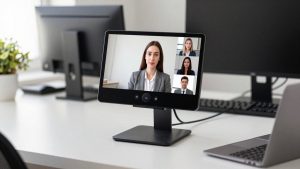
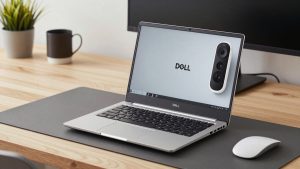
If your laptop webcam looks soft and noisy, a cheap standalone camera can be a real upgrade – but only if you pick one that is easy to keep connected for work calls. For Zoom, Teams, and Meet, reliability matters more than sensor size.
Most people mean one of three things by “cheap camera to use as webcam”: a basic USB webcam, a photo/video camera you already own repurposed as a webcam, or a cheap action cam / camcorder left on your desk. They behave very differently for daily work use.
📄 In This Review
What actually matters for work calls
Video calls are 720p or 1080p, heavily compressed. You do not need 4K. What you notice is exposure, white balance, autofocus stability, audio sync, and whether the camera drops connection after 40 minutes.
The biggest failure modes with cheap cameras used as webcams are overheating, auto shutoff after 15-30 minutes, bad continuous autofocus that hunts, and micro-HDMI ports that come loose. Also check power: if it cannot charge over USB while streaming, it is not a good full-time work camera.
For Mac users in particular, check UVC webcam compatibility. A camera that works as plug-and-play USB webcam on Windows may need vendor software or a capture card on macOS. If you use a work laptop with locked-down software installs, prefer a camera that shows up as a standard USB Video Class device with no driver needed.
The simplest option: a cheap dedicated webcam
See also: Best Monitor for MacBook Air: Two USB-C 4K Screens and Six Adapter-Dependent Alternatives • Best Monitor for MacBook Pro: Eight Listings Sorted by Cable, Sharpness and Scaling
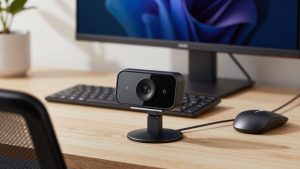
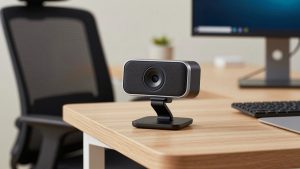
For most home office workers, the cheaper option is fine: buy a basic 1080p webcam from a known webcam brand and spend 10 minutes on lighting. It will beat a laptop camera and it will just work every morning.
Where cheap webcams fall short is small sensors and fixed exposure. In a dark room you get grain. In backlight from a window you get a white face or white background. A $35 webcam plus a $20 desk light facing you usually looks better than a $150 webcam in a bad room.
This suits you if you want plug-and-play, use a company laptop, switch between Zoom and Teams, and do not want extra batteries, HDMI adapters, or camera menus. If you already own a mirrorless camera, though, read on before you buy another webcam.
Cheapest upgrade: use a camera you already own
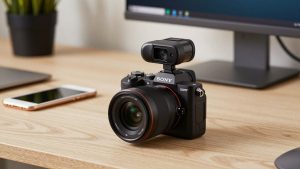
If you have an older mirrorless, DSLR, or compact camera with clean HDMI or USB streaming mode, try it first. Many Canon, Sony, Nikon, Fujifilm, and Panasonic bodies from the last 6-7 years can act as USB webcams with the maker’s free utility, or as HDMI sources through a capture card.
USB streaming is simpler: one USB cable to your laptop or Mac, select the camera in Zoom. Quality is often limited to 720p or compressed 1080p, but framing and color are usually nicer than a cheap webcam. The catch is battery drain and heat. Get a dummy battery / AC coupler if you will use it daily, and turn off auto power-off and in-body sleep.
HDMI plus a capture card looks better and avoids some vendor software quirks, but adds cost and another failure point. It suits a fixed home office desk where the camera never moves. It does not suit a laptop you carry to different rooms.
Before buying anything, test: does it stay on for a 60-minute call without overheating warning, does autofocus stay locked on your face, and does audio stay in sync? If it passes those three, you may not need to buy anything except a small tripod and continuous power.
If you are buying a cheap camera specifically for this
Do not buy a cheap DSLR or mirrorless body just for Zoom unless you also want it for photos. By the time you add lens, tripod, dummy battery, and possibly a capture card, you are no longer in “cheap webcam” territory.
Three categories make sense as low-cost dedicated call cameras:
1. Used mirrorless with USB webcam mode: Best image quality per dollar if you find a clean used body and kit lens. Look for clean HDMI, no recording time limit, USB charging while operating, and face/eye autofocus. Downsides are size on a desk, fan noise in some rooms, and the need to learn menus. Good for a permanent home studio setup.
Browse used mirrorless camera kits only if you are comfortable checking shutter count, battery health, and return policy.
2. Budget action camera: Small, wide angle, good for a cluttered desk because you can mount it close. Many can work as USB webcams. Trade-offs are fixed wide perspective that distorts your face up close, poor low light, and heat on long calls. They suit standing desks, workshops, or demo videos more than daily talking-head meetings. For a normal desk call, a narrow field of view looks more natural.
A practical starting point is to compare budget action cameras with webcam mode and confirm USB webcam support and continuous USB power in the specs, not just “live streaming.”
3. Cheap camcorder: Often overlooked. Camcorders are designed for long recording times, smooth continuous autofocus, and running on wall power. Image looks video-like rather than cinematic, which is actually good for work. Downsides are smaller sensors, mediocre stills, and clunky menus. Good for someone who wants to set it once and leave it.
Check budget camcorders with clean HDMI if your plan is HDMI to a capture card on a fixed desk.
Quick comparison
| Option | Typical cost | Setup hassle | Best for | Watch out for |
|---|---|---|---|---|
| Basic 1080p webcam | Low | Low | Work laptops, shared computers, travel | Grain in low light, harsh auto exposure |
| Mirrorless / DSLR you own | Low if owned | Medium | Fixed home office, nicer background blur | Overheat, 30-min shutoff, battery drain |
| Used mirrorless bought for calls | Medium | High | Home studio, YouTube + calls | Lens, power adapter, capture card add up |
| Action camera | Low-Medium | Medium | Small desks, demos, overhead shots | Too wide, heat, weak low light |
| Camcorder | Medium | Medium | Long meetings, leave-it-on setup | Needs HDMI capture, average in dim rooms |
Setup that matters more than the camera
Put the lens at eye level, about arm’s length away. Face a window or lamp; do not sit with a bright window behind you. Set exposure manually if the camera allows it, lock white balance to daylight or 5600K, and turn off beauty filters for work.
Use a mini tripod or clamp mount so the image does not wobble when you type. If using HDMI, use a short, quality micro-HDMI to HDMI cable with strain relief – that loose port is the number one cause of black screens mid-call. Keep a cheap webcam plugged in as backup and select it in Zoom if the main camera drops.
For audio, do not rely on a camera three feet away. A USB headset or desk mic will improve call clarity more than any camera upgrade. If you must use camera audio, test for fan noise and echo first.
FAQ
Can I use any cheap digital camera as a webcam?
No. You need either USB webcam / streaming mode or clean HDMI output with no menus or overlays. Check for auto power-off disable, continuous power over USB or dummy battery, and no overheating on 60-minute sessions.
Do I need a capture card?
Only if you are using HDMI output. USB webcam mode does not need one. A capture card adds cost and complexity, so for work laptops and Macs, a native USB webcam connection is usually more reliable.
Why does my camera turn off during long meetings?
Usually power saving, recording time limits, or overheating. Disable auto power-off, use wall power instead of battery, lower resolution to 1080p, flip out the screen for airflow, and avoid charging in direct sun.
Is a cheap camera better than a cheap webcam for work?
Image quality can be better, especially color and background blur, but reliability is often worse. If you want zero fuss for daily standups, keep a basic webcam. Use a real camera when you control the desk, power, and lighting.