Last Updated: October 18, 2026
If you spend your day on Zoom, Teams, or Google Meet, your camera matters more than your laptop speed. Most built-in laptop cameras are still 720p or soft 1080p with small sensors that fall apart in typical home office light. You do not need a studio setup to look sharp, but you do need to match the camera type to your room, your Mac or PC, and how often you present.
📄 In This Review
What actually matters for video calls
Resolution numbers are misleading. A good 1080p webcam with a larger sensor and decent lens will look better than a cheap 4K webcam that overheats and drops frames. For calls, prioritize autofocus speed, exposure handling, and low-light performance over maximum pixels. Most conferencing apps compress you to 720p or 1080p anyway.
Autofocus is the biggest real-world divider. Fixed-focus cameras are set to be sharp from about 40cm to infinity. That is fine if you sit still at a desk, but if you lean in to show documents or move back and forth, you will go soft. Autofocus keeps you sharp, but cheap autofocus hunts and pulses every few seconds, which is distracting on a client call.
Field of view is next. A 65 to 78-degree field of view frames just you and looks natural in a small office. An 85 to 95-degree wide-angle fits two people or shows more of your room, but it makes you smaller in frame and reveals clutter. Digital auto-framing can help if you pace, but it crops the sensor and adds noise.
Do not count on the built-in microphones for important calls. Even good webcam mics pick up keyboard noise, room echo, and fan hum. They are fine as a backup when your headset dies, but if you talk for hours, a separate USB mic or headset will do more for how professional you sound than any camera upgrade.
The main options compared
See also: Best Monitor for MacBook Air: Two USB-C 4K Screens and Six Adapter-Dependent Alternatives • Best Monitor for MacBook Pro: Eight Listings Sorted by Cable, Sharpness and Scaling
There are really four paths: stick with your laptop camera, buy a basic USB webcam, step up to a mid-range autofocus model, or use a larger camera you already own. Here is how they break down from daily use:
| Option | Best for | Typical image | Main trade-off |
|---|---|---|---|
| Built-in laptop camera | Casual calls, travel | 720p to 1080p, soft, noisy in low light | No cost, but poor angle and grainy in evening light |
| Budget 1080p fixed-focus USB webcam | Desk workers who sit still | Sharper than laptop if light is good | Fails in dim rooms; no real autofocus |
| Mid-range 1080p / 1440p autofocus webcam | Daily Meet / Teams / Zoom users | Consistent focus, better exposure | Costs more; needs USB-A or USB-C port free |
| 4K USB webcam | Presenters who crop or want auto-framing headroom | Detailed in good light, flexible cropping | More heat, higher CPU use, often needs manual settings |
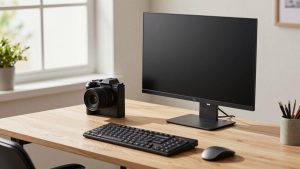
| Mirrorless camera as webcam | Creators, coaches, heavy presenters | Best depth and low-light look | Complex, expensive, needs power, HDMI capture or USB streaming mode |
Who should buy what
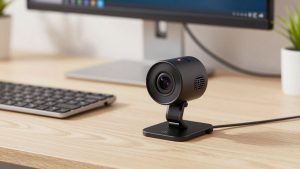
If you take two to three calls a day and sit in front of a window or a decent overhead light, the cheaper option is fine. A basic 1080p fixed-focus webcam for laptop on top of your monitor will beat any MacBook or ThinkPad built-in simply because it is at eye level and has a slightly larger lens. Mount it at eye level, about an arm’s length away. The failure mode here is dim rooms: fixed-focus budget models turn blotchy and lose detail after 5pm if you rely on a single ceiling bulb. Add a $25 desk lamp bounced off a wall and you fix 80 percent of it.
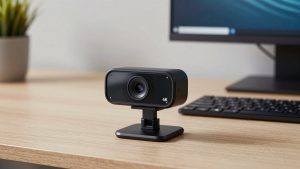
If you present, interview, teach, or lead a team, get a mid-range autofocus model. Look for a 1080p autofocus webcam with dual mic with a 1/2.5-inch class sensor or larger and software that lets you turn off auto exposure. In testing, this is where hunting stops, skin tones stabilize, and backlight from windows stops blowing you out. Who it suits: home office workers on calls 3+ hours a day, managers, therapists, tutors. Who should skip it: if you are always moving between couches and kitchens, autofocus will still struggle and a laptop may actually be more practical.
4K only makes sense for specific cases. If you want to digitally zoom to a head-and-shoulders crop while keeping the camera farther back, or you use auto-framing to follow you at a whiteboard, extra pixels help. A 4K webcam for video conferencing also helps if you record training videos locally while also streaming at lower resolution. Trade-offs are real: they run warm, some drop to 30fps or lower at full resolution, and on older Intel Macs or thin ultrabooks they can stutter unless you drop them to 1080p in the app settings. Do not buy 4K expecting others to see 4K — Zoom and Teams will compress you anyway. Buy it for flexibility, not raw sharpness on calls.
Using a mirrorless camera or GoPro-style camera as a webcam looks great, but it is not a casual upgrade. You need continuous power (dummy battery or USB-PD), a tripod or monitor mount, and either a clean HDMI capture dongle or the manufacturer’s USB webcam mode, which often limits you to 1080p30 with a crop. Failure modes include overheating after 60-90 minutes, autofocus breathing during screen share, and audio sync drift. It suits YouTubers and course creators who already own the camera. For pure meetings, it is overkill.
Laptop and Mac notes
On Windows, almost every USB webcam is plug-and-play, but background blur and auto-framing features may require a companion app. On Mac, check macOS compatibility explicitly. Many mid-range and 4K webcams need their vendor app for firmware updates, and some advanced features like Windows Hello IR login do not work on Mac at all. If you use a MacBook with only USB-C, budget for a direct USB-C webcam or a short, reliable adapter — long cheap USB extension cables cause the most common failure we see: random disconnects and flicker mid-call.
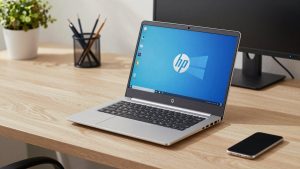
Placement matters more than specs. Laptop cameras shoot up your nose and pick up ceiling lights. Put any external webcam on top of your external monitor at eye level. If you use a laptop on a stand, clamp the webcam to the stand or monitor, not the laptop screen, or every keystroke will wobble your video.
Simple setup that makes any camera look better
Before you return a blurry camera, fix light and settings. Face a window or put a soft white lamp behind your monitor, slightly above eye level. Avoid a bright window directly behind you unless your webcam has good HDR — you will become a silhouette. In the video app, turn offRightLight, auto low-light boost, and beauty filters for testing; they smear detail. Set exposure manually if you can, lock white balance to indoor, and keep the camera 24 to 36 inches from your face.
If your image pulses in and out of focus, move back 6 inches, add light, and turn off continuous autofocus in favor of single autofocus if the software allows. If audio echoes, it is usually room reverb plus open speakers, not the camera. Switch to headphones and lower speaker volume before blaming the mic.
FAQ
Do I need a 4K camera for Zoom or Teams?
No, for most people. Those platforms typically show you at 720p to 1080p after compression. A good 1080p autofocus camera with decent low-light performance will look the same or better than a cheap 4K model, with less heat and CPU load.
Why do I look blurry even with a new webcam?
Usually it is low light, a dirty lens, or being too close for fixed focus. Add light in front of you, clean the lens with a microfiber cloth, sit an arm’s length back, and check that your app is not set to 360p to save bandwidth.
Will a USB webcam work with MacBook Air and MacBook Pro?
Most modern USB webcams work for basic video on macOS, but vendor effects and settings apps vary. Check for explicit macOS support and USB-C compatibility, and plan on using a short high-quality cable or adapter to avoid dropouts.
Should I use my camera’s built-in mic?
Use it as a backup only if you are on calls all day. Even an inexpensive wired headset or a basic USB microphone for video calls home office will sound clearer and pick up less keyboard and room noise.