Last Updated: October 18, 2026
Under $20, you are not buying a great webcam. You are buying a usable webcam, and that is fine for a lot of work calls. If your laptop camera is broken, misted, or stuck at a bad angle, even a basic external camera is an upgrade because you can position it properly and get a cleaner microphone signal.
The trick is knowing where that $20 goes furthest, and where it falls apart. At this price, lighting and placement matter more than the spec sheet.
📄 In This Review
What $20 actually buys right now
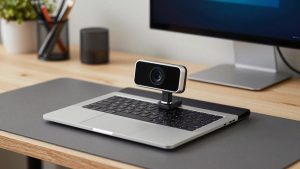
Most webcams under $20 fall into two groups: basic 720p cameras with fixed focus, and no-name 1080p cameras that technically output 1080p but do not look like it in a dim home office. Both usually have a small sensor, plastic lens, dual pinhole mics, and a clip that fits a laptop lid or thin monitor.
For Teams, Zoom, Google Meet, and Webex, that is usually enough to be seen and heard. Faces will look softer than a Logitech C920 or built-in MacBook camera, colors will be flatter, and low light will be noisy. But for status meetings, check-ins, and job interviews in daylight, coworkers will not struggle to follow you.
What you do not get under $20 is reliable autofocus, good auto-exposure, wide dynamic range, background blur without software help, or a microphone that isolates your voice in a noisy room. If the listing promises all of that, assume the listing is optimistic.
When the cheapest option is fine
See also: Best Monitor for MacBook Air: Two USB-C 4K Screens and Six Adapter-Dependent Alternatives • Best Monitor for MacBook Pro: Eight Listings Sorted by Cable, Sharpness and Scaling
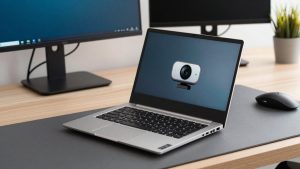
A sub-$20 webcam is fine if you take 2-5 calls per week, mostly in a quiet room, with decent window light or an overhead light in front of you. It is also fine as a stopgap: broken laptop camera, temporary desk setup, second camera for a whiteboard or document view, or a kids-school laptop where you do not want to spend much.
It is not ideal if you present to clients all day, record training videos, stream, or work in a dark room with a bright window behind you. In those cases you will spend more time fighting grain, washed-out faces, and refocusing than the $15 you saved is worth. Save for the $35 to $70 tier instead.
Mac users should be especially careful. Many ultra-cheap cameras work plug-and-play on macOS for video, but the built-in microphone can be quieter or harsher than on Windows, and there is usually no settings app for Mac. Test in Photo Booth or FaceTime first, then in Zoom. If the mic sounds thin, use AirPods, wired earbuds, or a USB headset for audio and keep the cheap cam for video only.
The best types to buy under $20
Instead of chasing a brand name at this price, shop by type. Brands rotate constantly and reviews are noisy, but the designs are very similar.
1. Basic 720p fixed-focus webcam. This is the safest under-$20 pick. Resolution is lower, but fixed focus means fewer hunting and pulsing issues during calls. Look for 30 fps, USB-A, a tripod thread, and a clip that actually tightens. A simple 720p webcam with microphone is often more reliable than a dubious 1080p model at the same price.
Who it suits: laptop users with a broken or badly positioned built-in camera, shift workers, students, and anyone who wants plug-and-play without fiddling. Failure mode: soft image in low light and flat colors. Fix most of it by facing a window and adding a cheap desk lamp in front of you.
2. Budget 1080p fixed-focus webcam. These are hit or miss. Some are genuinely sharper than 720p models in good light. Others just upscale a soft sensor and add aggressive sharpening that makes skin look crunchy. If you go this route, choose a plain budget 1080p webcam with fixed focus and manual exposure in the app, not autofocus and beauty filters.
Who it suits: home office workers who take calls in daylight and want slightly crisper slides-and-face framing. Failure mode: slow shutter in dim rooms, which causes motion blur when you move your hands, and autofocus hunting on models that claim autofocus. Test at your actual desk, at your actual call time.
3. Webcam with built-in fill light or bundled ring light. Light helps cheap sensors more than extra pixels do. A tiny LED ring around the lens will not light a whole room, but at arm’s length it reduces grain and evens out shadows. A separate clip-on USB light is usually better because you can angle it. Search for a webcam with ring light for laptop only if your room is dark in the morning or evening.
Who it suits: night-shift workers, basement offices, dorm rooms. Failure mode: harsh hotspot on glasses and shiny foreheads, plus extra USB power draw. Keep brightness at the lowest usable level and move it slightly off-center if you wear glasses.
| Type | Typical image | Focus | Mic | Best for |
|---|---|---|---|---|
| 720p fixed-focus | Soft but stable | No hunting | Basic, usable in quiet room | Reliable daily calls on a budget |
| Budget 1080p fixed-focus | Sharper in good light, noisy in low light | Stable if truly fixed | Basic, often harsh | Daylight home office |
| Budget 1080p autofocus | Can pulse and blur | Unreliable under $20 | Basic | Avoid unless you sit very still |
| With fill light / ring | Better in dark rooms | Usually fixed | Basic | Evening calls, dark rooms |
What to check before you keep it
At this price, quality control is the real spec. When it arrives, do a 5-minute test before your next meeting.
Check focus at your seating distance. Sit where you normally sit, open your meeting app preview, and hold up text. Cheap fixed-focus cameras are usually sharpest at 2 to 4 feet. If you sit farther back, you will look soft no matter what the box says.
Check exposure with your background. If you have a window behind you, you will be a silhouette on almost every sub-$20 camera. Close blinds or shift 90 degrees so light hits your face. No budget webcam can fix strong backlight.
Check the mic with a recording. Record 20 seconds in your normal room with fan, HVAC, or keyboard noise. If your voice is distant or echoey, plan to use earbuds for audio. The camera mic on cheap models picks up room reverb fast, especially on wood desks and in empty rooms.
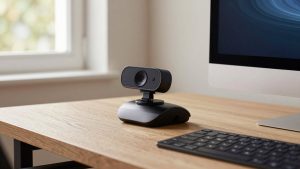
Check mount and cable. Many returns at this price are not about image quality, they are about a loose clip that droops on curved monitors or a 3-foot cable that will not reach a desktop tower. Look for a standard tripod thread on the base. A $9 mini tripod often fixes more frustration than a better sensor.
What to avoid under $20
Avoid autofocus claims under $20. Cheap contrast autofocus hunts when you lean forward, gesture, or hold up paper. On a work call that looks like constant pulsing. Fixed focus is boring and better.
Avoid 4K claims. There is no real 4K webcam for $18. It is interpolated video with very low light performance and often drops frames on older laptops. You will look worse than with a honest 720p feed.
Avoid unusual driver requirements. The right choice is UVC plug-and-play: plug into Windows, Mac, or Chromebook and it shows up in Zoom without installing software. If the manual asks you to install a driver from a random site, return it.
How to make a $17 webcam look like $60
Put the camera at eye level, about an arm’s length away. Stack it on books if needed. Looking slightly down at a laptop camera is flattering to no one and makes the mic point at your chest.
Face soft light. A window in front of you, or a $12 desk lamp bounced off a wall, does more than any sensor upgrade. Turn off a bright overhead behind you if it creates glare on glasses.
In Zoom or Teams, turn off touch-up, low-light boost, and background blur at first. Those software fixes add lag on older machines and can make cheap video smear. Add them back one at a time only if you need them. On Macs, use the meeting app’s HD setting if your upload speed allows it, and close other camera apps that might lock the device.
If audio is your problem, do not buy another webcam. A wired earbud mic two inches from your mouth beats any webcam mic at any price. Use the cheap webcam for video, earbuds for voice, and your meetings will immediately sound more professional.
FAQ
Is 720p enough for work calls?
Yes, for most meetings. Stable 720p with good light and clear audio is easier to watch than jittery fake 1080p in a dark room. Only upgrade if you present, record, or are on camera 4-plus hours daily.
Will a cheap webcam work with Mac?
Usually yes for video over USB, but expect no settings software and mixed mic quality. Test in FaceTime and your meeting app, keep macOS updated, and use a headset mic if your voice sounds thin. Look for listings that specifically say UVC and macOS compatible.
Why does my budget webcam look blurry?
Most often it is low light causing a slow shutter, sitting outside the fixed-focus range, or a protective film still on the lens. Add front light, sit 2 to 4 feet away, remove the film, and clean the lens. If it still pulses in and out, it is likely cheap autofocus hunting.
Should I buy used to get a better camera for $20?
Sometimes. A used mainstream 1080p model from a known brand can beat a new no-name camera for the same money, with better exposure and a sturdier mount. Check shutter hours are not a thing for webcams, but check for scratched lenses, loose hinges, and missing mounts, and buy where returns are easy.