Last Updated: October 18, 2026
Live performance over webcam is unforgiving. Teaching a dance class, playing a live set, doing improv, magic, or theater on Zoom or Twitch means constant movement, changing light, and sound that a normal office call never has to handle. A webcam that looks fine when you sit still at a desk will smear, blow out, or lag the second you step back and move.
The good news: you don’t need a broadcast studio. You need the right trade-offs for motion, low light, field of view, and audio sync. For most performers, a mid-range fixed webcam plus good light beats an expensive camera used badly.
📄 In This Review
What performance needs that office calls don’t
First, autofocus and exposure have to keep up. Cheap office webcams lock focus on your face at arm’s length. When you move 6-10 feet back to show full body, play an instrument, or move side to side, they hunt, pulse, and soften. Look for fast, continuous autofocus and auto-exposure that doesn’t flicker under stage LEDs or warm room lamps.
Second, frame rate matters more than resolution. A sharp 4K image at 15 frames per second looks terrible for dance, drumming, or juggling. You want a true 1080p at 60fps for movement. 4K is useful mainly if you crop in to frame yourself tighter without moving the camera, or if you stream to YouTube and want extra detail when you are still.
Third, field of view and placement decide whether the audience sees the performance. A narrow 65-78 degree office webcam forces you to put the laptop across the room. A 90-degree wide-angle webcam lets you work in a small bedroom or studio, but it distorts edges and makes you look small. For most solo performers, 78-90 degrees with the camera at chest to eye height, 6-8 feet back, is the sweet spot.
The three setups that actually work
See also: Best Monitor for MacBook Air: Two USB-C 4K Screens and Six Adapter-Dependent Alternatives • Best Monitor for MacBook Pro: Eight Listings Sorted by Cable, Sharpness and Scaling
There are really only three reliable paths. Pick based on room size, how much you move, and whether you already own a good camera.
| Setup | Best for | Strengths | Weaknesses |
|---|---|---|---|
| Good 1080p60 USB webcam | Teachers, coaches, small-room music, comedy, Zoom theater | Simple, reliable, no capture card, works with Mac/PC | Struggles in very low light, digital zoom looks soft |
| Pro 4K USB webcam with large sensor | Solo musicians, streamers who crop, multi-use home office + stage corner | Better low light, crop without moving camera, good auto-framing | Costs more, needs good USB port and light to show benefit, 4K60 often requires specific software |
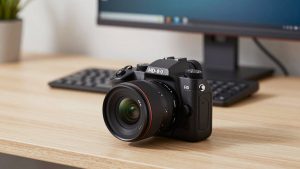
| Mirrorless / DSLR as webcam via USB or HDMI capture | Serious streamers, theater groups, anyone selling tickets | Best image, shallow depth of field, interchangeable lenses | Complex, overheating and battery limits, audio sync issues, overkill for Zoom lessons |
If you teach on Zoom or Google Meet three times a week, stay with option one. If you perform on Twitch, YouTube Live, or TikTok Live and want to punch in for close-ups, option two makes sense. Only go to option three if you are already comfortable with cameras and have someone to monitor the stream.
What to buy for each type of performer
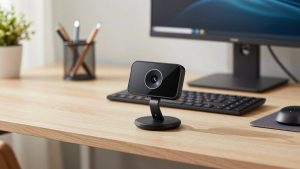
For movement teachers – dance, yoga, martial arts, fitness: prioritize 1080p60, wide field of view, and a stable mount. Autofocus hunting is your biggest failure mode. Set focus to continuous but limit the area if your software allows it, and lock exposure once your lights are set. A basic 1080p 60fps webcam for streaming on a cheap tripod 7 feet back will beat a 4K webcam balanced on a laptop.
For musicians – guitar, piano, drums, DJs: prioritize low-light handling and manual control. Stage corners are dim, and overhead lights create harsh shadows on faces and hands. A larger-sensor webcam with manual exposure and white balance lets you keep skin tones stable when LEDs change color. Do not use digital auto-framing for drummers; it will constantly reframe on stick movement. Lock the frame wide and leave headroom.
For theater, storytelling, magic, and comedy: prioritize audio sync and lens clarity over resolution. Close-up magic fails if autofocus grabs the background instead of your hands. Use a webcam that lets you lock focus at a set distance, then mark your table position with tape. Wireless mics help far more than a camera upgrade because laptop mics compress dynamics and pick up room echo when you project.
For laptop and Mac users specifically: check compatibility before you buy. Many pro webcams need their desktop app for 4K, background removal, or firmware updates, and some features are Windows-only. On Mac, you want UVC-compliant plug-and-play with no driver, USB-C direct or with a powered hub, and support for 1080p60 in OBS, Zoom, and QuickTime. If you use a MacBook with only USB-C, avoid running the webcam through a cheap dock – it is a common cause of dropped frames and disconnects mid-show.
Light, audio, and mounting matter more than the camera
No webcam saves bad light. For live performance, you need even front light plus separation from the background. A single key light at 45 degrees, a dim lamp behind you, and no bright window behind you will make a $80 webcam look better than a $300 webcam backlit by a window. LEDs that change color look fun to you but cause most webcams to shift white balance; lock white balance to 4000-5000K and leave it.
Audio failure ruins performances faster than video. Built-in webcam mics clip when you sing loudly or play, and they sound distant when you step back. Use a USB condenser mic close to you for acoustic sets, or a lav / headset mic for movement teaching. If you run backing tracks, route them through OBS or Loopback rather than letting them bleed through speakers into the mic – that echo is what makes Zoom auto-duck your voice.
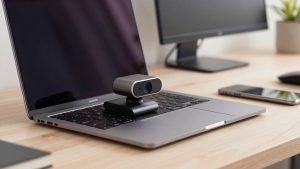
Mounting is the hidden problem. Laptop lids vibrate when you dance or drum nearby. Get the camera off the laptop. A small webcam tripod mount for video or clamp lets you set height and distance once and keep it. Mark floor positions for wide and tight shots so you don’t drift out of frame mid-song.
Failure modes to test before showtime
Test a full 30-minute run, not a 2-minute check. The three most common live failures are overheating / throttling on laptops using 4K plus virtual backgrounds, Wi-Fi dropouts when streaming 1080p60, and autofocus hunting under flickering LEDs. Record locally in OBS while you rehearse and watch for dropped frames, pulsing focus, and audio drift.
Turn off auto-everything you don’t need. Auto-exposure plus auto white balance plus auto-framing fighting each other creates that seasick zoom-and-pump look. Lock exposure, lock white balance, turn off noise reduction if it makes motion smeary, and use wired ethernet or sit close to the router. If you must use Wi-Fi, drop from 4K to 1080p – stable 1080p always looks more professional than stuttering 4K.
Be honest about when cheap is fine. If your audience watches mostly on phones, teaches over Zoom with screen share, or you perform in a well-lit room without fast movement, an entry-level 1080p webcam with good light is enough. Spend the difference on a light panel and a mic. Only step up to a large-sensor 4K webcam with large sensor and autofocus if you crop often, perform in dim rooms, or split use between home office and stage.
FAQ
Do I need 4K for live performance?
No, in most cases. True 1080p60 looks smoother for movement than 4K30. Get 4K only if you want to crop in for close-ups without moving the camera, or you record for YouTube and want extra detail when still.
Why does my webcam look blurry when I move?
Usually low light forcing a slow shutter, plus heavy noise reduction. Add front light, lock exposure, set to 60fps if available, and turn down auto low-light boost. That fixes motion smear more than buying a new camera.
Can I use a mirrorless camera instead of a webcam?
Yes, and it looks better, but it adds complexity: clean HDMI out, continuous power dummy battery, capture device, tripod, and monitoring for overheating and focus. For paid shows it can be worth it. For weekly Zoom lessons, a good USB webcam is more reliable.
What works best on MacBooks for performing?
A UVC plug-and-play webcam that does 1080p60 without drivers, plugged directly into USB-C or a powered hub. Avoid docks for video if you get disconnects, close other camera apps, and test in the exact app you will perform in – Zoom, OBS, and FaceTime can behave differently.