Last Updated: October 18, 2026
📄 In This Review
Why Macs are picky about webcams
Most modern webcams will work on a Mac, but “works” and “works well” are different. Macs use USB-C, run macOS permissions for camera and mic, and apps like FaceTime, Zoom, Teams, and Google Meet all handle exposure and white balance a little differently. The built-in camera on a MacBook Air or iMac is convenient and perfectly framed for calls, but it is small, fixed in place, and struggles in mixed office light. You get a soft, noisy image at 1080p even when Apple markets it as improved.
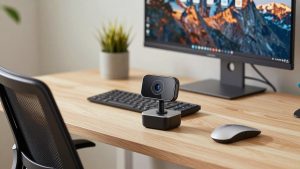
An external camera solves three real problems: placement, low light, and consistency. You can put it at eye level on an external monitor, which immediately makes you look more natural than staring down at a laptop. A larger lens handles a dim home office without turning your face into mush. And if you use a desktop Mac mini or Mac Studio, you have no built-in option at all. That is when an external camera stops being an upgrade and becomes required.
What to check before you buy
See also: Best Monitor for MacBook Air: Two USB-C 4K Screens and Six Adapter-Dependent Alternatives • Best Monitor for MacBook Pro: Eight Listings Sorted by Cable, Sharpness and Scaling
Resolution is the least important spec on the box. A good 1080p sensor with a decent lens beats a cheap 4K sensor in a normal home office. Look for autofocus rather than fixed focus if you move around, a 65 to 78 degree field of view for solo calls, and dual microphones with noise reduction. Wider than 90 degrees is only useful if you need to show two people or a whiteboard, otherwise it just makes your room look messy.
For Mac specifically, check for UVC compliance. That means USB Video Class, the standard that lets macOS recognize the camera without drivers. Almost every mainstream USB webcam supports it, but avoid anything that requires a Windows-only app to enable 4K, background blur, or firmware updates. You will be able to use the basic image on Mac, but you will never get the advertised features. USB-C cable or a detachable USB-A to USB-C cable also matters now, since most Macs no longer have USB-A ports. Dongles work, but they add one more failure point.
Do not overpay for software features you will not use. Zoom, Teams, and Meet already do background blur and auto-framing. What they cannot fix is a dark, out-of-focus image. Spend money on optics and low-light performance first.
The four practical options for Mac
| Option | Typical image | Mac hassle | Best for | Main trade-off |
|---|---|---|---|---|
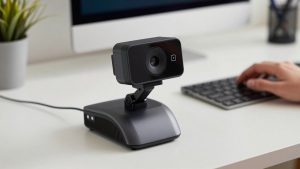
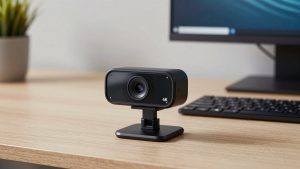
| Basic 1080p USB webcam | Good in daylight, soft in dim rooms | Low, plug and play | Daily Zoom and Teams calls | Narrow dynamic range, average mic |
| Mid-range 1080p / 2K with larger sensor | Cleaner in low light, better color | Low, some features Windows-only | Home office workers on camera all day | Costs twice as much for 20 percent better image |
| 4K USB webcam | Sharper if you crop or present | Medium, needs USB 3.0 and good light | Creators, coaches, product demos | Large files, more CPU load, needs light to matter |
| iPhone as Mac webcam | Best image quality by far | Medium, needs mount and charging | MacBook users who already own an iPhone | Setup friction, ties up phone |
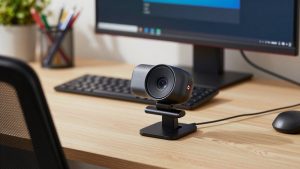
If you are on calls two to four hours a day in a normal room, a simple 1080p webcam for Mac is fine and the smart buy. Image quality is consistent, CPU load is low, and every meeting app recognizes it instantly. Failure mode to know: cheap models overexpose windows behind you and hunt for focus if you lean in and out. Fix it by facing a window or putting a $20 lamp behind your monitor, not by buying more resolution.
Step up to a mid-range 1080p or 2K camera with a larger sensor and better autofocus if you work in a dim room, have warm overhead lights, or are on camera teaching or selling. The difference is not sharpness, it is skin tone and noise. Faces look less red or washed out, and backgrounds have less grain. Who it suits: managers, therapists, tutors, anyone where trust depends on looking clear for hours. Who should skip it: if your room is already bright and your current video looks okay to others, you will not see enough gain.
A 4K webcam for streaming only makes sense for specific work. It helps if you crop in to show documents, demo products on a desk, or record training videos you later upload. On live calls, Zoom and Meet compress you to 720p or 1080p anyway, so coworkers will not see 4K. It also needs a lot of light to actually look 4K and can stutter on older Intel Macs because of USB bandwidth and encoding load. If you buy one, plug it directly into the Mac, not a cheap hub, and set it to 1080p for meetings to avoid dropped frames.
Do not overlook your iPhone
For many Mac users, the best camera is the one already in a pocket. Apple’s Continuity Camera lets a recent iPhone work as your Mac webcam wirelessly or wired, with Center Stage framing, Portrait mode, and Desk View. In side-by-side tests, even a two-year-old iPhone beats most $150 webcams for sharpness and low light.
The trade-off is workflow. You need a mount that clips to your monitor or laptop lid, MagSafe or a stand works best, and you need to keep the phone charged on long call days. Wireless mode can lag or drop if your Wi-Fi is congested, wired USB is noticeably more stable. It also ties up your phone, so you cannot easily check notes on it during a call. Best for MacBook users who take three to five calls a day and want top quality without another device. Worst for shared desks or Mac mini setups where a dedicated, always-plugged camera is simpler. If you go this route, get a sturdy iPhone Continuity Camera mount for Mac first, a wobbly mount ruins the advantage.
Setup matters more than price
Almost every “my webcam looks bad on Mac” problem I see is placement and permissions, not hardware. Put the lens at or slightly above eye level, about arm’s length away. Turn on overhead lights off if they cast yellow from above, use one soft light in front of you. In System Settings, check Privacy and Security to make sure Zoom or Teams has camera and microphone access after macOS updates, which often revoke it. If the image freezes, try a different USB-C port or remove the hub, many hubs cannot sustain camera plus external drive plus display.
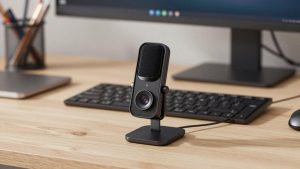
For audio, do not assume the webcam mic is enough. It picks up room echo and keyboard clicks. For short internal calls it is fine. For client calls, interviews, or all-day use, a cheap USB headset or earbuds will improve how you sound more than any camera upgrade.
FAQ
Do I need drivers for a webcam on Mac?
No, in most cases. Choose a UVC-compliant USB webcam and macOS will recognize it in FaceTime, Zoom, Teams, Photo Booth, and QuickTime without drivers. Avoid cameras that require a Windows app for basic operation.
Why does my 4K webcam look blurry on Zoom?
Usually low light or bandwidth compression. Zoom reduces resolution to save data, and 4K sensors need strong frontal light to stay sharp. Try 1080p mode, add a lamp in front of you, and plug directly into the Mac instead of a hub.
Can I use my iPhone as a webcam for a Mac desktop?
Yes, if both run recent software and use the same Apple ID with Wi-Fi and Bluetooth on. It works well for Mac mini and Mac Studio, but use a wired USB connection and a stable stand for all-day reliability.
Is the MacBook built-in camera good enough for work?
For normal internal meetings in good light, yes. If you present to clients, teach, or work in a dim room, an external 1080p camera at eye level on your external monitor will look noticeably more professional.