Last Updated: October 18, 2026
If you spend most of your day on Zoom, your built-in laptop camera is the weakest link. It is small, sits at a bad angle, and falls apart in low light. An external camera fixes most of that for under $100, but buying the wrong one leaves you with autofocus hunting, washed-out skin, or a microphone that annoys everyone else on the call.
For Zoom specifically, you do not need the most expensive camera. Zoom compresses video heavily and caps most calls at 720p or 1080p anyway. What matters more is good exposure, stable focus, a decent lens that does not make your office look like a cave, and a microphone you can actually turn off if you already use a headset.
📄 In This Review
What Zoom actually needs
Zoom is forgiving on resolution and brutal on lighting and stability. A clean 1080p image with good white balance will look better than a noisy 4K image on the same call. Prioritize a camera with autofocus that locks and stays locked, automatic light correction that does not pulse, and a field of view around 75 to 90 degrees. Wider than that and you show your whole room. Narrower and you feel cramped.
The most common failure mode is backlight. If you sit with a window behind you, most webcams will expose for the window and turn your face dark. No resolution upgrade fixes that. A camera with good HDR or backlight compensation helps, but moving the light source in front of you helps more. Second most common failure is USB power. Plug the camera directly into your laptop or a powered dock, not into a cheap unpowered hub with a keyboard, hard drive, and light all sharing power. Freezing and disconnects on Zoom are almost always power or cable issues, not Zoom itself.
Mac users should check compatibility before buying. Most modern USB webcams are plug-and-play on macOS with Zoom, Meet, and Teams, but the companion software for background blur, firmware updates, and manual exposure is often Windows-only. If you need to adjust zoom, pan, or turn off auto-focus on a Mac, look for cameras with on-device controls or Mac-supported apps.
Quick comparison by type
See also: Best Monitor for MacBook Air: Two USB-C 4K Screens and Six Adapter-Dependent Alternatives • Best Monitor for MacBook Pro: Eight Listings Sorted by Cable, Sharpness and Scaling
There are really only three buckets that make sense for Zoom work. Everything else is marketing.
| Type | Typical resolution | Best for | Watch out for | Typical price |
|---|---|---|---|---|
| Basic 1080p fixed-focus | 1080p/30 | Daily Zoom calls, shared desks, kids for school | Soft image up close, weak low-light, tinny mics | $35-$70 |
| Mid-range 1080p/1440p with autofocus | 1080p/60 or 1440p/30 | Home office workers, managers, teachers | Autofocus hunting on some models, needs good USB port | $80-$150 |
| 4K with auto-framing | 4K/30, outputs 1080p to Zoom | Presenters, solo offices, people who move around | Costs more, auto-framing can feel jumpy, heavier CPU use | $150-$250 |
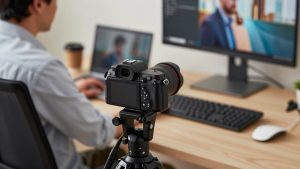
| Mirrorless/DSLR as webcam | 1080p-4K via HDMI/USB | Creators who also record video | Complex setup, overheating, overkill for Zoom compression | $300+ plus lens, capture device |
Best for most Zoom calls: basic 1080p webcam
If your calls are head-and-shoulders check-ins, a simple 1080p webcam for Zoom is fine and you should not overthink it. Fixed-focus models have no focus motor to hunt during a call, which is a real advantage. You sit 2 to 3 feet away, you stay sharp, the background stays slightly soft. Image quality will not wow anyone, but coworkers will see you clearly.
Trade-offs are real. Fixed focus looks soft if you lean in close to read notes. Low-light performance is mediocre, so a $20 desk lamp in front of you makes a bigger difference than spending $50 more on the camera. Built-in mics on these models are usable in a quiet room and harsh in a noisy one. If you already use earbuds or a USB headset, mute the webcam mic in Zoom audio settings and never think about it again.
This suits: laptop workers with a decent headset, hybrid workers who carry the camera in a bag, and anyone buying three or four for a team. Do not buy this if you present to clients all day or sit more than 5 feet from your desk.
Best workhorse for home office: autofocus 1080p to 1440p
This is the sweet spot for full-time remote work. You get a larger sensor, better auto-exposure, dual noise-reducing mics, and usually a privacy shutter. Look for 1080p/60 if you gesture a lot or share physical documents, because 60 fps looks smoother when you move. Look for 1440p if you sit a bit farther back and want a tighter crop without getting mushy.
The failure mode here is autofocus that never settles. It happens when you have movement behind you, a fan blowing a plant, or low contrast lighting. If you sit still at a desk, turn on face autofocus and leave continuous autofocus off if the software allows it. Also, do not enable digital zoom or background blur in both the camera app and Zoom at the same time. Pick one. Stacking them creates lag and makes your edges shimmer.
A mid-range autofocus webcam for home office suits managers, therapists, tutors, and anyone on Zoom four-plus hours a day. It is also the best choice for MacBook users with a closed-lid dock setup, because you get a proper eye-level image instead of the up-the-nose angle from a laptop on a stand.
When 4K makes sense for Zoom
Zoom does not show true 4K to other people on most plans, so do not buy 4K for sharpness alone. Buy it for flexibility: you can crop in, use auto-framing to follow you to a whiteboard, and get better downscaled 1080p. In a solo office with good light, a 4K sensor downscaled to 1080p looks cleaner, with less noise in shadows.
The trade-off is CPU and fuss. Auto-framing is great until it reframes mid-sentence because your dog walked in. Digital PTZ crops also amplify shake if your desk wobbles. And if your laptop is five years old, running 4K plus Zoom virtual background plus screen share can make the fan scream. Most people should plug in power and set the camera to 1080p output for calls, saving 4K for recording.
A 4K webcam with autoframing for Zoom suits presenters, coaches, and small meeting rooms where one camera covers one or two people who move. It is overkill for quick standups and a waste if your office has bad lighting you will not fix.
What to skip for Zoom-only use
Skip using a DSLR or mirrorless camera just for Zoom unless you already own one for photos. The image is better, but you add batteries, HDMI capture, overheating shutdowns after 30 to 40 minutes, and audio sync issues. For the same money, fix lighting and buy a mid-range webcam plus a good USB microphone.
Also skip 60 fps gaming cameras if you have a slow laptop or bad Wi-Fi. Smooth motion does not help if Zoom drops you to 360p to save bandwidth. Spend that budget on a wired Ethernet adapter or moving your router closer.
Setup that matters more than the model
Mount the camera at eye level, about arm’s length away. Stack your monitor on books if you have to. Put a lamp or window in front of you, not behind. In Zoom, go to Settings then Video and turn off Mirror My Video if text looks backwards on your whiteboard, and enable Adjust for Low Light on Manual rather than Auto to prevent pulsing. Choose Original Ratio off and HD on if your plan supports it.
For audio, pick one mic and stick with it. If you use a headset, set it as both speaker and mic in Zoom and disable the webcam mic. Test with a Zoom recording, not just the preview, because noise suppression only kicks in on a real call.
FAQ
Do I need a 4K camera for Zoom?
No, for most calls you do not. Zoom compresses video and most meetings display at 720p to 1080p. A clean 1080p camera with good lighting looks better than 4K in a dark room. Buy 4K only if you want auto-framing or cropping room.
Will an external webcam work with MacBooks?
Yes, almost all USB webcams work with Zoom on Mac without drivers. The catch is advanced settings. Exposure, zoom presets, and firmware updates often require a Windows app. If you are Mac-only, choose a camera that works well on default settings.
Why do I look dark or washed out on Zoom?
Usually backlight or overhead light. Move facing a window or lamp, turn off a bright light behind you, and lower exposure compensation slightly. Use a plain wall behind you if the camera keeps hunting exposure.
Should I use the webcam microphone or a headset?
Use a headset or USB mic for long calls and noisy rooms. Webcam mics pick up keyboard clicks and room echo. They are fine as a backup, but if people complain they cannot hear you, the mic is the problem, not the camera.
Related Reviews & Guides
Best Webcam for Low Light Conditions
KAMRUI E3 Mini PC Review (2026)