Last Updated: October 18, 2026
If you make videos, stream, or teach live, your webcam has a different job than a work-call webcam. It is not just about looking sharp on Zoom. It needs to hold focus while you move, handle changing light without blowing out your face, and run for an hour without overheating, dropping frames, or hunting for exposure. I have tested creator setups in small home offices with one window and one cheap key light, which is what most people actually have.
The mistake most buyers make is buying resolution. A bad 4K sensor looks worse than a good 1080p sensor. For YouTube talking-head, Twitch, TikTok live, and online courses, lens quality, autofocus behavior, and low-light handling matter far more than the 4K label on the box.
📄 In This Review
What matters for content creation
Autofocus is first. Cheap webcams use slow contrast autofocus that pulses every time you lean forward or hold up a product. That breathing in and out screams amateur. Look for fast phase-detection autofocus or, if you sit still, a webcam with reliable manual focus you can lock. For product demos and unboxings, a webcam that can focus close – around 10-20cm – and hold it is more useful than extra pixels.
Second is field of view and framing. A very wide 90-degree webcam is good for a messy room because you look small. A 65 to 78-degree view is better for creators because it fills the frame with you and blurs less of the background digitally. If you plan to crop in for vertical video, start with higher resolution so the crop does not turn to mush.
Third is sustained performance. Many small 4K webcams overheat after 30 to 45 minutes and then throttle to 15 fps or shut off HDR. Check reviews specifically for long-stream behavior, not just first impressions. Also check CPU load. Some 4K models do encoding on your laptop, which is brutal on an older MacBook Air.
Quick comparison: which type suits you
See also: Best Monitor for MacBook Air: Two USB-C 4K Screens and Six Adapter-Dependent Alternatives • Best Monitor for MacBook Pro: Eight Listings Sorted by Cable, Sharpness and Scaling
Most creators fall into one of three setups. This is more useful than comparing spec sheets:
| Type | Typical resolution / fps | Best for | Watch out for |
|---|---|---|---|
| Good 1080p webcam with great lens | 1080p60 | Streaming, coaching, talking-head YouTube | Soft image if you crop heavily; weak digital zoom |
| Creator 4K webcam with large sensor | 4K30 / 1080p60 | YouTube, product close-ups, cropping to vertical | Heat on long streams; needs good USB port and light |
| Mirrorless / action camera as webcam | 4K30 clean HDMI / USB | High-end YouTube, courses you sell | Cost, batteries, capture cards, more setup time |
| Laptop built-in + good light | 1080p30 | Starting out, testing ideas | Bad in low light; wide-angle distortion; no background control |
Best all-rounder: a sharp 1080p60 webcam
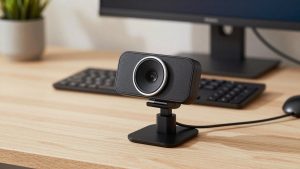
For most creators, this is the sweet spot. 1080p60 looks smooth for hand movements, whiteboard work, and product handling, and files are smaller to record and easier for a laptop to handle live. A good lens at 1080p with accurate skin tones will beat a cheap 4K webcam in a dim home office every time.
Who it suits: streamers, coaches, podcasters who publish video, and anyone on a MacBook where you do not want extra drivers. Look for 1080p60 (not just 1080p30), dual noise-reducing mics you will replace later anyway, and a standard tripod thread so you can get it to eye level.
Failure mode: autofocus hunting when you show something to the camera. Fix it by using the vendor app to lock focus or set a focus preset if available. Another failure is auto-exposure flicker under cheap LEDs. Lock exposure manually once your key light is set. If you shop now, browse a current 1080p 60fps webcam for streaming and filter for models that explicitly list manual focus and exposure controls, not just auto.
Be honest: if you mostly sit at a desk and talk, you do not need 4K. Spend the difference on a $30-40 key light and a stable mount. That upgrade is visible. 4K is not, once YouTube compresses it.
For YouTube and close-ups: creator 4K webcam
You need 4K only for two reasons: you crop, or you show detail. If you film desk setups, makeup, crafts, or tech where viewers pause to read text, 4K gives you headroom to punch in 1.5x and still look clean at 1080p. It also helps if you repurpose horizontal video into Shorts or Reels.
Trade-offs are real. True 4K30 needs a lot of light. In a dark room it will look noisier than 1080p mode on the same camera because the sensor is working harder. Many creator models also apply heavy sharpening and noise reduction you cannot fully turn off. Faces look waxy. Test at your actual recording distance, not arm’s length in a store.
Who it suits: solo YouTubers without a camera operator, Etsy sellers doing demos, and teachers who show documents. Mount it on a small tripod or monitor mount, run it at 4K30 for recorded video and drop to 1080p60 for live. If you stream for more than an hour, leave HDR off unless you have tested it for heat. When comparing options, check listings for a 4K webcam for content creation that lists on-device AI framing as optional, not forced – auto-framing that drifts mid-sentence ruins a take.
When to skip a webcam and use a real camera
If you sell courses or your face is the brand, a mirrorless camera with clean HDMI output as a webcam is a visible step up in depth of field and low-light cleanliness. No webcam matches a 1-inch or APS-C sensor with a real lens. Skin looks natural, backgrounds fall off softly without fake blur glitching around your hair.
But do not underestimate friction. You need continuous power (dummy battery), a capture device or reliable USB streaming mode, and a way to keep it cool. Batteries die mid-lesson. Autofocus designed for photos can pulse on video. And file management gets complicated. This suits a fixed studio corner, not a laptop you pack daily.
A practical middle path: keep a good webcam for live calls and use the camera only for recorded A-roll. That way a dead battery or loose HDMI cable does not cancel a paid live session. If you go this route, search for a camera capture card for streaming with 4K30 passthrough and USB-C UVC support so your Mac or PC sees it as a webcam without extra drivers.
Setup mistakes that ruin any webcam
First, backlight. If a bright window is behind you, even an expensive webcam will silhouette you. Face the window or close it and use a key light at 45 degrees. Second, mounting too low. Laptop webcams shoot up your nose. Get the lens at eye level, about an arm’s length away. Third, relying on digital background blur instead of tidying six feet behind you. Fake blur flickers around glasses, hands, and products – exactly what creators show most.
Audio is half of content creation. Every webcam mic, even good ones, sounds echoey at desk distance and picks up keyboard and fan noise. Use a USB dynamic mic or lav close to your mouth for anything you publish. Viewers forgive 1080p. They do not forgive harsh, distant audio.
For Mac users specifically: prefer UVC-compliant webcams that work without a kernel driver, check that the settings app runs on Apple Silicon, and plug 4K webcams directly into the Mac or a powered hub. Bus-powered dongle chains cause most random disconnects I see in home offices.
FAQ
Is 4K worth it for streaming on Twitch or YouTube Live?
Usually no. Most live platforms deliver to viewers at 1080p or lower. A clean 1080p60 feed with good light and stable focus looks better than a throttled 4K feed. Buy 4K if you record and crop, not for live sharpness alone.
Why does my webcam look good for 5 minutes then get laggy?
That is usually heat throttling, USB bandwidth, or auto-exposure struggling as the room darkens. Try 1080p instead of 4K, turn off HDR and auto-framing, plug directly into the laptop, and close other camera apps. If it still drops frames on long streams, that model is not built for continuous use.
Can I just use my laptop webcam to start creating?
Yes, for testing ideas. Add a key light, get to eye level with a stand, and use an external mic. Upgrade when you need better low-light performance, smoother 60 fps motion, or the ability to crop. Lighting and audio will improve your videos more than any webcam swap at first.
Do I need the vendor software running?
Only to set it once. Use it to lock focus, exposure, white balance, and field of view, then save to the device if possible. Running extra effects, auto-framing, and beauty filters live adds CPU load and can cause stutter on laptops, especially older Macs.