Last Updated: October 18, 2026
A 120 degree webcam sounds simple: wider view, more people in frame. In practice, it’s a specialized tool. For one person at a desk, 120 degrees is often too wide. For two to four people around a table, a small huddle room, or a whiteboard demo, it can be the difference between everyone squeezing in and everyone being seen normally.
Most laptop webcams are 70-80 degrees. A lot of standard external webcams are 78-90 degrees. Jumping to 120 degrees almost doubles the horizontal coverage, but it also brings edge distortion, smaller faces, and worse low-light performance. Buy it for the right reason, or you’ll end up zooming it back to 90 degrees anyway.
📄 In This Review
Who actually needs 120 degrees?
Get a true 120 degree field of view if you regularly do one of these: two people sharing one laptop in a home office, 3-4 people around a conference table 6-10 feet from the camera, or you need to show a room, whiteboard, or demo area behind you while you talk.
Don’t get it if you’re solo at a desk 2 feet from the screen. At that distance, 120 degrees will show your whole room, make your face small, and bend bookshelves and door frames at the edges. You will look farther away and your auto-exposure will struggle because it’s metering a much larger, brighter area. For solo calls, a 78-90 degree camera placed correctly looks far more professional.
The honest test: sit where you’ll sit on calls, stretch your arms out to the sides, and ask if you need both elbows plus another person in frame. If yes, keep reading. If no, the cheaper 90-degree option is fine and will look sharper.
What to check before you buy
See also: Best Monitor for MacBook Air: Two USB-C 4K Screens and Six Adapter-Dependent Alternatives • Best Monitor for MacBook Pro: Eight Listings Sorted by Cable, Sharpness and Scaling
Fixed 120 degrees is not the same as “up to 120 degrees.” Many cameras list 120 degrees diagonal, which is about 105-110 degrees horizontal. Others offer 120 degrees but only at 720p, with heavy cropping at 1080p or 4K. Check whether the spec says horizontal (HFOV), diagonal (DFOV), and at what resolution.
Distortion correction matters more than resolution here. Cheap ultra-wide sensors have fisheye bowing at the edges. Good ones do in-camera dewarping, which straightens lines but crops slightly and softens corners. Look for terms like distortion correction, ePTZ, or adjustable FOV. Adjustable 65/78/90/120 degree modes are genuinely useful because you can run wide for groups and tighter for solo calls.
Autofocus is a common failure point on wide cameras. Contrast autofocus hunts when there are multiple faces at different distances, especially in mixed window light. For a shared desk or huddle table, fixed focus set to 4 feet to infinity is often more reliable. If you move around, prioritize face autofocus and fast white balance over 4K.
For Mac and laptop users, stick to UVC-compliant USB cameras that work without drivers. Most 120-degree USB webcams will work in Zoom, Teams, Meet, and FaceTime via Continuity Camera workarounds, but auto-framing, gesture tracking, and FOV controls often require Windows software to set once, then the setting sticks on Mac. That’s workable, but verify before you buy if you only own a Mac.
The three types worth buying
There are really three categories that deliver a usable 120-degree view for work, not just on paper. They suit very different rooms.
| Type | Best for | Image trade-off | Audio reality |
|---|---|---|---|
| Fixed 120-degree USB webcam | 2 people at one desk, tight home office | Simple, sharp center; soft bent edges | Okay to 5 ft, thin beyond that |
| Auto-framing 120-degree webcam with ePTZ | 3-5 people, small meeting room, teaching | Crops in when framing, so less wide in use | Dual mics better, still needs room mic over 8 ft |
| All-in-one conference bar with wide lens | Dedicated huddle room, TV-mounted setup | Best distortion control, consistent exposure | Usable to 12-15 ft, speaker is the real upgrade |
A basic fixed wide webcam is enough if the camera will sit 3-5 feet from everyone and the room is quiet. You’ll mount it on top of a monitor and leave it. The downside is you get what you get: if someone sits at the edge, their face will stretch.
An auto-framing camera is better when people come and go. It uses the full 120-degree sensor to find faces, then digitally zooms and pans to keep 2-4 people centered. In use you’re often watching a 90-degree crop, which actually looks better. The failure mode is over-correction: it will reframe when someone walks behind you or when a poster looks like a face. Turn sensitivity down and lock framing if you can.
A conference bar costs more and is harder to justify for a laptop, but it solves the two problems wide webcams ignore: hearing people at the far end of the table and filling a TV-mounted room with loud enough sound. If you’re equipping a 10×12 ft room that gets used daily, this is the category where spending helps. For occasional use, a 120 degree webcam for conference room paired with a separate USB speakerphone is often cheaper and easier to replace.
What to get for your setup
For two people sharing a home-office desk: Choose a fixed 120-degree 1080p webcam with distortion correction and dual mics. Mount it 24-36 inches away, centered. Run it at 1080p/30, turn on 50Hz/60Hz anti-flicker to match your lights, and lock exposure if your window is behind you. Don’t pay extra for 4K here – at this distance, lens quality and correct exposure matter more than pixels.
For a huddle room or 3-4 person table: Choose a wide angle webcam with autoframing with adjustable FOV. Set the default to 110-120 degrees for framing, let it crop to follow speakers, and turn off gesture controls if they trigger accidentally. Place the camera at eye height at the end of the table, not high on a shelf. High angles plus wide lenses make everyone look down and distant.
For laptop + Mac hot-desking: Choose a compact 4K USB camera with 120-degree mode and ePTZ, so you can punch in to 90 degrees for solo hotel calls. Look specifically for a 4K 120 degree USB webcam for Mac that stores FOV and zoom on the device. That way you set it once on any computer and don’t need background software running during Teams or Zoom. Bring a small tripod – laptop lids are too low for wide shots and will show mostly tabletop.
Across all three, skip 60fps as a priority. It halves your light per frame and makes home offices look noisy. 30fps with good auto white balance looks cleaner, and every meeting app compresses it anyway.
Setup mistakes that ruin wide shots
The biggest failure I see is distance. People put a 120-degree camera 2 feet away and wonder why they look tiny. Wide cameras need to be closer than you think for solo use, and farther but centered for groups. For groups, pull the camera back 6-8 feet and keep everyone in the middle 70% of the frame. Edges will always be softer.
Second is backlight. A wide lens sees more windows and ceiling lights, so auto-exposure darkens faces to compensate. Close blinds behind the table or put a cheap 4000K desk lamp in front of faces, not overhead. If your camera app has backlight compensation or HDR, test it – HDR helps windows but can add lag on older laptops.
Third is audio. Built-in mics on wide cameras pick up the whole room by design: keyboard, HVAC, echo. Beyond 6 feet, speech intelligibility drops fast for remote listeners even if video is fine. A $50-80 USB boundary mic in the middle of the table will do more for meeting quality than moving from 1080p to 4K.
Finally, check USB and CPU load. 4K wide + background blur + auto-framing on a 5-year-old laptop will stutter. If calls drop frames, lower to 1080p in the camera settings, not just in Zoom, and plug directly into the laptop instead of an unpowered hub. On Macs, avoid running the vendor’s effects app plus Teams effects at the same time.
FAQ
Is 120 degrees too wide for Zoom and Teams?
For one person, usually yes. You’ll look small and show too much background. Use a 78-90 degree mode for solo calls and save 120 degrees for groups. Most meeting apps don’t correct distortion, so rely on the camera’s own correction.
Will a 120 degree webcam work on Mac without software?
Basic video and mic will work plug-and-play over USB. FOV switching, auto-framing, and firmware updates often need the maker’s app, which is sometimes Windows-only. If you’re Mac-only, choose a camera that saves settings on-device.
Why do faces look stretched at the edges?
That’s wide-angle perspective distortion. It’s normal for rectilinear 120-degree lenses. Keep important people near the center, move the camera farther back instead of using the extreme edge, and turn on distortion correction if available.
Do I need 4K for a wide group shot?
It helps when you crop or auto-frame, because you’re zooming into the sensor. For a static full-room shot viewed on laptops, good 1080p with clean lenses and good light is fine. Get 4K if you use digital zoom or need to read a whiteboard.
Related Reviews & Guides
Best Ergonomic Office Chairs: Top Picks Compared in 2026
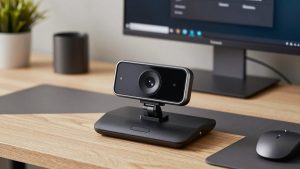
Best Webcam for Mac Reddit