Last Updated: October 18, 2026
📄 In This Review
What cheap actually buys you
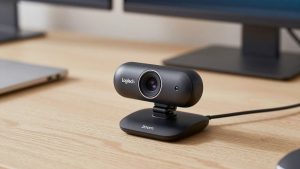
For work video, a cheap live feed camera means a $20 to $45 USB webcam that outputs 720p or 1080p at 30 fps. That is enough for Zoom, Teams, Meet, and Webex. You are not buying good low-light performance, wide dynamic range, or great audio. You are buying a stable, recognizable face and readable screen share reaction.
If your laptop camera is broken, foggy, or stuck at a bad angle, even the cheapest external webcam is an upgrade. Placement alone fixes half of call quality. Getting the lens to eye level and facing a window beats paying extra for autofocus you will not use.
The cheaper option is fine if you take 2-5 calls a day in a lit room, sit 2-3 feet from the screen, and do not move around. You do not need 4K, 60 fps, background blur hardware, or a large sensor for that. Save the money for a lamp or a $15 boom arm for your mic.
What you give up under $45
See also: Best Monitor for MacBook Air: Two USB-C 4K Screens and Six Adapter-Dependent Alternatives • Best Monitor for MacBook Pro: Eight Listings Sorted by Cable, Sharpness and Scaling
Low light is the first trade-off. Cheap sensors get noisy fast. In a dim home office at 6pm, your image will go soft, grainy, and laggy as the camera drops shutter speed to gather light. A $70-$100 camera handles this noticeably better, but a $20 desk lamp in front of you closes most of the gap.
Second is focus and exposure control. Most budget webcams are fixed-focus, set to keep everything from about 18 inches to 6 feet reasonably sharp. That is actually good for desk work because there is nothing to hunt and breathe. Autofocus models in this price range often hunt in low light and make you go soft for a second at the worst time.
Third is microphones and mounting. Expect two tiny pinhole mics that pick up keyboard, fan, and room echo. They work for backup, not for all-day calls. Clips are also flimsy. On thin MacBook Air lids or curved monitors, cheap mounts slip or point slightly down. A small stack of sticky pads or a cheap tripod solves it.
Mac compatibility is mostly fine, but check the details. UVC plug-and-play cameras work on macOS without drivers. The problem is vendor software for focus, zoom, or noise reduction is often Windows-only. What you see in Photo Booth or FaceTime is what you get.
Compare the budget options
Do not shop by megapixels. Shop by focus type, field of view, and how you work. This covers the categories that actually matter for live work feeds:
| Type | Typical price | Best for | Watch out for |
|---|---|---|---|
| 720p fixed-focus basic webcam | $18-$28 | Kids laptop, backup camera, second angle | Soft image on large monitors, poor low light |
| 1080p fixed-focus with dual mics | $25-$40 | Daily Zoom/Teams at a desk in decent light | Narrow exposure range, tinny audio |
| 1080p autofocus with wider lens | $30-$45 | Showing documents, whiteboard, moving closer/farther | Focus hunting, overheating on long calls |
| 2K / QHD budget webcam | $40-$60 | Cropping in, sitting farther back | Needs good light and USB 3.0, often no better in dim rooms |
If you sit still at a desk, the middle row is the sweet spot. If you present objects or lean in and out, autofocus helps. Higher resolution only helps if you have the light and bandwidth to support it.
Who should buy what
Home office worker on a laptop: Get a basic 1080p fixed-focus camera with a 70- to 80-degree field of view. Wider than 90 degrees makes a small office look cavernous and pulls in clutter. Mount it on top of your monitor, not on the laptop if you use an external display, so your eyes are not looking sideways. Many shoppers start with budget 1080p webcams for laptops and stop there because the image is good enough once lighting is fixed.
Mac Mini, Mac Studio, or desktop without a camera: You need something that just works over USB without a driver install. Look for explicitly UVC-compliant listings and a physical privacy shutter. Avoid cameras that require an app to enable 1080p. If you use Center Stage-style framing in software, the camera does not need to do it in hardware.
Shared family computer or shift work: Cheap is smart because it will get knocked around. Pick a model with a thick clip and a short, flexible cable rather than stiff braided cable that pulls the camera off. Fixed focus survives drops better because there is no moving focus element to jam.
Night calls or basement office: Do not buy a cheaper camera and hope. Either raise your budget slightly or buy light. A $25 camera plus facing a $20 daylight LED panel will beat a $70 camera in a dark room. If you must stay cheap, look for a larger f/2.0 lens spec and manual exposure in the listing, and browse webcams with low-light correction rather than chasing 2K labels.
Long meetings, 4+ hours a day: Heat and USB stability matter more than sharpness. Some ultra-cheap cameras run hot and drop to 15 fps after an hour. Look for reviews mentioning 2-hour calls, not 5-minute unboxings. Use a direct USB port, not an unpowered hub, and keep the cable under 6 feet if you can.
Failure modes to check in the first week
Test these before your return window closes. First, audio sync. Record a 2-minute clip in QuickTime or Windows Camera while typing. Cheap cameras often have 100-200ms delay, which is fine, but crackling or robotic cutouts means the mic or USB controller is bad. Plan to use earbuds or a headset anyway.
Second, exposure blowout. Sit with a window behind you. If your face goes completely dark and never recovers, the camera has no usable backlight compensation. Move the desk or close blinds. No budget sensor fixes a bright window behind your head.
Third, color and flicker under LEDs. Some cheap cameras show banding or pulsing under office fluorescents. If your listing mentions 50Hz/60Hz anti-flicker, toggle it. On Mac where vendor apps do not run, you may need to borrow a Windows PC once to set it.
Fourth, mount creep. Check after 30 minutes. Plastic clips loosen as they warm up. If it slowly tilts down to your keyboard, add friction with gaffer tape inside the clip or switch to a tiny desktop mini tripod for webcams placed behind your monitor.
Getting a clean live feed without spending more
Set resolution to 1080p30, not the highest number on the box. For work calls, 30 fps with stable exposure looks better than interpolated 60 fps that stutters on office Wi-Fi. In Zoom and Teams, turn on HD if your upload is above 3 Mbps, otherwise leave it off. A stable 720p feed beats a freezing 1080p feed.
Light your face, not your background. Put a lamp or window 45 degrees in front of you, slightly above eye level. Keep overhead-only lighting off if it puts shadows under your eyes. Sit about an arm’s length away. Too close makes cheap wide-angle lenses distort your face. Too far forces digital zoom and noise.
On Macs, open Photo Booth or QuickTime Player – New Movie Recording to preview. If the image looks dark there, it will look dark everywhere. Close other apps using the camera. Browsers holding the camera in another tab can lock resolution low and cause the spinning wheel when you join a meeting.
FAQ
Is a $25 webcam good enough for job interviews?
Yes, if lighting and audio are handled. Interviewers notice echo, dark image, and looking off-camera far more than pixel count. Use a 1080p fixed-focus camera at eye level, face a window or lamp, and wear earbuds with a mic.
Why does my cheap camera look worse than my laptop camera?
Usually exposure or USB mode. Try a different USB port directly on the laptop, close other video apps, and add front light. Some laptops also apply heavy skin smoothing and noise reduction that cheap USB cameras do not, so the raw image looks harsher until light improves.
Do I need 4K for work calls?
No for most people. Zoom and Teams compress heavily, often to 720p or 1080p anyway. 4K helps only if you crop, sit far away, or record locally. It also needs more light, CPU, and bandwidth, which can make a cheap 4K camera look worse than a good 1080p feed.
Will these work with MacBook Air and MacBook Pro?
Most UVC USB-A or USB-C webcams work when plugged in via a proper adapter or dock. The catch is settings apps are often Windows-only, so buy a camera that looks right with defaults and has a physical shutter and manual plug-and-play focus.
Related Reviews & Guides
Ergonomic Chair Herman Miller Aeron: Top Picks Compared in 2026
Best Video Conference Camera for Home Office