Last Updated: October 18, 2026
📄 In This Review
Why Mac built-ins fall short for work calls
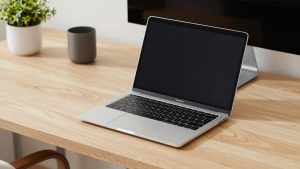
Recent MacBook Pro and iMac cameras are better than they used to be — Apple’s image processing does a decent job with skin tone and backlight — but they are still small sensors behind tiny lenses. In a dim home office you get soft detail, noisy shadows, and that slightly washed-out look at 6pm in winter. The built-in mics are worse for work: they pick up your room, keyboard, and fan noise because they are designed to hear everything, not just you.
You don’t need to replace both at once. If people say you look fine but sound distant or echoey, fix the microphone first. Audio matters more for comprehension and fatigue. If you get complaints that you’re dark, grainy, or constantly out of focus when you move, fix the camera first. For client-facing work, teaching, or daily standups, plan to upgrade both eventually.
Webcams that work well on Mac
See also: Best Monitor for MacBook Air: Two USB-C 4K Screens and Six Adapter-Dependent Alternatives • Best Monitor for MacBook Pro: Eight Listings Sorted by Cable, Sharpness and Scaling
Mac compatibility is mostly about USB plug-and-play and software. Most modern UVC webcams work with macOS in Zoom, Teams, Meet, and FaceTime with no driver. Where Mac users get tripped up is companion apps: auto-framing, background blur, and firmware updates are often Windows-first, with a stripped-down Mac app or web-based settings. Check before you buy if you care about tweaking field of view or turning off autofocus.
For most office work, a good 1080p webcam with a larger sensor and decent autofocus is the sweet spot. It handles mixed window light better than cheap 4K sensors that cram pixels in and then get noisy in low light. Autofocus failure is the most common complaint: cheaper models hunt during screen shares or lock onto your bookshelf. Look for a model with fast, quiet autofocus and a physical privacy shutter — you will use the shutter daily.
A 4K webcam for Mac makes sense if you present, record, or crop in. You get sharper text on a whiteboard and more headroom to use a 2x digital zoom without looking mushy. Trade-offs are real: higher price, more CPU load on older Intel Macs, larger file sizes if you record locally, and often worse low-light performance than a good 1080p camera at the same price. If your office is dark, spend the money on a desk lamp and a midrange 1080p camera first.
Continuity Camera — using an iPhone as your Mac webcam — is the honest cheaper option many Mac users should try first. Mounted properly, a recent iPhone beats most sub-$150 webcams for detail and low light, and Desk View is genuinely useful for demos. Failure modes: battery drain on long calls, overheating on wireless mode, flaky mounts that droop, and awkward framing if the phone is too close. Use a solid MagSafe or clamp mount and plug in over USB for all-day reliability.
Microphones that work well on Mac
For Mac desks, a simple cardioid USB condenser mic on a short stand or low boom is the easiest win. It plugs straight into macOS, shows up in Zoom and Teams without drivers, and rejects some side and rear noise compared to omnidirectional laptop mics. Position it 6-10 inches from your mouth, slightly off-axis, and turn gain down. Most “bad mic” problems are really gain too high plus room echo, not the mic itself.
A USB microphone for Mac with a headphone jack for zero-latency monitoring and a physical mute button is worth prioritizing for work. Tap-to-mute saves you in coughs, doorbells, and kids. A built-in pop filter or included foam cover helps with p-pops if you speak close. Avoid ultra-cheap mics with fixed high gain — they sound harsh and pick up every keystroke. You don’t need XLR unless you already own an interface and want to record music or a podcast.
Headsets are still best for noisy homes and open offices. A wired USB headset with a boom mic close to your mouth will beat a $150 desk mic for rejecting background noise. Trade-off is comfort and voice tone — you sound clearer but thinner. If you share an office, take calls with a partner nearby, or have hard floors and echo, choose a headset first. Wireless headsets add convenience but introduce another battery to charge and occasional Bluetooth pairing quirks with Macs after sleep. For important interviews, plug in wired.
Which combo fits your work
| Setup | Video quality | Audio quality | Best for | Main downside |
|---|---|---|---|---|
| Built-in camera + wired earbuds | Okay in daylight, grainy at night | Clear, close-miked voice | Occasional calls, travel | Looks unpolished, mic cable |
| 1080p webcam + USB headset | Sharp, reliable autofocus | Best noise rejection | Noisy home, support, daily standups | Less natural voice, headset fatigue |
| 1080p webcam + USB desk mic | Sharp, reliable autofocus | Full, natural voice | Quiet home office, managers | Picks up room echo and typing |
| 4K webcam + USB desk mic + light | Best for presenting and recording | Full, natural voice | Coaching, teaching, YouTube, clients | Price, setup time, CPU load |
| iPhone as webcam + earbuds/headset | Excellent detail for $0 extra | Depends on earbuds | Mac users on a budget | Mount fuss, battery drain, heat |
What to buy for your situation
If you work in a quiet spare bedroom and do 3-5 calls a day: get a midrange 1080p webcam with a shutter and a compact USB mic on a desk stand. Add a $30 LED panel or move your desk to face a window. This is the setup that looks and sounds professional without dominating your desk. Skip the boom arm and shock mount until you know you need them.
If your house is loud: buy the headset first, then the webcam. A USB headset with boom mic for work calls close to your mouth will do more for intelligibility than any noise-reduction software. Look for Teams/Zoom certification, sidetone so you don’t shout, and memory-foam earcups if you wear it 4+ hours. Keep a cheap webcam upgrade second — even a modest one is a big jump from a 720p older MacBook Air camera.
If you present to clients or teach: step up to 4K for the cropping flexibility, pair it with a USB mic on a low boom to get it closer without being on camera, and add light. Test your framing at your actual meeting distance — 4K reveals slouching, messy backgrounds, and flickering overheads. Record a 2-minute test in QuickTime and listen on earbuds. If you hear echo, move closer to the mic, lower gain, and add a rug or curtains before buying a more expensive mic.
Mac-specific setup tips that prevent returns
Give permissions first. macOS will block camera and mic access until you allow it in System Settings > Privacy & Security. Zoom and Teams also have separate input selectors — set both system input and in-app input to your USB mic, not “MacBook Pro Microphone.” After macOS updates, double-check; inputs sometimes revert.
Use powered hubs carefully. Many disconnects come from an underpowered USB hub, not a bad webcam. Plug the webcam directly into the Mac or a powered Thunderbolt dock for testing. If you use a monitor hub, make sure it supplies enough power for camera plus mic plus light. Unplug unused USB audio devices — macOS sometimes switches defaults mid-call.
Light yourself, not your background. Face a window or put a soft LED at 10 o’clock, slightly above eye level. Close blinds behind you. On Macs, avoid sitting with a bright window directly behind you — Apple’s exposure will darken your face to save the highlights. A plain wall 3-4 feet behind you reduces autofocus hunting and makes background blur look less glitchy.
FAQ
Do I need drivers for a webcam and mic on Mac?
Usually no. Choose USB UVC webcams and USB class-compliant mics — they work natively with macOS and Zoom, Teams, Meet, and FaceTime. You only need vendor software for advanced features like framing, zoom presets, or EQ, and Mac support for those tools varies.
Is a headset or a desk mic better for Mac work calls?
Headset if your room is noisy or echoey, desk mic if your room is quiet and you want a more natural voice. For shared spaces, kids, or hard floors, a boom headset will sound clearer to others even though it’s less pleasant for you to wear.
Should I just use my iPhone as my Mac webcam?
Try it before buying. Over USB with a sturdy mount, Continuity Camera often beats budget webcams for sharpness and low light. It’s less ideal for 6-hour call days because of heat and battery wear, and mounts can slip.
Why do I look dark even with a good webcam?
It’s usually backlight or lack of light on your face, not megapixels. Face your main light source, turn off bright lights behind you, move closer to a window or lamp, and lower your camera exposure slightly in app settings if your face is blown out.
Related Reviews & Guides
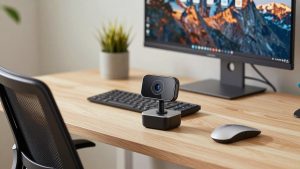
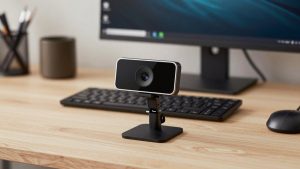
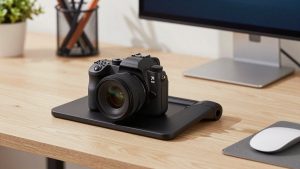
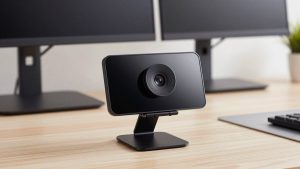
Best Value for Money Webcam
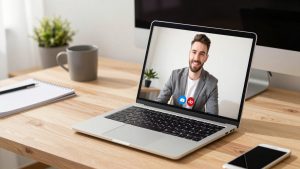
Best Laptop Camera for Video Conferencing