Last Updated: October 18, 2026
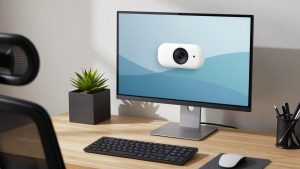
Thin-bezel monitors look great until you try to perch a webcam on top. The lip is only 5-8mm on many Dell, LG, Samsung and Apple Studio-style displays, so a standard chunky clip either pinches the panel, covers the top row of pixels, or slowly tips forward during a call. If you use that monitor for work, that wobble and framing shift is more distracting than slightly soft 1080p.
For video calls and home office use, you don’t need more resolution. You need a mount that grips without damaging the screen, a small foot that doesn’t lever the camera off, and a field of view that works at normal desk distance. Get that right and even a basic webcam looks professional.
📄 In This Review
Why thin bezels are tricky
A traditional webcam mount is a folding jaw: a front foot rests on the screen, a back leg hooks behind the monitor. It was designed for 2014-era monitors with a 25mm plastic top. On a thin-bezel display, that front foot often lands on the picture itself instead of on the frame.
Three failure modes I see repeatedly:
1. Screen press: The front lip pushes on the LCD. You get a light-bleed spot at the top of the screen and, over time, risk delamination on very thin panels. If your webcam leaves a mark or you have to tilt the screen back to keep it on, the mount is too deep.
2. Backward tip: Thin monitors are also light and often on a single-post stand. A 150-200g webcam with a long back leg acts as a lever. The whole display rocks when you type. This is worse on 27-inch and 34-inch ultrawides.
3. Blocked menu and camera angle: To avoid pressing the screen, people push the camera too far back. Then you get a shot of the top of your head and a lot of ceiling, plus autofocus hunting because the camera is pointed down at a steep angle.
Curved ultrawides add another problem: there is no flat spot for the clip to sit, so it twists sideways. For those, a monitor mount is usually the wrong choice entirely.
What actually matters for this use
See also: Best Monitor for MacBook Air: Two USB-C 4K Screens and Six Adapter-Dependent Alternatives • Best Monitor for MacBook Pro: Eight Listings Sorted by Cable, Sharpness and Scaling
Forget 4K as the first filter. For a thin-bezel work monitor, prioritize this order:
Mount depth and weight: Look for a front foot under 10mm deep, or a two-piece design where the camera detaches from the clip. Total camera weight under 100g is noticeably more stable on a thin top edge. Tripod thread (1/4-inch) on the bottom is a good sign – it gives you fallback options.
Foot material: Hard plastic slides on aluminum and glass. Thin silicone pads front and back grip much better and won’t scratch the coating. Avoid metal jaws with no padding if you have a coating-sensitive display like a Mac external or glossy LG.
Field of view: At 24-30 inches from a 27-inch monitor, 65 to 78 degrees is ideal. Wider than 90 degrees will show the sides of your room and make you tiny in Teams or Zoom. Narrower than 60 degrees forces you to sit too far back.
Focus and low light: For a home office, fixed focus is actually fine and often more reliable – no hunting when you lean forward to read. If your desk faces away from a window, prioritize a larger sensor and good auto-exposure over raw resolution. A clean 1080p at 30fps with low noise beats a grainy 4K crop.
Mac users: check UVC compliance. Most modern work webcams are plug-and-play on macOS without drivers, but features like background blur, digital zoom, or firmware updates often require Windows software. If you need to change settings once, borrow a Windows laptop, set it, and the camera usually remembers it on Mac.
Best options by setup
Instead of one winner, pick by how your monitor is built. The mount is the product here.
| Setup | Best type | Why it works | Trade-off |
|---|---|---|---|
| Standard 24-27″ flat thin-bezel (office Dell, HP, Lenovo) | Compact 1080p clip webcam | Light, shallow foot sits on narrow bezel without covering pixels | No fancy framing; cable management is on you |
| Premium thin / glass-front display | Small-foot webcam + adhesive-safe mount | Silicone pads avoid scratching; low weight prevents tipping | Costs slightly more; may need to remove back stabilizer leg |
| 32″+ or 34″ ultrawide / curved | Webcam on mini tripod or monitor light bar mount | No stress on bezel; centered eye-level framing | Takes desk space behind monitor |
| Laptop + thin-bezel external as second screen | Use laptop camera or center-mounted webcam | Avoids looking away from call window; Continuity Camera also works | External webcam may point at wrong screen if you multitask |
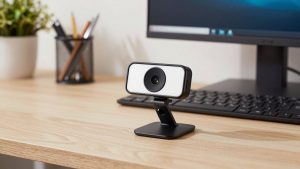
1. For most flat thin-bezel monitors: a compact 1080p clip model. This is the sweet spot for work calls. A smaller body means less leverage on the top edge, and 1080p keeps file sizes and CPU load low on older laptops. Look for dual mics with noise reduction rather than 4K on the box. Image tuning matters more than pixel count in a dim home office.
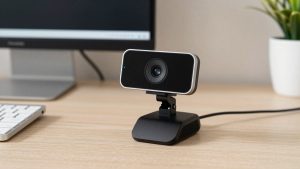
If you are shopping, browse small clip webcams designed for monitors and check the product photos from the side. If the front lip looks thicker than a pencil, skip it for a true edgeless display.
Who it suits: full-time Teams, Zoom, and Meet users on a single 24-27 inch display. The cheaper option is absolutely fine here – spend the savings on light, not resolution. A $50 daylight bulb or window in front of you does more than a $180 sensor upgrade.
2. For glass, aluminum, or very fragile bezels: low-pressure mount. Some studio-style displays have almost no place for a jaw to grab. In that case, avoid spring-loaded gaming clips. They grip hard and transmit vibration. A gravity perch with silicone, or a webcam that separates from its base so only the thin base stays on the monitor, is kinder and more stable.
3. For heavy, curved, or 34-inch ultrawides: don’t clip at all. Put the camera on a short mini tripod for your webcam just behind the monitor, lens peeking over the top center. It eliminates tip risk, kills desk vibration, and keeps eye line natural. The trade-off is 4-6 inches of desk depth. If your desk is shallow, a pole mount that clamps to the monitor arm is even better.
Failure mode to watch: tripods placed too low create an up-the-nose angle. Raise it so the lens is within an inch of the top bezel. That one inch makes you look directly at people instead of down at them.
4. For MacBook + monitor setups: Decide where your call window lives. If you keep Zoom on the laptop and notes on the big monitor, just use the laptop camera or iPhone as a webcam – the angle is better. Only add an external webcam if your call window is always on the big monitor. Otherwise people will watch you look sideways for 30 minutes.
Setup that prevents wobble
Most wobble is not the camera’s fault. Tighten the monitor tilt hinge first – many ship loose. Then route the USB cable down one side with a small clip so the cable weight doesn’t pull the camera sideways. A dangling cable on the right side will slowly rotate a light webcam over the course of a call.
If your monitor is on an arm, add a counter-tilt: tilt the screen up 2-3 degrees, then tilt the webcam down to compensate. The camera’s center of gravity moves back over the bezel instead of hanging forward.
For exposure, sit facing the brightest surface in the room. Backlight from a window behind you will silhouette even a good webcam. Close blinds behind you and put a simple lamp in front. Set flicker to 50Hz or 60Hz depending on your region if you see banding under LED office lights.
When not to buy up
Skip autofocus 4K models if your work is mostly screen-share plus talking head. They run hotter, need more USB bandwidth, and on thin mounts the extra weight makes shake worse. They only pay off if you need to crop in for whiteboard demos or you sit 4+ feet away from a large display.
Also skip magnetic mounts that stick directly to the monitor unless the maker explicitly approves it for your model. The magnet is rarely the issue – the adhesive pad is. On matte coatings it can pull the finish when removed.
If you need privacy, prefer a built-in shutter over a stick-on cover. Stick-on covers add thickness to the front foot and can push a borderline mount over the edge.
For shared desks, consider a home office webcam with a standard tripod mount even if you clip it now. That thread gives you an exit plan: clip today, arm or tripod tomorrow, without buying a second camera.
FAQ
Will a normal webcam damage a thin-bezel monitor?
Usually not immediately, but a deep, hard-plastic clip can scuff the coating and, if it presses on the panel, cause temporary pressure spots. Use silicone-padded feet, don’t overtighten, and if the foot covers pixels, switch to a smaller mount or tripod.
Is 1080p enough for work on a 27-inch monitor?
Yes for Teams, Zoom, and Meet. Those platforms compress to 720p or 1080p anyway. Clean audio, stable framing, and front lighting affect how professional you look far more than 4K.
Where should I place the webcam on an ultrawide?
Center, at eye level, lens just above the top edge. Off-center placement on a 34-inch screen creates an obvious sideways gaze. If a center clip wobbles on the curve, use a mini tripod behind the monitor instead.
Why does my webcam slowly droop during calls?
Heat plus cable pull. Lighten the load by looping the USB cable to the monitor arm with slack at the camera, tighten the tilt joint, and avoid hanging a long USB extension directly from the camera body.