Last Updated: October 18, 2026
Microsoft Teams is less forgiving than Zoom or Meet. It compresses video harder, it defaults to noise suppression that can clip your voice, and in a lot of companies IT locks down device settings. If you buy the wrong webcam and microphone combo, you look soft and sound distant even on a fast connection. The good news: you don’t need studio gear to fix it.
For most Teams users, a solid 1080p business webcam plus a dedicated audio device – usually a USB headset, not the webcam mic – is the setup that works every day without fiddling.
📄 In This Review
What Teams actually needs
Teams tops out around 1080p for most calls, and group/gallery views often run lower to save bandwidth. Buying a 4K sensor does not give the other person 4K. What matters more is autofocus that doesn’t hunt, auto-exposure that handles a bright window behind you, and a microphone setup Teams recognizes reliably after sleep, dock/undock, and updates.
The other Teams-specific issue is certification. “Certified for Microsoft Teams” on webcams and headsets is not just marketing. It means the mute button, call answer/end buttons, and volume controls talk to Teams directly. Uncertified gear still works for basic audio/video, but you will be muting in the app instead of on the device, and Teams may forget your preferred mic after you unplug.
Best webcam options for Teams calls
See also: Best Monitor for MacBook Air: Two USB-C 4K Screens and Six Adapter-Dependent Alternatives • Best Monitor for MacBook Pro: Eight Listings Sorted by Cable, Sharpness and Scaling
Start here: if your laptop is from the last 2-3 years and you mostly do internal 1:1s, your built-in camera is often fine. Laptop cameras fail in low light and look flat, but Teams’ compression hides a lot. Spend your money on light and audio first. A $25 lamp in front of you does more for Teams video than jumping from 1080p to 4K.
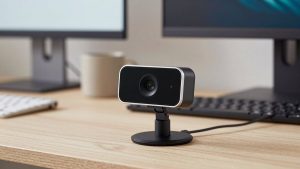
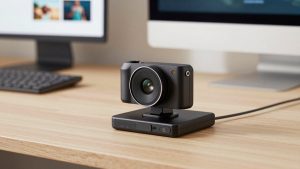
If people say you look blurry, freeze, or blow out when you move, upgrade to a basic 1080p business webcam with autofocus and dual mics. This is the sweet spot for home office workers. You get a wider, cleaner image than a laptop, a physical privacy shutter, and usually a clip that actually stays on a monitor. Trade-off: fixed field of view around 78-90 degrees. Great for one person at a desk, too tight if you need to show a whiteboard or fit two people on a couch.
A 4K business webcam makes sense for only two groups: people who present a lot and crop/zoom digitally, and people on Macs or desktops with no usable built-in camera who want the best auto-framing. On Teams you will still be sent as 1080p or less, but you look sharper because the camera downsamples from a better sensor. Failure mode to know: 4K + auto-framing + background blur at the same time can stutter on older laptops, especially via a USB hub. Plug direct into the laptop, not a cheap dock, if you see lag.
Avoid PTZ conference cameras unless you are equipping a room. They are loud, slow to focus in Teams, and overkill for a desk. One person at a desk does not need 10x zoom.
Best microphone setup: headset beats webcam mic
This is where most Teams setups go wrong. Webcam mics sound hollow at desk distance – 2 to 3 feet away – and they pick up keyboard, HVAC, and room echo. Teams’ noise suppression helps, but on “Low” it lets keyboard clatter through, and on “High” it can make your voice sound watery if you use a far-away mic. Get closer to the mic instead of relying on software.
For 80% of office workers, a wired USB headset certified for Teams is the best buy. It puts the mic inches from your mouth, Teams sees it as a separate speaker + mic so echo cancellation actually works, and the inline mute is reliable. Wired beats Bluetooth for Teams: no pairing drift, no battery dying mid-call, no “connected but no audio” after sleep. Trade-off is comfort. Cheap on-ear headsets hurt after 3 hours. If you live in meetings, pay for memory-foam earcups and a boom that flips to mute.
If you hate wearing something, the second-best option is a small USB speakerphone puck for your desk. It is ideal if you pace, take notes on paper, or switch between laptop speakers and calls. Place it 1-2 feet in front of you, not behind your keyboard. Failure mode: speakerphones in echoey rooms or shared offices cause the classic “you’re echoing” complaint. They also pick up typing loudly. Not for open offices.
Standalone USB condenser mics sound great for recording, but they are usually worse for Teams. They hear the whole room, they need you to stay on-axis, and they do nothing for hearing others. Only choose one if you also record podcasts/videos and you will wear earbuds or headphones for output to avoid echo. For pure Teams work, a USB headset certified for Teams will beat a $150 desk mic for intelligibility.
Mac users: Teams on macOS is pickier about device switching. After macOS updates, check Teams > Settings > Devices and re-select your mic and speaker. Bluetooth headsets that use LE Audio or proprietary dongles sometimes show up twice – use the “Hands-Free” / “Chat” profile for mic input, not the high-quality stereo output, or your mic will not work.
Quick comparison: what to buy for your situation
| Setup | Best for | Strength | Watch out for |
|---|---|---|---|
| Built-in camera + USB headset | Internal calls, tight budget | Cheapest, reliable audio | Poor low-light video, flat image |
| 1080p business webcam + USB headset | Most home office workers | Sharp image, dependable mute controls | Narrow view, needs front light |
| 4K webcam with auto-framing + wired headset | Presenters, trainers | Clean digital zoom, better exposure | Can stutter on old laptops/hubs |
| 1080p webcam + USB speakerphone | Private office, no headset | Hands-free, easy to share | Echo and typing noise in open rooms |
If you only upgrade one thing, upgrade audio. Colleagues will tolerate 720p video for an hour. They will not tolerate 10 minutes of “sorry, can you repeat that?” A mid-range USB speakerphone for Teams calls in a private room, or a wired headset everywhere else, fixes more complaints than any camera.
Teams settings that matter more than gear
Before you return anything, check three settings. In Teams > Settings > Devices, turn off auto-adjust mic volume if your level pumps up and down, set Noise suppression to High only if you have background noise – otherwise Medium sounds more natural. Under General, turn off “Enable GPU hardware acceleration” if video stutters on an older laptop; it helps more often than people expect.
Light yourself from the front, not from above. Close or sheer a window behind you, put a lamp behind your monitor aimed at your face, and keep the webcam at eye level. A webcam looking up your nose plus a ceiling light makes even a good sensor look cheap. And plug through as few adapters as possible – webcam to laptop direct, headset to laptop direct – especially on MacBooks with USB-C hubs.
FAQ
Do I need a webcam certified for Teams?
Not strictly, but it helps. Uncertified 1080p webcams work for video, but certified models handle mute sync, auto-exposure for office light, and wake-from-sleep more reliably. If IT manages your Teams client, certified is worth it.
Can I just use my webcam microphone?
You can, but you will sound distant. Webcam mics sit 2-3 feet away and pick up room echo. For daily Teams calls, a headset or desk speakerphone placed close will sound clearer, even if it costs less than the webcam.
Why do I sound robotic on Teams but fine on Zoom?
Usually Teams noise suppression set to High plus a far mic, or Bluetooth headset using the wrong profile. Move the mic closer, set suppression to Medium, and in Teams Devices make sure mic and speaker are the same headset, not a mix of laptop speakers and Bluetooth mic.
Is 4K worth it for Teams?
Only if you present and use digital zoom or auto-framing. Teams will still send 1080p or less to others. For most desk calls a good 1080p camera with front lighting looks identical and puts less load on your laptop.