Last Updated: October 18, 2026
If you use a green screen for work calls, the webcam matters more than the screen itself. A cheap sensor will smear the edges of your hair, flicker under office lights, and leave a green halo around your shoulders in Zoom or Teams. You do not need cinema quality, but you do need clean color separation, stable exposure, and true 1080p or better.
For most home office users, the fix is not a more expensive green screen. It is a sharper webcam plus two soft lights. Get those right and even Zoom’s built-in background removal looks dramatically better.
📄 In This Review
What actually matters for green screen work
Green screen keying is about contrast. The software has to tell where you end and the green begins, 30 times per second. Three specs decide that: resolution, color accuracy, and exposure control.
Resolution helps with edges. A soft 720p laptop camera blends hair and glasses frames into the background. A good 1080p sensor with real autofocus keeps edges crisp. 4K helps if you crop in or use OBS virtual camera, but for a direct Zoom call, clean 1080p is usually enough.
Color accuracy matters more than most people expect. Budget webcams tend to oversaturate green and crush shadows to hide noise. That makes keying harder. Look for a webcam with manual white balance and exposure in its app. Locking exposure prevents the background from pulsing brighter and darker when you move.
Frame rate is secondary for office work. 30 fps is fine. 60 fps looks smoother and helps if you gesture a lot or demonstrate products, but it needs more light or the image gets noisy. Do not buy 60 fps expecting better keying by itself.
Quick comparison: which type suits you
See also: Best Monitor for MacBook Air: Two USB-C 4K Screens and Six Adapter-Dependent Alternatives • Best Monitor for MacBook Pro: Eight Listings Sorted by Cable, Sharpness and Scaling
| Type | Keying quality | Light needed | Best for |
|---|---|---|---|
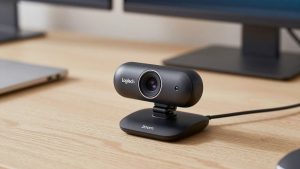
| Basic 1080p autofocus webcam | Good, if lighting is even | Moderate | Daily Zoom / Teams with green screen |
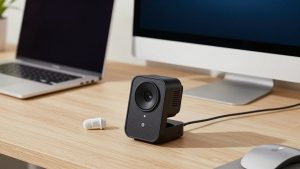
| 4K webcam with manual controls | Very good, cleaner edges | Moderate to high | Presenters, trainers, YouTube + work hybrid |
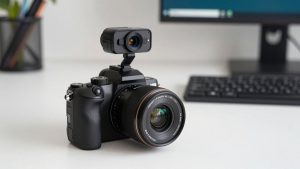
| Mirrorless / DSLR as webcam | Excellent, real depth of field | Low light capable, but setup heavy | Fixed desk studio, OBS users |
If you take calls from different rooms or a laptop, stay in the first two rows. A big camera only pays off if your desk never moves.
Best for most office workers: sharp 1080p with good software
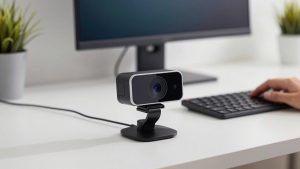
For pure video calls, a mid-range 1080p webcam with autofocus, a 78-90 degree field of view, and a desktop app for exposure control is the sweet spot. You get reliable keying without the file sizes, heat, and CPU load of 4K.
What to look for: autofocus (not fixed focus), dual noise-reducing mics as backup, a privacy shutter, and Mac + Windows software that lets you turn off auto-exposure and auto-white-balance. That lock is what stops the green halo from breathing in and out.
Failure mode: cheap no-name 1080p cameras often claim 1080p but output upscaled 720p. Signs are waxy skin, laggy autofocus, and green spill on your ears that will not key out. If your current camera does that even with good light, replace it before you buy a fancier screen.
A practical starting point is browsing a 1080p autofocus webcam for Zoom with recent reviews mentioning Teams, Meet, and Mac compatibility. You do not need gaming features, you need stable drivers.
Upgrade pick: 4K webcam if you present or record
A 4K webcam earns its price in two cases: you sit 3-5 feet from the camera and want to crop tighter without going soft, or you record training videos and want cleaner hair detail after YouTube compression. For live keying, the benefit is cleaner edges, not magic.
Trade-offs are real. 4K sensors need more light. In a dim home office they can look noisier than a good 1080p camera unless you add a key light. They also run warmer and can tax older laptops, especially MacBook Airs doing background replacement and screen share at once. If your laptop fan screams on calls now, fix lighting and stay at 1080p.
Who it suits: coaches, teachers, and founders who live on camera and also record. Who should skip it: anyone on an older dual-core laptop, or anyone who will not install the vendor software to lock focus and exposure.
If that is you, look at a 4K webcam with manual exposure and check that the Mac app actually supports your macOS version. Some features are Windows-only.
Fixed desk studio: use a real camera
A mirrorless camera with clean HDMI or USB streaming gives the best green screen result by far. Larger sensor, better lenses, true shallow depth of field. Edges look natural instead of crunchy.
But for work, it is often the wrong tool. You need constant power, a capture device or reliable USB streaming mode, a tripod or mount, and you have to leave white balance and focus set. Autofocus hunting during a client call is worse than a slightly soft webcam. It is also overkill for Zoom, which compresses everything to 720p or 1080p anyway.
Choose this only if your desk is permanent, you already use OBS or Ecamm, and you are comfortable troubleshooting. Otherwise put the money into lights.
Lighting and setup matter more than the camera
Most bad keying I have seen was a lighting problem. One ceiling light behind you creates shadows on the green screen and bright spots on your forehead. The software then cannot pick a single green to remove.
Simple setup that works: one soft key light in front of you at 45 degrees, slightly above eye level, plus a second dimmer light aimed at the green screen itself to even it out. Sit 3-4 feet in front of the screen to reduce green spill on your hair and shirt. Wear matte fabrics, avoid green and reflective glasses if you can.
Iron or steam the screen. Wrinkles create dark green stripes that will not key. If space is tight, a collapsible pop-up screen behind your chair beats a large wrinkled sheet hung on a door. You can find options by searching for a collapsible green screen for webcam that fits your chair width.
In Zoom, Teams, or Meet, turn on the green screen / chroma option explicitly instead of plain virtual background. It uses less processing and produces fewer artifacts around hair. Lock your webcam exposure first, then calibrate the background.
Laptop and Mac notes
Built-in laptop cameras are the worst case for green screen. Small sensors, wide-angle lenses, and aggressive auto-exposure. On Macs, background replacement already uses extra CPU. Add a wrinkled screen and dim room, and you will get flicker.
An external webcam mounted at eye level solves most of it. Plug directly into the laptop, not through an unpowered hub, to avoid dropouts. If you use a 4K camera on an older MacBook, run it at 1080p for calls. You keep the better lens and processing without overheating.
FAQ
Do I even need a green screen if Zoom removes background anyway?
No, not always. If you have good light and a sharp webcam, software blur or virtual background is fine for internal calls. A green screen is worth it if you present to clients, record, or hate the flicker around hair and hands.
Is 4K necessary for clean keying?
No. Clean 1080p with locked exposure and even lighting keys better than noisy 4K in a dark room. Buy 4K only if you crop, record, or sit far from the camera.
Why do I have a green glow around my hair?
Usually you sit too close to the screen, or the screen is much brighter than your face light. Move 3-4 feet forward, lower screen brightness by lighting it evenly but dimly, and turn on spill removal if your app has it.
What is the cheapest fix that actually helps?
Add light before you upgrade cameras. A single soft key light in front of you plus locking exposure in the webcam app fixes most halo and flicker issues with the webcam you already own.