Last Updated: October 18, 2026
If you are shopping specifically for 720p at 60fps, you are probably trying to solve one problem: smooth motion without paying for 1080p60 or 4K. For hand gestures, whiteboard work, product demos, teaching, or just not looking choppy when you move, 60fps matters more than extra pixels.
The catch is that true 720p60 webcams are a shrinking category. Many brands advertise 60fps but only deliver it at lower resolutions, or they drop to 30fps in low light. Others do 1080p30 and 720p60, but your meeting app may default to 30fps anyway. This guide explains what to buy for work calls, and when to skip 720p60 entirely.
📄 In This Review
Why 720p 60fps still makes sense for work
For Zoom, Teams, Meet, and Webex, 720p is still the actual resolution most calls run at, especially in gallery view or on congested office Wi-Fi. 60fps does not make you sharper, it makes motion cleaner. If you talk with your hands, switch between papers, type on camera, or demo a physical product, the difference between 30fps and 60fps is obvious.
It is also easier on older laptops and MacBook Airs. 720p60 needs less CPU and USB bandwidth than 1080p60, so you get fewer dropped frames, less fan noise, and fewer “your camera froze” moments. If your laptop is from 2017-2020 and struggles with virtual backgrounds, staying at 720p60 is often more reliable than forcing 1080p.
Who it does not suit: if you sit still and want the sharpest possible face for one-on-one client calls, a good 1080p30 camera with a larger sensor and better lens will look better than a cheap 720p60 camera. Smoothness does not fix soft focus, washed-out color, or noisy low light.
What to check before you buy
See also: Best Monitor for MacBook Air: Two USB-C 4K Screens and Six Adapter-Dependent Alternatives • Best Monitor for MacBook Pro: Eight Listings Sorted by Cable, Sharpness and Scaling
Do not trust the front of the box. Check the spec table for the exact modes: you want “1280×720 @ 60fps over MJPEG / H.264 / YUY2” and UVC plug-and-play support. If a listing says “60fps” but only lists “1080p30 / 720p30” in the details, assume 60fps is either interpolated or only available in a proprietary app.
Prioritize autofocus behavior over megapixels. Cheap 720p60 webcams often use fixed focus set to 60cm to infinity. That is actually fine for desk work because there is nothing to hunt or pulse. Cheap autofocus is a common failure mode: it breathes in and out during calls, especially with papers or a face moving forward and back. If you present documents, fixed focus or a camera with focus lock in software is more usable.
Look at low-light handling, microphone reality, and mount. Most small sensors drop from 60fps to 30fps automatically when light falls below a threshold to keep exposure bright enough. That means your 720p60 camera becomes a 720p30 camera in a dim home office at 6pm. Plan on a desk lamp or window light in front of you, not behind you. Built-in mics on budget models are usable for backup only — thin, echoey, and quick to pick up keyboard noise. Almost any headset or USB mic will beat them.
Comparison: your realistic options
There are three ways to get 720p60 for work calls. They look similar online but fail in different ways.
| Option type | Typical video modes | Strengths | Common failure mode | Best for |
|---|---|---|---|---|
| Budget 720p60 fixed-focus webcam | 720p60, 480p60 | Cheap, low CPU load, no focus hunting | Soft image beyond 1.5m, noisy in low light, weak mics | Daily standups, students, second camera for demos |
| Mid-range 1080p30 / 720p60 autofocus webcam | 1080p30, 720p60 | Sharper lens, better color, tripod mount, privacy shutter | Autofocus pulsing, drops to 30fps in dim rooms | Home office main camera, teaching, coaching |
| Business 1080p60 camera run at 720p60 | 1080p60, 720p60, 720p30 | Better low light, Teams/Zoom certification, longer cables | Costs 2-3x more, overkill if IT locks you to 720p anyway | Client-facing roles, shared desks, IT-managed laptops |
Which one to buy for your setup
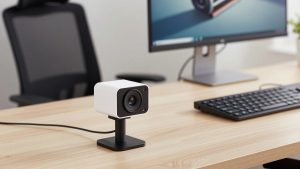
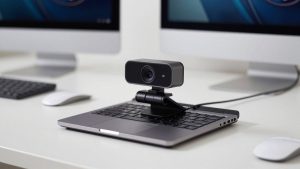
If you want the cheapest reliable daily driver for calls, get a basic 720p 60fps webcam with fixed focus, 65-75 degree field of view, and a clip that actually grips a laptop lid. Do not pay extra for digital zoom, beauty filters, or “4K” in this price tier — they are cropping and smoothing, not detail. This cheaper option is genuinely fine if you sit 50-80cm away, face a window or lamp, and use headphones. Image will not be cinematic, but motion will be smooth and your laptop will stay quiet.
If you move around, hold up objects, or write on paper, step up to a mid-range autofocus webcam for Zoom and Teams that explicitly lists 720p60 as a UVC mode. Look for 75-90 degree field of view if you need to show more of your desk, and a standard tripod thread if you want to mount it on a small stand above your work. Test autofocus on day one: wave a notebook in front of the lens, lean in and out, then check if it locks. If it hunts constantly under your office LEDs, return it. That behavior does not improve with updates.
If you are on calls all day for work and IT controls your meeting settings, consider buying a certified 1080p 60fps business webcam and running it at 720p60. You are paying for better auto-exposure, less noise at 300-500 lux office lighting, and fewer driver surprises on locked-down Windows laptops and Macs. Set Zoom or Teams to HD 720p, turn off “adjust for low light” auto modes that force 30fps, and add one soft light source. For most home offices, this looks better than a cheap sensor pushed to 60fps in the dark.
Practical setup matters more than brand at 720p. Mount the camera at eye level, about arm’s length away. Close blinds behind you. Set manual exposure if the software allows it, and lock white balance to avoid color shifting when you share screen. If your voice echoes, switch audio to a headset — viewers forgive 720p video, they do not forgive bad audio.
Laptop and Mac notes
On Windows, most 720p60 webcams work over USB-A 2.0 with no drivers, but hubs are a common failure point. If you get stuttering at 60fps, plug directly into the laptop, not a dock with a hard drive and Ethernet sharing bandwidth. In OBS, Zoom, or Teams settings, manually select 1280×720 and 60fps — “auto” often picks 30fps.
On Mac, especially Apple Silicon MacBooks, check for UVC compliance and recent macOS Ventura / Sonoma compatibility in reviews. Some budget cameras only deliver 60fps via MJPEG, which is fine, but QuickTime and FaceTime may preview at 30fps even when Zoom can use 60fps. If you use Continuity Camera with an iPhone as a webcam, note that it prioritizes resolution over frame rate and is not a replacement for a dedicated 720p60 desk camera for smooth demos.
FAQ
Will Zoom and Teams actually show 60fps?
Sometimes. One-on-one calls with HD enabled and good bandwidth can carry 720p60, but group gallery views, browser-based joins, and IT policies often cap you at 720p30 or lower. A 720p60 camera still helps because local preview, recordings, and OBS look smoother, but do not expect every recipient to see full 60fps.
Is 720p60 better than 1080p30 for work?
For motion, yes. For sharpness on a still face, no. If you sit still in good light and want to look crisp to clients, choose a better 1080p30 image. If you demo, teach, gesture a lot, or have an older laptop, choose reliable 720p60.
Why does my 720p60 webcam drop to 30fps at night?
Low light forces longer exposure times to keep the image bright. Most firmware prioritizes brightness over frame rate and halves fps automatically. Add a lamp in front of you at face height and turn off backlights. That alone usually restores 60fps.
Do I need a USB 3.0 port for 720p60?
Usually not. Compressed 720p60 fits over USB 2.0, but the cable, hub, and other devices matter. Use a short direct connection, avoid unpowered hubs, and close apps that are also using the camera.