Last Updated: October 18, 2026
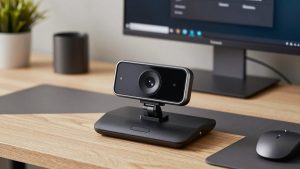
Windows 11 does not need a special webcam to work, but it rewards you for picking the right one. Teams, Zoom, Meet, and the built-in Camera app all run better when you get three things right: reliable USB plug-and-play, sensible resolution for your internet and PC, and, if you want it, a real infrared sensor for Windows Hello face login.
Most buyers overbuy on resolution and underbuy on the things that matter daily: autofocus that does not hunt, exposure that handles a bright window behind you, and a microphone that does not pick up your keyboard like a drum.
📄 In This Review
What Windows 11 actually changes
On Windows 11, almost every modern USB webcam is plug-and-play. You plug it in, Windows loads the UVC driver automatically, and it shows up in Settings > Bluetooth & devices > Cameras. You do not need a vendor app for basic calls.
Where Windows 11 is picky is Windows Hello. Face sign-in requires an infrared (IR) camera, not just a regular 1080p sensor. If a listing does not explicitly say IR or Windows Hello compatible, assume it will not unlock your PC. That is the most common buying mistake I see.
The other Windows 11 factor is background effects. Teams and Zoom can blur or replace your background on their own, but Windows Studio Effects — automatic framing, eye contact correction, background blur built into Windows — only works if your PC has an NPU and the camera pipeline supports it. Do not buy a 4K webcam expecting Studio Effects to appear. That is controlled by your laptop or desktop processor, not the webcam.
Quick comparison
See also: Best Monitor for MacBook Air: Two USB-C 4K Screens and Six Adapter-Dependent Alternatives • Best Monitor for MacBook Pro: Eight Listings Sorted by Cable, Sharpness and Scaling
If you just want the shape of the market, this is how the categories break down for office work:
| Category | Resolution | Autofocus | Windows Hello IR | Best for |
|---|---|---|---|---|
| Basic 1080p fixed-focus | 1080p / 30fps | No | No | Second camera, tight budget, good light |
| Mainstream 1080p autofocus | 1080p / 30-60fps | Yes | No | Most Teams / Zoom workers |
| 1080p with Windows Hello IR | 1080p + IR sensor | Yes | Yes | Desktop users who want face login |
| 4K autofocus | 4K / 30fps, 1080p / 60fps | Yes | Sometimes | Presenters, streamers, large monitor setups |
Best for most people: 1080p with autofocus
For a home office desk 2 to 3 feet from the screen, a mainstream 1080p autofocus webcam is the safe buy. It looks sharp on Teams and Zoom without stressing your CPU, Wi-Fi, or USB ports.
Autofocus matters more than the jump from 1080p to 4K. Fixed-focus cameras are fine if you sit perfectly still, but they turn whiteboards, documents held up to the lens, and leaning in to show detail into a blurry mess. Good autofocus locks in under a second and stays quiet. Bad autofocus breathes in and out during calls.
Failure modes to check in reviews: aggressive auto-exposure that blows out your face when you have a window behind you, and mics that sound hollow beyond 3 feet. If you take calls all day, plan to use a headset or USB mic anyway. Built-in webcam mics are usable for backup, not for 4-hour meeting days.
Who should skip it: if you specifically want to log into Windows 11 with your face on a desktop, this category will not do it. You need IR.
If you want face login: get a true IR model
Windows Hello is genuinely convenient on a desktop without a fingerprint reader. You sit down, it sees you, you are in. But you need a webcam with a separate IR camera and Microsoft Hello certification.
Look for listings that say Windows Hello IR in the specs, not just face focus or face tracking. Those are marketing terms for regular autofocus. Real Hello cameras have two lenses or a visibly wider sensor bar and will show up under Settings > Accounts > Sign-in options > Facial recognition as available.
Trade-offs: Hello-capable Windows Hello webcam with IR options cost more, run warmer, and usually need a direct USB port on the PC rather than an unpowered hub. IR can also struggle in direct harsh sunlight or if you wear heavy IR-blocking sunglasses. Indoors under normal lamps, it is very reliable.
Who it suits: desktop PC users on Windows 11 Pro or Home who hate typing PINs, shared family PCs where fast switching matters, and anyone who already locks their PC with Windows + L constantly. Laptop users: check first — many modern Windows laptops already have Hello built into the lid camera. You do not need an external camera just for login.
When 4K makes sense — and when it does not
A 4K webcam with autofocus looks better if you crop, zoom, or present. The extra pixels let Teams or OBS zoom in 1.5x to 2x without turning to mush, which is useful for teaching, demos, and recording training videos.
For normal calls, the cheaper option is fine. Zoom and Teams usually transmit you at 720p to 1080p anyway, especially in gallery view or on bad hotel Wi-Fi. I have tested 4K side-by-side with good 1080p on a 27-inch monitor, and callers could not tell the difference once compression kicked in.
4K also has real downsides: higher CPU use, more heat, and frame drops on older laptops if you force full 4K/30 while running background blur. Most people are better off setting a 4K camera to 1080p/60 for calls and only using 4K for recording. You need a USB 3.0 port and the short, thick cable that comes in the box. A long cheap extension cable is a classic cause of flicker and disconnects.
Laptop, monitor, and low-light notes
Clip design matters more than people expect. Thin ultrabook lids wobble with heavy 4K cameras. If you use a laptop on a stand, get a camera with a wide, rubberized clip and a standard tripod thread so you can move it to a separate mini-tripod at eye level. That one change improves how you look more than any sensor upgrade.
For low light — basement offices, late calls — look for a larger sensor and honest 30fps, not inflated specs. A good 1080p sensor at 30fps with decent noise reduction will beat a cheap 4K sensor that drops to 15fps and smears motion in dim light. Add a $20 desk lamp bounced off a wall before you spend $80 more on a camera.
Privacy shutters, mute buttons, and cable length are practical tiebreakers. A physical shutter saves you taping over the lens. A 5-foot cable reaches a tower under a desk; a 3-foot cable often does not.
FAQ
Do I need to install drivers on Windows 11?
Usually no. Plug the camera into a USB-A or USB-C port, wait 10 to 20 seconds, then check Settings > Bluetooth & devices > Cameras. Vendor software is optional and only needed for zoom presets, firmware updates, or fine-tuning exposure.
Will any webcam work for Windows Hello face sign-in?
No. You need a model with an infrared sensor listed as Windows Hello compatible. A regular 1080p or 4K webcam, even an expensive one, will not enable facial recognition without IR.
Is my built-in laptop camera good enough?
For quick calls, yes. For daily work, usually not. Most built-in cameras are small fixed-focus sensors that struggle in low light and sit too low when the laptop is on a desk. An external 1080p autofocus camera at eye level is a noticeable upgrade.
Will a 4K webcam slow down my PC or calls?
It can on older machines if you run full 4K plus background blur. If your PC is more than 4 to 5 years old or you have weak upload speed, set the camera to 1080p for meetings. You keep the better lens and autofocus without the CPU and bandwidth cost.
Related Reviews & Guides


Best Camera for Computer for Zoom
6 Best Docking Stations For Microsoft Surface Laptop 2026