Last Updated: October 18, 2026
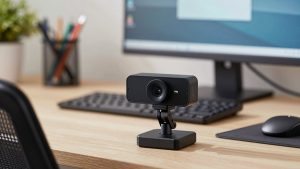
If you use a desktop PC for work calls, you do not need to spend much to look clear and professional. Most cheap webcams in the $25 to $50 range now do 1080p, handle Zoom, Teams, and Google Meet without drivers, and clip straight onto a monitor. Where they cut corners is low light, autofocus, microphones, and build quality.
That is fine for a lot of people. It is not fine for everyone. A $30 webcam that looks decent in a bright home office can look grainy and laggy in a dim bedroom at 7pm. Here is how to pick the right cheap option without buying twice.
📄 In This Review
When a cheap webcam is enough
A basic 1080p webcam is usually enough if you take 1-2 calls a day, sit facing a window or a lamp, and mostly talk rather than present. Teammates will see you clearly, screen share will still be the focus, and background blur in Teams or Zoom will work okay.
Cheap is also fine as a second webcam. Many PC users keep one clipped to the main monitor and move it to a tripod for whiteboard shots, packing, or warehouse walkthroughs. For that kind of abuse, a low-cost model makes more sense than a $150 camera.
Cheap is not enough if you present to clients all day, teach online, or work in a dark room you cannot change. In those cases the failure modes show up fast: noisy image, face always slightly soft, exposure pumping when you move, and a thin, echoey mic that picks up keyboard clicks. You will save time by stepping up to a mid-range 1080p or 2K model with better low-light handling instead of fighting settings.
What to check before you buy for PC
See also: Best Monitor for MacBook Air: Two USB-C 4K Screens and Six Adapter-Dependent Alternatives • Best Monitor for MacBook Pro: Eight Listings Sorted by Cable, Sharpness and Scaling
Resolution tells you very little at this price. Almost everything says 1080p, but sensor size and lens quality matter more. Focus on these four things instead.
Focus type. Fixed-focus is common under $35. It is sharp from about 40cm to 1.5 meters and never hunts. That is good if you sit still at a desk. Autofocus costs a bit more and is better if you lean in and out, hold products up to the camera, or move around. Cheap autofocus can be slow and noisy though, breathing in and out every few seconds.
Field of view. For a single person at a desk, 65 to 78 degrees looks natural and keeps you centered. Wider 90-degree cheap models fit two people but make you look small and stretch the corners of the room. Only pick wide if you actually share the desk.
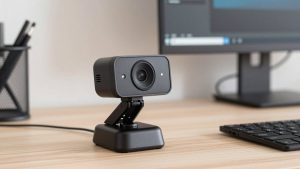
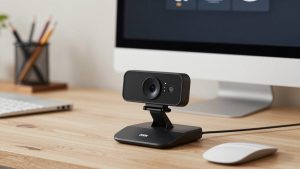
Mount and Windows compatibility. Most cheap webcams are plug-and-play over USB-A with UVC, so Windows 10 and 11 see them immediately. Check the clip if you have a curved or very thin monitor – some cheap clips slip or block part of the screen. A standard 1/4-inch tripod thread on the bottom is useful if your monitor sits high.
Microphone and privacy. Expect a usable but flat dual mic that works to about 1 meter in a quiet room. Beyond that it sounds distant and picks up fans and typing. Almost all cheap models include a privacy shutter or cap now. A built-in sliding shutter is better than a loose cap you will lose.
The main types of cheap PC webcams compared
There are really three buckets at the low end. They all say 1080p, but they behave differently in real calls.
| Type | Typical price | Best for | Main trade-off |
|---|---|---|---|
| Basic 720p / 1080p fixed-focus | $20-$30 | Kids PC, second PC, occasional calls | Soft detail, poor low light, weak mic |
| Budget 1080p fixed-focus with better sensor | $30-$50 | Daily work calls in decent light | No autofocus, narrow exposure range |
| Budget 1080p autofocus | $40-$65 | Presenting, leaning in/out, small demos | Focus can hunt, needs good USB port power |
| Budget 2K / QHD | $50-$70 | Cropping, whiteboard, wanting sharper stills | Bigger file, more light needed, mic still basic |
For most PC office workers, the sweet spot is the second row: a budget 1080p webcam with fixed focus and a physical shutter. No driver software to maintain, no focus hunting on Teams, and decent sharpness if you give it light. If you regularly show paperwork or products, look instead at a budget autofocus webcam in the $40 to $60 range.
The budget 2K models can be worth it on a desktop with a large 27-inch monitor, because you sit a bit farther back and the extra pixels help with cropping. Just know the image can actually look worse in low light than a good 1080p sensor, because the smaller pixels collect less light. Do not buy 2K for a dark room expecting it to fix grain.
Common failure modes to avoid
I have tested enough cheap webcams to see the same problems repeat. First is low-light noise. Manufacturers boost brightness digitally, so your face looks bright but covered in moving speckles. If your room is under about 150 lux – typical for a single ceiling light at night – every cheap webcam will struggle. A $15 desk lamp in front of you does more than a $40 camera upgrade.
Second is over-sharpening and waxy skin. To hide a soft lens, cheap firmware cranks sharpening and noise reduction. Text on a held-up document looks crunchy, faces look plastic. You can usually improve this by turning sharpness down in the Windows Camera app or the vendor app, if one exists.
Third is bad auto-exposure with windows behind you. Cheap sensors blow out the background and turn you into a silhouette. Sit facing the window, not with your back to it, or close the blinds and use a front light. No cheap webcam can fix strong backlight.
Fourth is USB and mount issues on desktops. Front-panel USB hubs and long extension cables cause stutter or disconnects at 1080p30. Plug directly into the back of the PC when you can. And if the clip feels loose in the box, it will not get better – return it and look at a webcam with tripod mount and privacy shutter that can sit on a small tripod instead of hanging off the monitor.
Getting a good image from a cheap webcam
You can close most of the gap to a $100 camera with setup. Put a warm-white lamp or window 45 degrees in front of your face, not overhead. Set the webcam at eye level, about an arm’s length away. In Teams or Zoom, set video to 1080p if available, turn off low-light enhancement if it makes you look blurry, and leave background blur on light rather than heavy.
For audio, do not rely on the webcam mic for more than quick calls. Even a $25 wired earbud mic usually sounds clearer because it is closer to your mouth. Keep the webcam mic as backup. In Windows Sound settings, turn the webcam mic level to around 70-80 to reduce hiss, and turn off any aggressive mic boost in third-party apps.
If you use a laptop dock or a Mac alongside your PC, look for a UVC-compliant model with no required driver. That way you can move the same camera between machines without reinstalling software.
FAQ
Is a $30 webcam good enough for job interviews?
Yes, if your lighting is decent. Interviewers care more about stable framing, clear audio, and eye-level angle than 4K detail. Use front light, plug into rear USB, and test in the actual app you will use.
Do I need 4K on a budget PC webcam?
No for most work calls. Cheap 4K sensors often look softer in low light than good 1080p and need more CPU and bandwidth. Only consider 2K or 4K if you want to crop in or record video, and you have good light.
Why does my cheap webcam look worse at night?
Small sensors need a lot of light. At night the camera raises ISO and slows shutter, which creates grain and motion blur. Add a lamp in front of you and close curtains behind you. That usually fixes more than any settings change.
Will any cheap webcam work with Windows 11?
Almost all USB webcams that list UVC or plug-and-play work with Windows 10 and 11 without drivers. Avoid models that require a custom driver disc or app for basic video. Check for USB-A versus USB-C – most desktops still want USB-A or an adapter.