Last Updated: October 18, 2026
On a Mac, 1080p is still the sweet spot for work calls. It’s sharp enough for Zoom, Teams, Meet, and FaceTime, but it doesn’t demand perfect lighting or a perfect connection like 4K does. The problem isn’t resolution. It’s Mac compatibility, autofocus behavior, and how the camera handles a dim home office.
I’ve tested a lot of webcams on MacBook Air, MacBook Pro, Mac mini, and iMac setups. The good 1080p ones all do the same thing well: plug in over USB, show up immediately in macOS, and stay consistent from call to call without driver software.
📄 In This Review
Why 1080p still makes sense on Mac
Most work calls are compressed to 720p anyway. What you see as “better quality” is usually better exposure, better white balance, and less noise — not more pixels. A clean 1080p sensor with a decent lens will look better on a MacBook Pro call than a cheap 4K sensor that over-sharpens your face and falls apart in low light.
1080p also avoids three common Mac headaches: overheating on long calls, dropped frames through USB-C hubs, and fan noise on an Air because conferencing software is trying to process a 4K stream. If your office has average window light and a ceiling light, 1080p is easier to make look good.
The exception is if you regularly record training videos or need heavy cropping. Then higher resolution helps. For live meetings, save your money.
What actually matters for Mac users
See also: Best Monitor for MacBook Air: Two USB-C 4K Screens and Six Adapter-Dependent Alternatives • Best Monitor for MacBook Pro: Eight Listings Sorted by Cable, Sharpness and Scaling
Forget the spec sheet. Check these four things first.
1. True plug-and-play on macOS. You want UVC compliance — no driver install. On macOS Sonoma and later, go to System Settings > Privacy & Security > Camera and make sure Zoom, Teams, Chrome, Slack, etc. are allowed. Many “camera not working” reports are just a permissions block, not a broken camera.
2. Focus type. Autofocus sounds better but hunts during calls if you move, gesture, or lean in. Fixed focus stays locked and is more reliable for desk work at 2-3 feet. Choose autofocus only if you stand up, use a whiteboard, or move around.
3. Field of view. For a home office, 75 to 90 degrees is ideal. Wider than 95 degrees will show your messy room and make your face small. It also stretches the edges of the image, which looks bad on laptops.
4. Mount and mics. The clip has to grip a thin MacBook lid without wobbling, and ideally also sit on top of a Studio Display or external monitor. Dual mics are standard now, but don’t expect miracles. In a quiet room they’re fine. In an echoey room or with a keyboard 12 inches away, you’ll still want AirPods or a USB headset.
Which type of 1080p webcam to buy
Instead of chasing one “best” model, pick by how you work. These three categories cover 95% of Mac home offices.
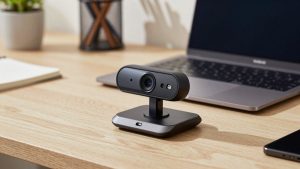
Best for most people: basic fixed-focus 1080p webcam. No software, no autofocus motor to fail, just consistent video. This is the right choice if you sit at a desk all day on Zoom or Meet. Image is slightly softer than autofocus up close, but it never pulses in and out of focus when you move your hands. It’s also cheaper, runs cooler, and works better through a dock. If you want to browse, look at a basic 1080p webcam for Mac with a privacy shutter and tripod thread.
Failure mode: in very low light these get noisy because there’s no large sensor to compensate. Fix it with a $20 desk lamp bounced off a wall in front of you, not with a more expensive camera.
Best if you move around: 1080p autofocus webcam with dual mics. Good for teachers, coaches, managers who stand up and pace. Autofocus keeps you sharp from 1 to 6 feet, and the wider pickup helps if you’re not glued to the mic. The trade-off is hunting — on some units the focus breathes every 10-20 seconds under LED lighting. Turning off auto-exposure in Photo Booth or Teams, if available, usually calms it down.
Failure mode: autofocus + low light = soft, searching video. If your office is dim after 5pm, this category disappoints. Add light first.
Best for shared desks and small rooms: 1080p webcam with 90-degree lens and physical shutter. The slightly wider view fits two people without pulling the laptop back four feet. The shutter matters because macOS green light only tells you when the camera is active — it doesn’t block the lens when idle. Look for a wide-angle 1080p webcam with privacy shutter if you work in a bedroom office or take calls with family around.
Failure mode: wide lenses distort faces at the edges and pick up more backlight from windows. Center yourself and put your back to a wall, not a window.
Quick comparison
| Type | Best for | Strengths | Watch out for |
|---|---|---|---|
| Fixed-focus 1080p | Daily Zoom / Teams at a desk | Stable image, no focus hunting, cheapest, works through hubs | Softer up close, noisy in dark rooms |
| Autofocus 1080p | Moving, whiteboard, demos | Sharp at different distances, better mics | Focus breathing, worse in low light, costs more |
| 90-degree + shutter | Shared desk, bedroom office | Fits 2 people, privacy control | Edge distortion, shows more background |
| Mac Continuity Camera (iPhone) | Travel, temporary setup | Excellent image, no extra purchase | Mount fiddly, drains phone, overheats on long calls |
Mac setup that prevents most complaints
Plug the webcam directly into your Mac or a powered hub first to test it. Many unpowered USB-C adapters can’t sustain video + power, especially on MacBook Air with two other devices attached. If video freezes after 10 minutes, the hub is usually the cause, not the camera.
In conferencing apps, set the camera to 1080p manually instead of “HD” or “Auto.” In Zoom, that’s Settings > Video > Original ratio and HD enabled. In Teams, it often defaults to 720p to save bandwidth — that’s normal and not a defect.
Don’t install the manufacturer’s tuning app unless you need it. Most Windows-only utilities do nothing on Mac except add a menu bar process. You can adjust exposure with the lighting in your room faster than with software.
For audio, test before you rely on the webcam mics. Record a 20-second clip in QuickTime Player > New Audio Recording and listen for echo and keyboard clatter. If it’s harsh, switch to a headset. A simple USB headset for Mac calls will improve how you sound far more than upgrading from a $40 webcam to a $120 webcam.
When the cheaper option is fine
If you have decent front light, sit still, and use headphones, the cheapest true-1080p fixed-focus camera is fine. Don’t pay extra for digital zoom, beauty filters, background blur in hardware, or “4K upscaled” labels. macOS and Zoom already do background blur and it looks cleaner than cheap in-camera effects.
Pay more only for three reasons: you need reliable autofocus because you move, you need a better mount for a thick monitor or Studio Display, or you need a wider frame for two people. Otherwise put the difference toward light or audio.
FAQ
Do I need drivers for a 1080p webcam on Mac?
No. Choose a UVC-compliant camera and it should appear in FaceTime, Photo Booth, Zoom, and Teams without drivers. If it doesn’t show up, check System Settings > Privacy & Security > Camera permissions and try a direct USB port instead of a hub.
Why does my 1080p webcam look worse than my MacBook camera?
Usually lighting or placement. Laptop screens light your face evenly. An external webcam on top of a monitor in a dark room has to boost gain, which adds noise. Add a lamp in front of you and set the webcam at eye level, about arm’s length away.
Should I just use my iPhone as a Mac webcam?
For occasional calls, yes. Continuity Camera looks excellent. For 4+ hours of calls daily, a dedicated 1080p webcam is more practical — no mount juggling, no battery drain, no interruptions from calls and notifications.
Is 1080p enough for Teams and Zoom on an external monitor?
Yes. Both services compress heavily. A stable, well-exposed 1080p feed looks sharp on a 27-inch monitor. Viewers notice stutter, focus hunting, and bad audio long before they notice 1080p versus 4K.
Related Reviews & Guides
How to Choose Routers for Home Office: What Actually Matters
Best Sony Camera for Webcam