Last Updated: October 18, 2026
If you join Zoom, Teams, or Meet from a laptop all day, the camera matters more than most specs. Most built-in laptop cameras are still 720p with tiny sensors, and they fall apart in typical home office light. You look soft, noisy, and washed out even if your connection is fine. An external webcam is the fastest fix, but you do not need to overspend. For most people, a solid 1080p camera with good auto-exposure is enough.
📄 In This Review
Your built-in camera is usually the bottleneck
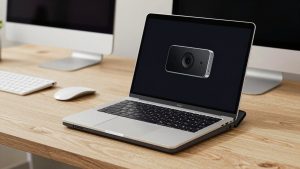
Laptop makers prioritize thin lids, so the camera module is small and fixed-focus with a narrow dynamic range. In practice that means three failure modes: heavy grain when your room is dim, blown-out face when a window is behind you, and a waxy, over-sharpened look as the laptop tries to clean up the noise. MacBook Air and MacBook Pro cameras from the last few years are better than average, especially with Apple’s image processing, but they still struggle in mixed light and you cannot reposition them.
Keep the built-in camera if you take 1-2 calls a week in a bright room and no one has complained. Clean the lens, face a window, and raise the laptop so the lens is at eye level. If you present to clients, teach, interview, or do 3+ hours of calls per day, an external camera pays for itself in how you come across. It also lets you use a laptop stand without giving everyone a view up your nose.
What actually matters for conferencing
See also: Best Monitor for MacBook Air: Two USB-C 4K Screens and Six Adapter-Dependent Alternatives • Best Monitor for MacBook Pro: Eight Listings Sorted by Cable, Sharpness and Scaling
Ignore most marketing specs. For work calls, prioritize sensor performance and exposure over raw resolution. A good 1080p sensor with large pixels will beat a cheap 4K sensor in a dim home office every time. Look for decent low-light handling, stable auto white balance, and a frame rate that stays at 30fps without stuttering. Autofocus is useful if you move, lean in, or hold up documents, but cheap autofocus can hunt and pulse during a call, which is more distracting than slightly soft fixed focus.
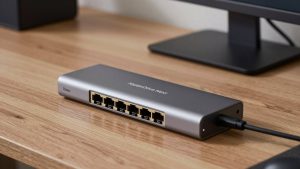
Field of view is a real trade-off. Around 65 to 78 degrees looks natural for one person and keeps your background tidy. Wider 90-degree views fit two people but make you small and show more room clutter. Microphones are secondary. Even good webcam mics pick up keyboard noise and room echo. If audio matters, get a separate USB headset or desktop mic. Also check mounting and ports. Most external webcams clip to a laptop lid, but heavier models wobble on thin MacBook lids. If your laptop only has USB-C, you will need an adapter or dock because many webcams still ship with USB-A plugs.
Which type to buy for your setup
There are really three tiers that make sense. Budget 1080p fixed-focus cameras are fine for check-ins and internal calls. Mid-range 1440p or well-tuned 1080p cameras with autofocus are the sweet spot for client-facing work. Premium 4K cameras only make sense if you crop, need digital zoom for whiteboard demos, or want headroom for recording.
| Type | Typical spec | Best for | Watch out for |
|---|---|---|---|
| Built-in laptop camera | 720p to 1080p, fixed focus | Occasional calls in bright rooms | Noise in low light, no positioning control |
| Budget external 1080p | 1080p/30, fixed focus, 70-80 degree FOV | Students, internal Teams/Zoom users | Weak mics, poor backlight handling |
| Mid-range autofocus | 1080p to 1440p/30-60, autofocus, auto light correction | Remote workers, managers, coaches | Autofocus hunting on cheap models |
| Premium 4K | 4K/30, larger sensor, 65-90 degree adjustable FOV | Presenters, creators, heavy recorders | Needs good light and USB bandwidth, costs more |
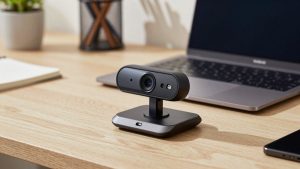
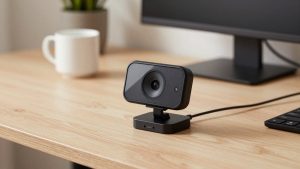
For most home offices, start with a 1080p webcam for laptop video conferencing with a privacy shutter and tripod thread. It is cheap, works plug-and-play on Windows and Mac, and looks noticeably cleaner than a three-year-old built-in camera. If you are on calls with customers or you work in a dark room, step up to a autofocus webcam with light correction — autofocus keeps you sharp when you lean in, and better exposure prevents that grey, washed-out face.
Only buy 4K if you have a reason. On Zoom and Meet you are usually transmitted at 720p or 1080p anyway, so 4K mostly helps if you record locally or use digital zoom. If you go that route, look at a 4K webcam for Mac home office use with adjustable field of view and manual exposure control. Without enough light and a stable mount, 4K will just give you sharper noise.
Setup matters more than price
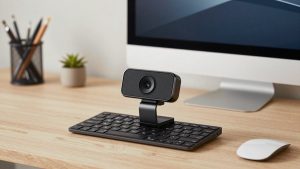
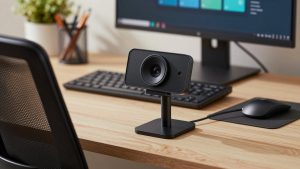
Even a good camera looks bad backlit or placed too low. Put your face toward your main light source, not with a bright window behind you. A $20 LED panel or simply moving your desk 90 degrees to a window does more than jumping from 1080p to 4K. Mount the camera at eye level and about arm’s length away. On laptops, that usually means putting the laptop on a stand and using an external keyboard, with the webcam clipped on top of an external monitor instead.
Common failure modes to test on your first call: autofocus pulsing when you gesture, auto-exposure flickering under LED ceiling lights, and audio echo because you left both the webcam mic and laptop mic active. Record a 30-second test in your actual meeting app, not just the camera preview. Turn off beauty filters and auto-framing at first, then add them back one at a time if you need them. Mac users should check permissions in System Settings and quit other apps that lock the camera. Windows users should check that Teams or Zoom is not defaulting to an integrated camera after you plug in USB.
FAQ
Is a 4K webcam worth it for Zoom and Teams?
Usually no. Most calls are compressed to 720p or 1080p, so you will not see the extra detail live. Buy 4K only if you record video, crop in, or need digital zoom. Otherwise spend the difference on lighting.
Will an external webcam work with MacBook?
Yes, almost all USB webcams are plug-and-play on macOS for Zoom, Teams, Meet, and FaceTime. Just check the connector. Many ship with USB-A, so thin MacBooks need a USB-C adapter or dock, and some advanced settings apps are Windows-only.
Why do I look grainy even with a new webcam?
It is almost always low light. The sensor raises gain and creates noise. Add a soft light in front of you, turn up room lights, and avoid backlight. Also wipe the lens and make sure your app is set to HD.
Should I use the webcam mic or a headset?
Use a headset or dedicated USB mic for work. Webcam mics sit far from your mouth and pick up typing, fans, and echo. The webcam upgrade is for video; audio is a separate problem.