Last Updated: October 18, 2026
If you are on calls 4-6 hours a day, a top-tier webcam is not about looking like a streamer. It is about not looking washed out at 4pm, not dropping focus when you lean back, and not making your MacBook fans spin up because the camera software is bloated. After testing webcams in real home offices – blinds half open, overhead LEDs, Logitech and no-name clip-ons side by side – the differences that matter are autofocus consistency, exposure handling, and microphones you can actually turn off.
“Top tier” here does not mean the most expensive. It means the cams worth buying if video is part of your job: client calls, teaching, telehealth admin, managing a remote team. Most people do not need 4K. Some do, if you crop, present whiteboards, or record training videos you will reuse.
📄 In This Review
When top-tier is worth it, and when it is not
A $35 1080p webcam is fine if you do two internal standups a week from a bright room and your laptop is from the last three years. Modern MacBook and ThinkPad built-ins are decent in good light. Where they fail is backlight from a window, low light in winter, and framing – you are stuck with a wide low-angle shot that makes you look tired.
Pay more when: you lead calls, you record, your room is dark or backlit, or you use an external monitor and your laptop lid is closed. A good external cam with larger sensor and proper auto-exposure will hold skin tone and keep the background from blowing out. It will also stay mounted on a 27-inch monitor without drooping, which cheap clip mounts do after a month.
Do not pay more for digital zoom, beauty filters, or “AI tracking” unless you actually move around while presenting. Those features cause more support headaches than they solve.
Top-tier webcam types compared
See also: Best Monitor for MacBook Air: Two USB-C 4K Screens and Six Adapter-Dependent Alternatives • Best Monitor for MacBook Pro: Eight Listings Sorted by Cable, Sharpness and Scaling
This is the fastest way to decide. Pick your category first, then worry about brand.
| Type | Best for | Typical trade-off | Who should skip it |
|---|---|---|---|
| Mid-range 1080p with autofocus | Daily Zoom / Teams / Meet, 3+ hours/day | No real cropping room; 1080p soft on 4K monitors | Occasional callers in bright rooms – built-in is enough |
| 4K work webcam | Recording training, large monitor viewing, whiteboard detail | Needs good USB bandwidth and light; larger files if recording | Laptop-only users on old USB hubs or weak Wi-Fi |
| Compact 1080p fixed-focus | Hot-desking, travel, second laptop | Focus soft if you move; worse in low light | Anyone presenting or recording for reuse |
| Premium low-light 1080p/1440p | Basement offices, evening calls, no key light | Costs more for a sensor you may not need in daylight | Bright home office with window in front of you |
What actually matters for work calls
Resolution is fourth on the list. First is exposure. Top-tier work cams handle mixed light without pulsing brighter and darker every time you move your hands. Look for HDR or backlight compensation that you can leave on auto. If you sit with a window behind you, no 4K badge will save a cheap sensor.
Second is autofocus behavior. Cheap autofocus hunts. You lean to grab coffee and the whole image breathes for two seconds. Good work cams lock once and stay. If you sit 2-3 feet away and rarely move, fixed focus is actually more reliable – just check the focus distance. Many travel cams are set for 60cm to infinity and look soft at desk distance.
Third is mounting and field of view. For work, 65-78 degrees is ideal. Wider than 85 degrees shows your laundry and bends straight lines. A real tripod thread (1/4-inch) matters if you use a monitor arm or want the cam at eye level on a small stand. Plastic-only clips crack and slip on curved ultrawides.
Failure modes I see repeatedly: mics that pick up keyboard and HVAC and cannot be muted from the cam, privacy shutters that fall off, and companion apps that demand to run at startup on Mac to enable 4K. If a cam requires a background app to hold settings, it is a bad fit for locked-down work laptops.
Picks by use case
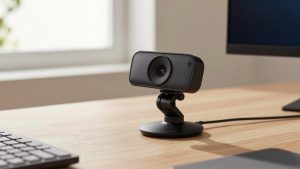
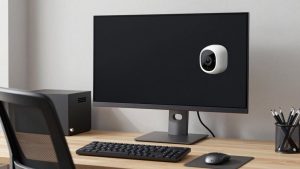
Daily driver for home office: Get a mid-range 1080p autofocus cam with dual mics and a physical shutter. Mount it on top of your external monitor, set exposure to auto, and add a $25 LED panel if your face is darker than the background. This setup beats a 4K cam in a dark room every time. If you shop, start with a 1080p autofocus webcam for Zoom and Teams and filter for tripod thread and shutter in the photos.
For recording and detailed presenting: This is the one case where a 4K webcam for video calls makes sense. You get headroom to crop to 1080p without mush, and text on a whiteboard stays readable. Trade-off: you need direct USB to the laptop, not through a cheap dock, or you will get stutter at full resolution. Most meeting apps will still send 720p or 1080p live – the benefit is local recording and sharper stills.
For laptop and MacBook users who move rooms: A small fixed-focus cam with a short cable and a hard cap travels better than a premium unit. It also avoids driver issues on managed Macs. If your MacBook already has a good 1080p FaceTime camera, spend the money on light and a laptop stand to get the lens to eye level instead.
For dark rooms and night calls: Look for a larger sensor model advertised for low light, usually 1080p or 1440p rather than 4K. Pair it with a simple LED video light for home office webcam placed behind the camera. A dimmable 4000K panel at 20% brightness does more for noise than any sensor upgrade.
Mac and laptop setup notes that save headaches
On Macs, prefer UVC-compliant cams that need no driver. Check for that phrase in the listing. Test in FaceTime first, then Teams/Zoom, because Teams on Mac is pickier about mic selection. Set the system input to your headset, not the webcam, unless you have no headset – webcam mics are backup, not primary, if you type during calls.
On Windows laptops with USB-A docks, plug 4K cams directly into USB 3.0 on the laptop for the first test. If video freezes only when docked, it is bandwidth, not a broken cam. Turn the cam down to 1080p in the meeting app and the problem usually disappears.
For both: mount once, focus once, then tape the settings. Disable auto-framing unless you demo standing up. Turn off “right light” plus “HDR” together – stacking corrections causes lag and waxy skin.
FAQ
Is 4K worth it for Zoom and Teams?
Usually no for live calls. Most platforms transmit 720p to 1080p to save bandwidth. 4K helps if you record locally, crop in editing, or need to show fine detail. Otherwise a good 1080p cam with better exposure will look better live.
Why do I look washed out even with a good webcam?
It is almost always backlight or overhead light. Move a window or bright lamp in front of you, not behind, and lower exposure compensation one notch. A small LED panel at low brightness fixes more than upgrading the camera.
Should I use the webcam mic or a headset?
Use a headset or USB mic for daily work. Webcam mics sit 2-3 feet away and pick up room echo and typing. Keep the webcam mic as a fallback for when your headset dies mid-call.
Will an external webcam work with a closed MacBook?
Yes, if it is UVC-compliant and you connect direct or through a powered dock. Close the lid, plug power, external display, and webcam, then select the external cam in FaceTime or Teams settings. Test before an important call – some docks limit USB bandwidth.