Last Updated: October 18, 2026
If you use a desktop computer for work, you almost certainly need an external camera. Most desktop monitors have no camera at all, and the few with one built in are usually poor. The good news is you do not need to spend a lot to look sharp on Zoom, Teams, or Google Meet.
What you need is different from what a streamer or YouTuber needs. For office work, reliability, natural color, and good auto-exposure matter far more than 4K resolution or background blur effects.
📄 In This Review
Why desktops need a different approach
A laptop webcam sits about 18 inches from your face and moves with the screen. A desktop setup is more varied. You might have a 27-inch monitor, dual monitors, or a monitor arm. You sit farther back, often 24 to 36 inches away, and room light is uneven.
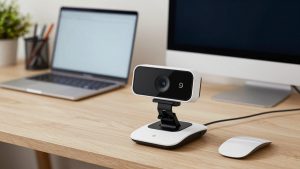
That distance is why cheap, fixed-focus webcams can look soft on desktops even when they look fine on laptops. It is also why mounting matters. A clip designed for a thin laptop lid will wobble or slip on a thick gaming or office monitor with a curved back. If your monitor is deep, look for a webcam with a tripod thread on the bottom and a wide, stable foot. A small mini-tripod on the desk is often steadier than a lid mount, but it puts the camera lower, which can create an unflattering up-the-nose angle unless you raise it to eye level.
What actually matters for work calls
See also: Best Monitor for MacBook Air: Two USB-C 4K Screens and Six Adapter-Dependent Alternatives • Best Monitor for MacBook Pro: Eight Listings Sorted by Cable, Sharpness and Scaling
Resolution is overrated. A good 1080p sensor with a decent lens beats a cheap 4K sensor in real meetings because most conferencing apps compress you to 720p or 1080p anyway. What shows up on the other end is exposure, white balance, and focus stability.
Autofocus sounds better on paper but can be a failure mode. Inexpensive autofocus systems hunt when you lean back, gesture, or hold up a document, producing that visible pulsing blur every few seconds. For a desk where you sit relatively still, fixed focus set to 2 to 4 feet is often sharper and calmer. Choose autofocus only if you move around, whiteboard, or demo products.
Low-light performance is the other real differentiator. Many home offices have one window to the side and an overhead light. Small sensors compensate by boosting gain, which creates grain and waxy skin. A larger sensor with a wide f/2.0 to f/2.8 lens holds detail without turning you orange. Built-in mics are usable for backup, but even the best webcam mic picks up keyboard and room echo on a desktop. If you take calls all day, plan on a separate USB headset or desktop mic.
The three options worth considering
| Type | Best for | Strengths | Weaknesses |
|---|---|---|---|
| Budget 1080p fixed-focus webcam | Everyday office calls, Teams, Meet | Cheap, no focus hunting, plug-and-play, low CPU use | Soft beyond 3 feet, struggles in dim rooms, narrow dynamic range |
| Mid-range 1440p / 4K autofocus webcam | Home office with poor light, teaching, client-facing roles | Sharper at distance, better auto-exposure, wider field of view options | Autofocus can pulse, needs good USB port, software can be buggy on Mac |
| Large-sensor video camera for desktops | Managers, coaches, creators who live on video | Clean low-light image, natural background blur, no grain | Expensive, bulkier mount, needs more light control to avoid overexposure |
Which one should you buy
For most desktop workers, the cheaper option is fine. A basic 1080p business webcam with fixed focus is enough if you have decent light and sit within arm’s reach. Put a lamp or window in front of you, not behind you, set the field of view to 65 to 78 degrees so the camera does not pick up the whole room, and you will look better than 80 percent of people on the call. Do not pay extra for 4K if your job is mostly internal meetings.
Upgrade to a mid-range autofocus model if you sit far from a large monitor, share a desk that moves, or work in a dim room. Look for a 1440p autofocus webcam for desktop with auto light correction and a physical privacy shutter. The jump from 1080p to 1440p is less about pixels and more about better lenses and processors that hold exposure steady when clouds pass or office lights flicker. The trade-off is software: companion apps for auto-framing and background blur often require Windows for full features, with limited settings on Mac.
Consider a large-sensor option only if video is your job – daily client calls, training, or recording. These use a much bigger sensor than a typical webcam, so skin tones stay natural at 7am or 7pm without blasting a ring light. They cost two to three times more and they expose bad lighting rather than hide it. If your background is a bright window, you will still be silhouetted unless you close blinds or add a front light. For everyone else, this is overkill.
Setup problems that ruin image quality
Most bad webcam images are not the camera’s fault. On desktops, the top failure is USB. Plug the camera directly into a USB port on the back of the PC or into a powered hub, not into the USB passthrough on a monitor or keyboard. Those ports are often USB 2.0 and underpowered, which causes stutter, dropped frames, or the camera reverting to 720p.
Second is placement. Center the camera at eye level on your main monitor, not off to the side on a second screen. If you look at notes on one screen while the camera is on the other, you will appear to stare away the whole meeting. If you use dual monitors, pick one for calls and keep the camera there.
Third is software conflict. Zoom, Teams, and browser Meet tabs will fight over the camera. Close the other app completely before joining. On Macs in particular, check Privacy and Security settings after macOS updates, which often revoke camera access. Also turn off beautification, auto-framing, and virtual background unless you need them. Each adds CPU load and can make budget desktops lag.
Finally, check flicker. In the US and other 60Hz lighting regions, a camera set to 50Hz will show banding under LEDs. If your image has rolling lines, change the power-line frequency setting in the camera app from 50Hz to 60Hz.
FAQ
Do I need 4K for work calls?
No, for most jobs. Teams, Zoom, and Meet compress video heavily, so a clean 1080p feed looks identical to 4K to other people. Buy 4K only if you crop or zoom digitally, sit far back, or also record videos locally.
Will any webcam work with Mac and Windows desktops?
Basic UVC webcams work on both without drivers, which covers almost all budget and mid-range models. Advanced features like background blur, tracking, and firmware updates are often Windows-only. If you use a Mac mini or Mac Studio, verify that the settings app supports macOS before you buy.
Where should I mount a camera with dual monitors?
On the monitor where faces appear, centered and at eye level. A center mount between two monitors seems logical but gives you a wandering-eye look on both screens. If you switch often, use a standalone tripod so you can move the camera.
Why do I look grainy even with a good camera?
It is almost always lack of front light. Add a simple desk lamp or place your monitor facing a window. Backlight from a window behind you forces the camera to darken your face. Fix light first before buying a more expensive camera.
Related Reviews & Guides
6 Best Computer Laptop Stands 2026
Best Computer Camera with Ring Light