Last Updated: October 18, 2026
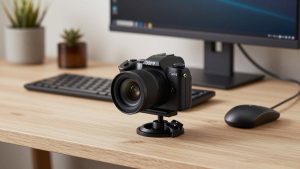
If you spend your day in Zoom, Teams, or Google Meet, you do not need a $200 camera. A good budget USB camera in the $30 to $70 range will look sharper and sound better than the built-in camera on almost any laptop, including most MacBooks. The trick is buying the right kind of cheap.
I have tested cheap webcams in real home offices – low light bedrooms, backlit kitchen tables, cluttered desks with monitors at different heights. The differences are not about megapixels. They are about focus, exposure, microphones that pick up keyboard noise, and mounts that slip off your monitor.
📄 In This Review
What a budget USB camera gets you
Most budget USB cameras top out at 1080p at 30fps. That is fine. For work calls, 1080p is still the standard because conferencing apps compress video heavily anyway. A clean, well-exposed 1080p image beats a noisy, over-sharpened “4K” image every time.
What you give up under $70: true optical quality in low light, wide dynamic range for bright windows behind you, and premium autofocus. You also get cheaper plastic housings, basic stereo mics, and privacy shutters that are just sliding plastic caps. None of that matters much if you set it up right.
When the cheaper option is fine: if you do 1:1 calls, standups, interviews, or classes from a desk 2 to 3 feet from the screen, a basic fixed-focus 1080p camera is enough. You only need to spend more if you move around a lot, present whiteboards, need background blur without a fast computer, or sit in a very dark room.
What to avoid in cheap cameras
See also: Best Monitor for MacBook Air: Two USB-C 4K Screens and Six Adapter-Dependent Alternatives • Best Monitor for MacBook Pro: Eight Listings Sorted by Cable, Sharpness and Scaling
The biggest failure mode I see is bad autofocus. Ultra-cheap cameras with “auto focus” hunt constantly – your face pulses in and out of sharpness while you talk. That is more distracting than slightly soft video. For desk work at a fixed distance, fixed focus is actually more reliable.
Second failure mode: terrible auto-exposure. Cheap sensors blow out your face if you have a window or white wall behind you. Look for a camera that mentions backlight compensation or HDR, even basic HDR. It will not be perfect, but it helps.
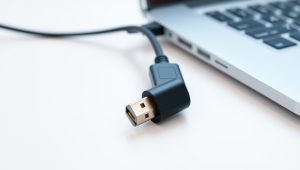
Third failure mode: mounts and USB. A lot of budget cameras come with a stiff clip that does not grip thin laptop lids or curved monitors. They slowly tilt down during a call. And some ship with short, thin USB-A cables with no USB-C adapter. If you use a modern MacBook or ultrabook with only USB-C, you will need an adapter or dock.
What to actually look for
Ignore digital zoom, beauty filters, and “5x zoom” claims. Check these four things instead:
1. Focus type: Fixed focus is best if you sit still. Autofocus is better only if you lean in and out, hold products up to the camera, or pace. If you buy autofocus on a budget, expect it to be slower and noisier.
2. Field of view: 70 to 80 degrees is ideal for one person. Wider than 90 degrees makes you look small and shows your messy room. Narrower than 65 degrees feels cramped if you use a large monitor.
3. Microphone reality: Built-in mics on budget cameras are usable but picky. They capture echo and keyboard clicks. Plan to use earbuds, a headset, or your laptop mic if your room echoes. Do not buy a webcam for its mic alone.
4. Mac and laptop compatibility: Choose UVC-compliant, plug-and-play cameras with no driver required. That is what works natively with macOS, Windows, ChromeOS, Zoom, Teams, and Meet. Avoid anything that requires a Windows-only app to enable 1080p or autofocus.
Budget USB camera types compared
There are really three kinds of “budget USB camera” and they suit different workers:
| Type | Typical Price | Strengths | Weaknesses | Best For |
|---|---|---|---|---|
| Basic 1080p fixed-focus webcam | $28-$45 | Reliable sharpness at desk distance, simple plug-and-play, low CPU use | Soft in low light, no flexibility if you move, narrow exposure range | Daily Zoom/Teams calls from a laptop |
| 1080p autofocus with dual mics | $45-$70 | Better for leaning in/out, slightly better mics, often includes privacy shutter and tripod thread | Focus hunting on cheapest models, still struggles with backlight | Teachers, coaches, sellers who show things on camera |
| Budget 4K / QHD autofocus | $60-$90 | Sharper crop for whiteboards, more detail in good light, usable digital zoom | Needs good light and USB 3.0, heavier CPU load, low-light often worse than 1080p | Presenters who crop or record |
If you just want to look competent on calls, start with the first category. A simple 1080p USB webcam for laptop from a known webcam brand is usually the safest buy. The image will be predictable, and you avoid focus pulsing.
Which budget type suits you
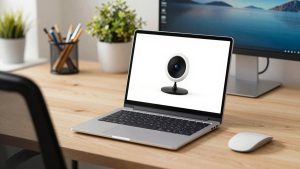
For laptop workers and Mac users: Get a compact 1080p fixed-focus camera with a folding clip and a USB-A cable plus USB-C adapter in the box. You want UVC plug-and-play and a 75-degree lens. Clip it to the top center of your lid, not off to the side on an external monitor, or eye contact looks wrong. This is the set-and-forget option.
For home office with an external monitor: Get a 1080p model with autofocus and a 1/4-inch tripod thread. Monitor tops are thicker and higher than laptops, and you sit a bit farther back. Autofocus helps here, and the tripod thread lets you put it on a small desk tripod at eye level instead of craning up at a monitor-mounted camera. Look for a 1080p autofocus webcam with microphone and privacy shutter if you shift positions during the day.
For teaching, demos, and overhead shots: A standard webcam pointed at documents is frustrating. A flexible arm camera works better. A USB document camera for home office can look down at papers, then bend up for your face. Image quality is usually only 1080p to 2K, but the versatility beats resolution. Just confirm it works as a standard UVC camera in Zoom and Meet, not only in its own app.
When to consider budget 4K: Only if you have good front light and a reasonably modern laptop. A budget 4K USB webcam with autofocus gives you room to crop to 1080p and still look sharp, which helps if you sit far back or record tutorials. In a dim room, turn it down to 1080p mode – most look cleaner that way because the sensor bins pixels and reduces noise.
Mac and laptop setup notes
On Macs, most budget cameras work instantly in FaceTime, Zoom, and Meet, but you cannot adjust focus, exposure, or zoom without third-party software. Set your expectations: what you see on first plug-in is what you get. If the image is too dark, add light – do not hunt for a settings app.
On Windows laptops, the same camera often looks different because Windows Camera, Logi Tune, or the conferencing app applies its own auto-exposure. If you look washed out in Teams but fine in Meet, it is the app, not the camera. Lock exposure in the meeting app if it lets you, and turn off “auto adjust” when it keeps pumping brightness.
Practical tip that matters more than the camera: put a cheap lamp or window in front of you, not behind you. A $15 daylight LED bulb at 45 degrees in front of your face will improve a $35 webcam more than upgrading to a $70 webcam. Also raise the camera to eye level. Stacking your laptop or using a monitor shelf fixes the dreaded up-the-nose angle.
FAQ
Is 1080p enough for work calls in 2026?
Yes for almost everyone. Zoom, Teams, and Meet still display most participants at 720p to 1080p, and they compress heavily. Lighting, lens position, and stable exposure affect how professional you look far more than moving to 4K.
Why does my budget webcam look worse than my laptop camera?
Usually it is exposure or USB bandwidth. Try a different USB port directly on the laptop, close other camera apps, add front light, and sit 2 to 4 feet away. If you are on a USB hub with a drive and headset, move the camera to its own port.
Do I need a separate microphone?
Not always, but it helps. Budget webcam mics are 3 to 6 feet away and pick up room echo and typing. Even basic wired earbuds will sound clearer to coworkers. Use the webcam for video and earbuds for audio.
Will a cheap USB camera work with MacBook USB-C?
Yes if it is UVC plug-and-play, which most are. You just need a good USB-C to USB-A adapter or a dock. Avoid cameras that require driver software to unlock resolution – that software is often Windows-only.