Last Updated: October 18, 2026
If you work from home, a privacy shutter is not a gimmick. It is the only way to be 100% sure the camera is off without unplugging it or digging through settings. Software indicators can lag, Teams and Zoom can hold the camera open after a call, and tape looks terrible and gums up the lens.
After using a lot of these on work laptops and Macs, here is the short version: most people should buy a simple 1080p webcam with a built-in sliding shutter. It is sharper than a laptop camera, works without drivers, and the shutter gives you a physical on/off you can check at a glance. Only step up to 2K or 4K if you present a lot, crop in, or want better digital zoom.
📄 In This Review
Not all privacy shutters are the same
There are three common designs, and they matter more in daily use than resolution numbers. A sliding cover built into the housing is best. You push it left or right with a fingernail. It stays in place, you can see at a glance if it is open, and it does not get lost. This is what you want for a home office.
A clip-on magnetic cap is second best. It blocks the lens completely and often covers the whole front, but it is easy to lose and annoying if you join calls all day. Twist-to-close lens dials look neat, but in practice they collect dust and it is harder to tell from across the desk whether you are covered.
One failure mode to know: a shutter blocks video, not audio. Your mic is still live if the app is unmuted. If privacy is the reason you are buying this, build the habit of checking both the shutter and mute. Also avoid shutters that are very stiff or loose. Stiff ones make the whole webcam tilt when you slide them. Loose ones drift open in a laptop bag.
Quick comparison: which type suits work calls
See also: Best Monitor for MacBook Air: Two USB-C 4K Screens and Six Adapter-Dependent Alternatives • Best Monitor for MacBook Pro: Eight Listings Sorted by Cable, Sharpness and Scaling
| Type | Typical shutter | Best for | Watch out for |
|---|---|---|---|
| Budget 1080p with shutter | Built-in slider | Daily Zoom/Teams, laptop upgrade | Narrow field of view, basic mics, weak low light |
| Mid-range 1080p / 2K for work | Built-in slider | 8+ calls per day, glasses wearers, backlit rooms | Autofocus hunting if you move a lot |
| 4K with shutter | Slider or magnetic cap | Presenting, recording, cropping in | Needs good light and USB 3.0, larger file load |
| Wide-angle conference cam | Slider or cap | Small huddle room, whiteboard in frame | Faces look small at a desk, distortion at edges |
Best for most people: 1080p with a built-in slider
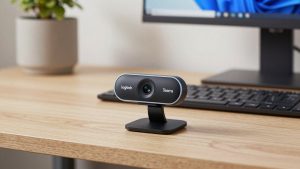
A basic 1080p webcam with privacy shutter is fine for 90% of office work. You get a real step up from a 720p laptop camera, plug-and-play USB, and usually a tripod thread and monitor clip in the box. Look for 30fps at 1080p, dual mics with noise reduction, and a field of view around 75 to 90 degrees. That frames head-and-shoulders without showing your whole room.
Trade-offs at this price are predictable. Low light is grainy, colors wash out under cheap overhead LEDs, and autofocus can pulse if you lean in and out. The mics will pick up keyboard clatter. None of that matters much for standups and check-ins. If you take calls in a dark spare bedroom, spend the money on a $20 desk lamp in front of you instead of a more expensive camera. Light fixes more than resolution does.
Who should skip it: if you wear glasses and sit near a window, cheap models flare badly. If you present to clients daily, you will notice soft detail around eyes and text behind you.
If you live on calls: mid-range 1080p or 2K with better lenses
The next step up is still 1080p or 2K on paper, but with a larger sensor, better auto-exposure, and smarter noise handling. On calls this shows up as steadier skin tones, less blowout from a window behind you, and less grain at 7am or 7pm. Most models in this tier keep the simple slider shutter, add a longer cable, and have a heavier monitor mount that does not wobble when you type.
The main failure mode here is autofocus that never settles. Some work-focused models default to continuous autofocus for product demos. For desk work, set fixed focus or face-tracking autofocus in the vendor app once, then leave it alone. Also test the mic distance. A lot of mid-range mics are tuned for 2-3 feet. Farther than that and you sound hollow, and co-workers will ask you to repeat yourself.
Buy this tier if you do interviews, sales calls, teaching, or telehealth admin work where you are on camera for hours. Do not buy it just for sharper specs. On a typical 13- to 16-inch laptop screen in Zoom gallery view, even your colleagues cannot tell 1080p from 2K.
When 4K with a shutter makes sense
A 4K webcam with privacy shutter is worth it for two specific uses: you record Loom videos or training clips and want to crop, or you sit farther back and want to digitally zoom without turning to mush. For normal live calls, Zoom and Teams compress you to 720p or 1080p anyway, so no one sees the extra pixels live.
Trade-offs are real. 4K needs good front light and a USB 3.0 port directly on the machine, not through a cheap hub. On older laptops and some MacBook Air docks, 4K mode can stutter or run hot, and fans spin up. Many 4K models also default to a very wide 90- to 100-degree view that makes you look tiny at a desk. Set it to 78-80 degrees and 1080p for live calls, save 4K for recordings.
Magnetic caps are common in this tier. If you open and close the camera five times a day, prioritize a model with a true sliding shutter instead. Caps end up stuck to the side of a monitor and then lost.
Laptop and Mac notes
For Windows laptops, almost any UVC-compliant webcam with a shutter works without installing anything. Just plug in, select it in Teams or Zoom, and close the vendor bloatware if it tries to take over. For Macs, check macOS compatibility explicitly. Most work fine as a standard USB video device, but background blur, auto-framing, and firmware updates often require a Mac app that lags behind the Windows version.
On MacBook Pros with only USB-C, use the short adapter or cable that comes with the webcam or a known-good USB-C to A adapter. Daisy-chaining through a monitor hub is the most common cause of “camera freezes mid-call.” If you use a wide angle webcam with privacy shutter for laptop setups in a shared space, remember that Center Stage on Mac and auto-framing on the webcam can fight each other. Turn one off.
Mounting matters more on thin laptops. Heavy 4K cameras can tip a lightweight laptop screen backward. Use a small tripod behind the laptop or a clamp mount rather than hanging 200 grams off the lid.
What to check before you buy
Ignore digital zoom numbers, beauty modes, and “5x zoom” marketing. What affects work calls is sensor size, lens quality, and how the camera handles backlight. Read reviews for three phrases: shutter loose, focus hunting, and mic noise. Those are the real dealbreakers.
Also decide if you need Windows Hello or not. Very few privacy-shutter models include IR face login, and those that do cost more and the shutter often blocks the IR sensor too. If face login matters, you will be opening the shutter to log in anyway, which defeats part of the purpose.
Cheaper is fine if you have decent light, sit 2 feet away, and use earbuds with a mic. Expensive is worth it only if you are on camera all day, record content, or struggle with glasses glare and mixed lighting.
FAQ
Does a privacy shutter turn off the microphone too?
No. Almost every shutter is video-only. Mute separately in your meeting app or use the mic mute button on the webcam or headset. Treat shutter and mute as two separate checks.
Is 1080p enough for work, or do I need 4K?
1080p is enough for live calls because meeting apps compress video heavily. Get 4K only if you record videos, crop in, or sit far from the camera and need digital zoom to stay sharp.
Will any privacy-shutter webcam work with Mac?
Most work as plug-and-play cameras, but advanced features like auto-framing and firmware updates may need a vendor app that is Windows-only or outdated on Mac. If you need those features, confirm Mac support before buying.
Is a built-in slider better than a lens cap?
Yes for daily use. A built-in slider cannot get lost and shows your status at a glance. A magnetic cap blocks light completely but is easy to misplace if you open and close it several times a day.
Related Reviews & Guides

Best Logitech Webcam for Microsoft Teams
Best Camera for TV