Last Updated: October 18, 2026
If you open Zoom’s camera picker and see “OBS Virtual Camera,” “Camo,” or “ManyCam Virtual Webcam” in the list, that’s what we mean here: software that creates a fake webcam Zoom can use. It lets you use a better source — your phone, a mirrorless camera, or a processed feed with slides, blur, and framing — without Zoom knowing the difference.
For most office work, you don’t need to buy much. The biggest jump in quality comes from using a phone or real camera you already own plus decent light. Paid virtual camera apps only make sense if you present a lot or hate how your built-in laptop webcam looks.
📄 In This Review
Quick picks for work use
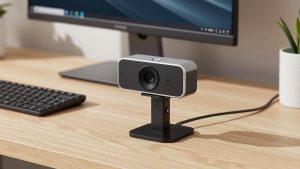
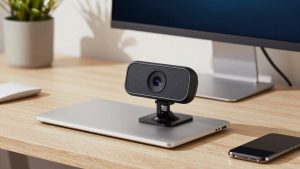
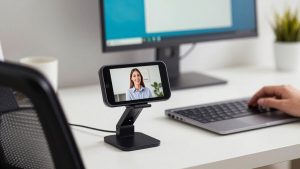
Tight budget, already have an iPhone or good Android: use your phone as the source. Apps like Camo, EpocCam, or Continuity Camera on Mac do the heavy lifting. Add a small phone tripod mount for your desk and you are done.
Regular presenter, courses, sales calls: OBS Studio with its Virtual Camera. Free, works on Mac and Windows, lets you combine camera + screenshare + lower-thirds. Learning curve is real, but nothing else gives you that much control for zero dollars.
Want DSLR look without fiddling: a mirrorless camera you own plus an HDMI capture card. This is the most expensive and fussy route, but it beats every webcam for depth of field and low light.
Want simple polish, no OBS: an all-in-one app like ManyCam or mmhmm. Easier than OBS, better background replacement and framing tools than Zoom alone. Subscription cost is the downside.
Comparison: which virtual camera route fits you
See also: Best Monitor for MacBook Air: Two USB-C 4K Screens and Six Adapter-Dependent Alternatives • Best Monitor for MacBook Pro: Eight Listings Sorted by Cable, Sharpness and Scaling
| Option | What you need | Image quality | Reliability in Zoom | Best for |
|---|---|---|---|---|
| Phone as webcam (Camo, Continuity Camera, EpocCam) | Phone you own, USB cable, mount | Very good, big step up from laptop | High if wired, flaky if Wi-Fi | Home office workers on laptops and Macs |
| OBS Virtual Camera | PC/Mac, existing webcam or camera | As good as your source + processing | Good, breaks after some Zoom updates until OBS updates | Trainers, creators, heavy screensharers |
| Mirrorless / DSLR via USB or HDMI | Camera, lens, capture card, tripod, power adapter | Excellent | Medium, overheating, battery, autofocus issues | Executives, YouTubers, studio desk setups |
| All-in-one apps (ManyCam, mmhmm, FineCam) | Subscription, existing webcam | Good, better framing than Zoom | High, built for non-technical users | People who want presets without learning OBS |
1. Phone as webcam: the best value for most people
A 2-3 year old iPhone or Pixel has a far better sensor and lens than a $70-$120 webcam, especially in a dim home office. Camo on Windows/Mac, Apple’s Continuity Camera on Mac, and EpocCam do the same basic job: they take the phone feed and expose it to Zoom as a virtual camera.
Wired is non-negotiable for work. Wi-Fi mode looks fine for 10 minutes then stutters, drops to low resolution, or freezes when someone microwaves lunch. Use a short USB cable direct to your laptop, not through a cheap hub. Keep the phone plugged in because an hour of Zoom will eat 30-40% battery and make it hot.
Failure modes: overheating on long calls, aggressive auto-exposure that pumps brightness when you move, and ultra-wide default lenses that distort your face if the phone is too close. Mount it at eye level about arm’s length away, lock exposure if the app allows it, and use the rear main camera, not the selfie camera.
Who suits: laptop workers, MacBook users with weak 720p FaceTime cameras, hybrid workers who want one setup at home and nothing to carry. If you already light your face, this is often all you need.
2. Mirrorless or DSLR as webcam: best image, most hassle
If you own a Sony, Canon, Fujifilm or Panasonic mirrorless camera, you can use it in Zoom two ways: manufacturer’s USB webcam utility (free, usually 1080p, compressed) or clean HDMI into a capture card (sharper, lower latency).
HDMI looks better but adds cost and complexity. You need a dummy battery or USB-PD power — internal batteries die mid-call — a tripod that doesn’t wobble when you type, and a lens around 24-35mm full-frame equivalent. Set autofocus to face/eye AF with a slow transition speed or it will hunt every time you lean back.
Trade-offs are real: many cameras overheat after 45-90 minutes, some older models still have a 30-minute video limit, and files get large if you record internally by accident. Autofocus motor noise can also bleed into your mic if you use the on-camera mic — don’t, use a USB mic or headset.
Be honest here: do not buy a $700 camera just for Zoom. A $40 LED video light panel plus your phone will get you 80% of the way there for daily standups. Mirrorless only pays off if you are on camera 4+ hours a day, record courses, or already own the gear.
3. Software virtual cameras: OBS vs easy apps
OBS Studio is free and the most capable. You build a scene — camera cropped tighter, slides underneath, logo in the corner, noise suppression — then click Start Virtual Camera and select it in Zoom. CPU use is the catch. On an older dual-core laptop or Intel MacBook Air, OBS + Zoom + Chrome can push fans to full and drop frames. A 2020-or-newer quad-core machine with 16GB RAM handles it fine.
The other catch: after major Zoom or macOS updates, the virtual camera sometimes disappears until you reinstall the OBS virtual camera plugin or grant camera permissions again in System Settings. If you present for a living, test the day before, not five minutes before.
ManyCam, mmhmm, XSplit VCam and similar apps trade power for simplicity. Background blur looks more natural than Zoom’s built-in blur, auto-framing keeps you centered if you pace, and presets let you switch from “talking head” to “slides + small head” with one key. Expect $50-$100 per year. Image quality won’t exceed your source webcam — they just frame and clean it up better.
Who suits: OBS suits trainers, developers doing live demos, and anyone who already streams. Easy apps suit managers and coaches who want to look polished without learning scenes and sources.
What to skip or test carefully
Skip free “virtual background HD camera” utilities from unknown developers — many inject watermarks, cap at 720p, or bundle adware. Stick to OBS, camera-maker utilities, or well-reviewed App Store apps.
Also skip 4K virtual cameras for Zoom. Zoom typically delivers 720p to 1080p to attendees anyway. A clean, well-lit 1080p feed with stable exposure beats a noisy 4K feed every time, and uses half the CPU.
Setup tips that matter more than software
Put a soft light in front of you, slightly above eye level. A window works if you face it; otherwise use a cheap panel at 10-20% brightness. Get the light close — brightness falls off fast with distance.
In Zoom, turn off “Adjust for low light” once you have real light, and uncheck “Mirror my video” if text looks backwards in your OBS overlays. Lock white balance in your virtual camera app if faces look orange under home LEDs.
For Macs specifically: Continuity Camera over USB is the lowest-friction option on macOS Sonoma and later. For Windows laptops with only USB-A ports, make sure your capture card or phone cable isn’t sharing a bus with an external SSD — bandwidth contention causes the classic frozen-frame-every-20-seconds bug.
FAQ
Why doesn’t Zoom show my virtual camera?
Quit and reopen Zoom after installing the virtual camera, then check Zoom Settings > Video. On Mac, also check System Settings > Privacy and Security > Camera and allow both Zoom and the helper app. On Windows, run OBS once as administrator to register the virtual camera driver.
Will a virtual camera slow down my laptop?
Yes, some. OBS adds 8-15% CPU on a modern laptop at 1080p30. Phone apps add less, usually 3-7%. If fans spin up loudly on calls, drop to 720p30 in the virtual camera settings — attendees won’t notice on Zoom.
Is it better to buy a webcam instead?
If you want plug-and-play with no phone mount or extra software, yes. A basic 1080p webcam with autofocus is fine for daily meetings. Virtual cameras win when you already own a better camera or need scene switching that no webcam can do alone.
Can IT block virtual cameras?
Yes. Some locked-down work laptops block unsigned drivers or camera access for third-party apps. If Zoom is managed by your company, test Camo or OBS before paying, and keep your built-in webcam as a backup.