Last Updated: October 18, 2026
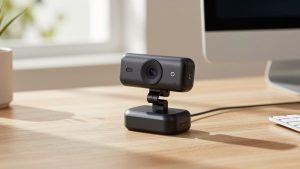
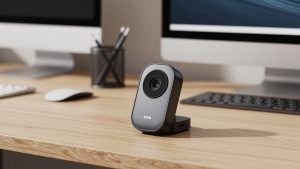
If you work from home, share a desk, or jump between solo calls and small group meetings, fixed field of view gets annoying fast. Too wide and your bedroom is on display. Too tight and you get cut off when you lean back. A webcam with adjustable field of view lets you choose how much the camera sees.
It sounds like a small feature, but it changes how usable a webcam is day to day. For most remote workers, an adjustable 65 to 90-degree range is more useful than higher resolution alone.
📄 In This Review
Why adjustable field of view actually helps at work
Field of view, listed as FOV or dFOV for diagonal, is measured in degrees. Around 65-70 degrees frames just your head and shoulders. Around 78-82 degrees shows you plus some desk space. Anything over 90 degrees starts to show the whole room and is meant for two or three people around one laptop.
Adjustable FOV matters for three common situations. First, small home offices where the bed, door, or hallway is right behind you. Narrowing to 65 degrees crops most of that out without needing a virtual background. Second, shared desks or hot-desking, where one day you are solo and the next you are doing a two-person interview. Third, laptop users who dock at different distances. Close to a 13-inch laptop you want narrow. Pushed back on a monitor arm you want wider.
The important detail: almost all adjustable FOV on webcams under $250 is digital, not optical. The camera crops into the sensor to make the image narrower. That means the tightest setting is often slightly softer than the widest setting, especially on 1080p cameras. On a 4K sensor, you will not notice it in Zoom or Teams because the meeting app compresses everything anyway.
What to check before you buy
See also: Best Monitor for MacBook Air: Two USB-C 4K Screens and Six Adapter-Dependent Alternatives • Best Monitor for MacBook Pro: Eight Listings Sorted by Cable, Sharpness and Scaling
Do not just look for the word adjustable. Check how it adjusts. The best implementations give you two or three fixed steps, like 65 / 78 / 90 degrees, saved in the camera firmware. Cheaper implementations only adjust through Windows software, and reset every time you unplug the camera or switch to Mac.
For Mac users, this is the biggest failure mode. A lot of business webcams still rely on Windows-only apps for FOV control, zoom, and firmware updates. If you use a MacBook full-time, look specifically for cameras that store FOV on-device or have a full-featured macOS app. Otherwise you will be stuck at the default 78 or 90 degrees.
Also check how FOV interacts with autofocus and auto-framing. Some cameras disable electronic pan-tilt-zoom when you pick the narrowest FOV. Others force distortion correction at the widest setting, which can make straight door frames look bowed and make text on a whiteboard harder to read at the edges. If you present documents, a 75 to 80-degree middle setting usually looks best.
Finally, look for a physical privacy shutter and a standard tripod thread. Adjustable FOV does not replace a shutter, and ultra-wide conference models are often too heavy for thin laptop lids without a proper clamp.
The three types worth buying
Forget megapixels for a minute. These categories map better to real work setups:
| Type | Typical FOV range | Best for | Trade-off |
|---|---|---|---|
| Narrow adjustable office cam, 1080p | 65 / 78 / 90 degrees | Solo calls in a small room, laptop lid mount | Tightest crop is a bit soft in low light |
| 4K business cam with presets | 65 / 78 / 90 or 95 degrees | Docked setups, Mac and Windows, need to look sharp on large monitors | Costs more, needs good light to see full benefit |
| Ultra-wide adjustable conference cam | 80 to 120 degrees | Two people at one desk, small huddle rooms | Edges stretch, not flattering for solo headshots |
If you only do solo calls, the first group is fine. You do not need to pay for 4K or 120 degrees. The cheaper option is not just acceptable here, it often looks better because the lens is tuned for one person at arm’s length.
Best for solo home office: 65 to 78 degrees
For a dedicated desk, get a 1080p Zoom- or Teams-certified camera with a 65-degree tight mode. Use 65 degrees if your background is messy and you sit 2 to 3 feet away. Use 78 degrees if you use hand gestures a lot or lean back in your chair.
What to expect in use: colors will be fine in daylight, acceptable under a single ceiling light, and noisy if you only have a monitor for light. A $15 desk lamp placed behind the monitor does more for image quality than jumping from 1080p to 4K.
Failure mode to watch: some budget models advertise 90-degree FOV but deliver a very soft wide image with heavy distortion. If reviews mention fish-eye faces at the edge, stick to the middle setting and move the camera back 6 inches instead.
You can browse current options with a search for adjustable field of view 1080p webcam and filter for models that list the actual degree steps, not just wide angle.
Best for docked laptops and Macs: 4K with on-device presets
If you dock a MacBook Pro, Dell XPS, or ThinkPad to a 27-inch monitor, a 4K camera with saved FOV presets is worth it. The classic example is the Logitech Brio class of cameras, which let you pick 65, 78, or 90 degrees and keep that setting across Zoom, Teams, FaceTime, and OBS.
Why this suits Mac users: you set it once in the vendor app, and the camera remembers it even when macOS updates break the app. That is critical because FOV controls are often the first thing to stop working after a macOS version change. Cameras that require the app to be running for FOV to work are a support headache.
Trade-off is price and USB load. 4K at full quality needs a direct USB 3.0 port, not an old hub, and needs decent lighting. In a dim room at night, a 4K camera in 65-degree mode can look grainier than a good 1080p camera because it is cropping pixels. If your office has no window and you take a lot of evening calls, save money and get 1080p plus a small key light.
Look for a 4K webcam with adjustable FOV that works with Mac and check the Q&A section for mentions of Logi Tune, Elgato Camera Hub, or other macOS software actually supporting FOV on that model.
Best for two people or tiny rooms: 90 to 120 degrees
If two people regularly share one camera for interviews, pair programming, or customer support, get an ultra-wide adjustable model. Use 90 degrees for solo work, switch to 110-120 degrees only when you need both faces in frame.
Be honest about the compromise: ultra-wide looks bad for daily solo use. Your face gets small, the room dominates, and the edge correction makes bookshelves curve. It is also unforgiving about microphone pickup because it assumes people are farther away. For mixed use, a standard 65-90 degree camera plus leaning in is usually more flattering.
Another failure mode: clamp strength. Wide-angle cameras with big glass tend to wobble on thin laptop lids. If you move between desks, get one with a tripod thread and a small mini-tripod. It sits more stable on a desk behind the laptop than perched on top.
For this use case, search for an wide angle webcam with adjustable FOV for conference use and prioritize models that show sample stills at each FOV step.
How to set it up so it stays put
Once you pick a FOV, set it in the vendor app, then close the app and test in your actual meeting tool. Zoom and Teams can apply their own additional crop, especially if HD is off or background blur is on. Set Zoom to HD and turn off auto-adjust if your face keeps drifting in and out.
Mount the camera at eye level, about an arm’s length away. At that distance, 65 degrees gives a tight news-anchor shot, 78 degrees gives head plus shoulders. If you have to sit closer than 20 inches because of your desk, go wider rather than letting the narrow crop cut off your chin every time you type.
If your camera forgets its FOV on reboot, do not keep fighting the app. Leave it on the default middle setting and move the camera physically. Reliable 78 degrees beats a glitchy 65 degrees that resets mid-interview.
FAQ
Is adjustable field of view better than auto-framing?
For work, usually yes. Adjustable FOV stays where you put it. Auto-framing can drift, zoom in on the wrong person, or hunt during screen shares. Auto-framing helps if you stand and walk around, but for desk calls fixed presets look more professional.
What FOV should I use for Zoom calls?
Start at 78 degrees for solo calls at arm’s length. Drop to 65 degrees if your room is distracting or you sit close. Go to 90 degrees or wider only when two people need to be visible. Test with Record in Zoom before an important meeting.
Does narrowing the FOV reduce video quality?
Slightly, on most cameras. Narrow is a digital crop, so you lose some pixels and low-light performance. On 4K cameras you will rarely notice it in a compressed Teams or Zoom call. On cheap 1080p cameras the tightest setting can look softer, especially at night.
Will FOV controls work on Mac?
Sometimes. Many vendors still limit full FOV, zoom, and firmware updates to Windows. If you use Mac full-time, choose a camera that saves FOV presets on the device itself and has a current macOS app with recent update notes. Avoid models where reviewers say settings reset on every restart.