Last Updated: October 18, 2026
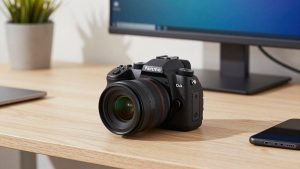
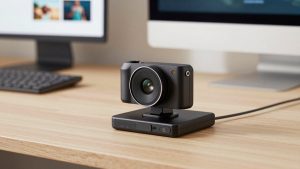
If you spend all day on Zoom, Teams, or Meet, you have probably noticed the ceiling: even a good dedicated webcam looks flat, noisy, and soft once office light drops. A digital camera you already own – or a used mirrorless body bought for this job – can look dramatically better. Bigger sensor, real lens, shallow depth of field, much cleaner low light.
But using a digital camera as a webcam is not plug-and-play. It adds heat, power issues, focus quirks, and extra gear. For some home offices it is worth it. For many, it is not. Here is how to decide.
📄 In This Review
The first decision: USB webcam mode vs. HDMI capture
Almost every camera made in the last five years can work as a webcam one of two ways. Which one you use determines cost and reliability.
USB webcam mode (UVC) is simplest. You plug USB-C to your laptop or Mac, select the camera in Zoom, and you are live. No extra hardware. Quality is usually capped at 1080p30, sometimes 720p, and you are relying on the manufacturer’s webcam utility or built-in UVC support. On Macs this can be flaky – some utilities require workarounds, Rosetta, or do not support Apple Silicon natively. Test before you commit.
HDMI capture gives you the full quality. You run a micro-HDMI to HDMI cable from the camera to a USB HDMI capture dongle, then to your computer. The computer sees the dongle as a webcam. This bypasses compressed webcam modes and gives you a cleaner, lower-latency feed. The downside is cost and one more failure point. Cheap unbranded dongles often lie about 4K, overheat, or drop audio sync. If you go this route, buy from a reputable capture device listing and keep the receipt.
For work calls, USB mode is usually enough. The jump from a laptop webcam to a 1-inch sensor over USB is already huge. HDMI capture only matters if you also record, stream, or want manual control over resolution and frame rate.
What you actually need besides the camera
See also: Best Monitor for MacBook Air: Two USB-C 4K Screens and Six Adapter-Dependent Alternatives • Best Monitor for MacBook Pro: Eight Listings Sorted by Cable, Sharpness and Scaling
People budget for the camera and forget the support kit. Plan for this:
Continuous power. Photo batteries die in 60-90 minutes of live view. You will miss the end of meetings. What works is a dummy battery AC adapter kit matched to your battery type, or USB-C Power Delivery if your camera can charge while streaming. Not all can – many older models slowly drain even when plugged in. That is the number one failure mode I see.
Clean HDMI. If you use capture, turn off all on-screen overlays. Look for “HDMI Info Display Off” and “4K output” settings. If your camera cannot do clean HDMI, you will broadcast battery icons and focus boxes to your boss. Check this before buying used.
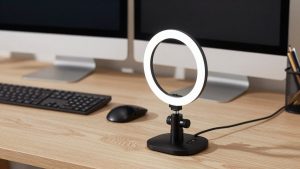
Tripod, mount, and light. A full-size tripod is overkill on a desk. A small desktop tripod or clamp mount keeps the lens at eye level and prevents wobble. You still need light – a big sensor helps in dim rooms, but no camera fixes harsh backlight from a window behind you.
Long cable runs matter on Macs. Many USB webcam utilities drop out on cheap 10-foot USB extension cables or unpowered hubs. Use a short, good cable direct to the Mac if you can.
Which type of camera suits desk work
Not all digital cameras make good webcams. Here is the practical breakdown for video calls, not photography:
| Type | Image for calls | Overheating risk | Hassle factor | Best for |
|---|---|---|---|---|
| Mirrorless with interchangeable lens | Excellent, especially in low light | Medium; 4K runs hot, 1080p usually fine | Medium – needs lens, power, settings | Daily calls + recording if you already own one |
| Older DSLR | Good, but autofocus in live view is slow | Low | High – bulky, poor live AF, mirror wear | Only if you already own it and sit still |
| 1-inch compact / vlogging camera | Very good, sharper than any webcam | Low to medium | Low – great AF, USB webcam mode | Simplest upgrade for home office |
| Action camera | Okay in bright light, noisy indoors | High – shuts off fast | High – wide lens distorts face | Not recommended for desk work |
A used mirrorless body with clean HDMI and reliable eye-autofocus is the sweet spot if you want that blurred-background look without Zoom’s glitchy virtual background. Pair it with a cheap 24mm or 35mm equivalent prime, stop down to f/2.8 to f/4 so your ears do not go blurry when you lean back, and lock exposure.
A 1-inch compact is the low-drama pick. Smaller sensor than mirrorless, but autofocus is built for video, USB streaming is usually stable, and it does not dominate your desk. If your main goal is “look sharp and professional on Teams” rather than “look cinematic,” start here.
DSLRs can work, but live-view contrast autofocus hunts – that slow pulsing in and out during a call is distracting. Action cameras look wide and distorted at arm’s length and overheat in 20-30 minutes indoors.
Setup that avoids the common failures
After helping several people set this up, the same four problems repeat:
1. Auto shutoff. Most cameras default to powering off after 10-30 minutes to save battery. Turn off auto power off, disable sleep, and disable the recording time limit if your region/firmware allows. Test with a 60-minute private call before an important meeting.
2. Overheating. 4K looks better on paper but cooks cameras. For calls, set the camera to 1080p30. Open the screen away from the body, remove the battery door cover if using a dummy battery, and keep it out of direct sun. If your camera has an overheat warning set to “high,” that helps, but do not ignore it.
3. Focus breathing. Leave face/eye AF on, but set AF speed to stable/slow if available. Very fast AF makes the background pulse with every hand movement. For sit-still desk work, some people do better with single AF to lock once, then switch to manual focus. If you move around, keep continuous eye AF on.
4. Bad audio and exposure. Do not use the camera mic from six feet away – it sounds echoey. Keep using a headset or USB mic. Lock shutter to 1/60 (in the US), set ISO to auto with a cap at 3200-6400, and use a fixed white balance like 5200K. Auto everything causes brightness pumping when you share screen.
On laptops and Macs specifically, close other apps using the camera, and if you use an HDMI to USB video capture adapter give it its own USB port, not a cheap hub shared with drives and docks. That solves most freezes.
When you should just buy a webcam instead
Be honest about your tolerance for fiddling. A digital camera wins on image quality, but loses on convenience every time.
Stick with a dedicated webcam if you take back-to-back calls, hot-desk, switch between work laptop and personal Mac, or hate troubleshooting before coffee. A $80-$150 modern webcam turns on instantly, stays cool for 8 hours, and never needs a dummy battery. It will look worse than a mirrorless camera, but it will work every time.
A digital camera makes sense if: you already own a suitable body, you are on camera to teach, coach, sell, or present, you also record YouTube or training videos, and you can leave the rig set up permanently. If you have to rebuild the setup every morning, you will stop using it.
Cost math matters too. A “cheap” used camera often needs a lens, a small desktop tripod with ball head, power kit, HDMI cable, and capture dongle. That can total more than a premium business webcam. The cheaper option is fine for 90 percent of office workers. Buy the camera route for image quality you will actually use, not as a flex.
FAQ
Can I use any digital camera as a webcam?
No. You need either built-in USB streaming (UVC) or clean HDMI output with no menus burned in. Older DSLRs and cheap point-and-shoots often lack both, or overheat quickly. Check those two specs before buying used.
Will it work with Mac and office apps?
Usually yes with Zoom, Teams, Meet, and Webex, since they just see a USB video device. Macs are pickier about manufacturer webcam utilities and long USB chains. HDMI capture dongles are generally more compatible across Intel and Apple Silicon Macs than proprietary apps.
Do I need 4K for video calls?
No. Most employers cap calls at 720p or 1080p. 1080p30 from a large sensor with good light looks better than 4K from a small sensor, and runs much cooler. Save 4K for recording.
Will using my camera this way wear it out?
Sensor wear is not a big concern, but heat and hours add up. The practical risks are shorter shutter/mechanism life on DSLRs left in live view, and battery connector wear. Using AC power, 1080p, and turning the camera off between calls keeps it healthy.
Related Reviews & Guides
8 Best Budget Desktop Computers (2026)
Best External Camera for Zoom