Last Updated: October 18, 2026
Webex is less forgiving than Zoom or Meet when your camera is weak. It aggressively compresses video, crops more tightly in grid view, and its noise suppression can make a bad built-in mic sound underwater. A good webcam for Webex isn’t about 4K on the box. It’s about stable 1080p after compression, clean audio without an extra headset, and no driver drama when you join from a locked-down work laptop or Mac.
I’ve tested a lot of webcams on corporate calls. For Webex specifically, the winners are boring in the best way: fast autofocus, decent low-light handling, and plug-and-play UVC support so Webex sees them instantly.
📄 In This Review
What Webex actually needs
Webex Meetings tops out at 1080p for most users, and in a 9-person grid you’re often sending 720p or less. That means sensor quality and processing matter more than max resolution. A good 1080p sensor with large pixels will look better on Webex than a cheap 4K sensor that gets noisy and soft in office light.
Prioritize three things. First, autofocus that doesn’t hunt. Webex keeps your face centered, so if you lean forward to share and the camera pulses in and out, everyone notices. Second, dual mics with real noise reduction. Webex has its own noise removal, but if the raw mic is thin and picks up keyboard clatter, it stays thin. Third, plug-and-play without companion software. Many work laptops block installs, so if the webcam needs an app to enable autofocus, background blur, or 1080p, that’s a failure mode.
Certification helps but isn’t required. Webex certifies some business webcams for guaranteed compatibility, but any standard UVC webcam works on Windows and Mac. Don’t pay extra just for a badge unless your IT department requires it.
Our picks for Webex
See also: Best Monitor for MacBook Air: Two USB-C 4K Screens and Six Adapter-Dependent Alternatives • Best Monitor for MacBook Pro: Eight Listings Sorted by Cable, Sharpness and Scaling
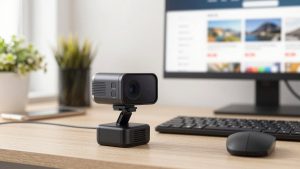
Best overall for desk work: a mid-range 1080p business webcam. Think Logitech C920 series / C925e class or equivalent. This is the sweet spot for Webex. You get 1080p30, dual stereo mics that are good enough to ditch a headset in a quiet room, 78-degree field of view that fits one person without showing your whole office, and a physical privacy shutter. Autofocus is quick, colors are natural under fluorescents, and it works on Macs without drivers.
Trade-off: low light is just okay. In a dim home office at 6pm, expect grain and softer skin tones. It also has no AI framing or auto-light correction like pricier models. For most analysts, admins, sales reps, and managers on daily Webex calls, that doesn’t matter. The cheaper option is fine here, and honestly the right choice for 80 percent of people. Check current options for a 1080p business webcam for Webex if you just want reliable and done.
Best upgrade for presenters and managers: 4K with auto-framing. This is the Logitech Brio 500 / Brio 505 class. You still run it at 1080p in Webex, but the larger sensor gives you cleaner low-light video, better dynamic range when you have a window behind you, and digital pan/tilt without turning to mush. The mics are a clear step up, and features like auto-framing keep you centered if you stand at a whiteboard.
Failure modes to know: 4K + digital zoom + Webex compression can look over-sharpened if you leave all the enhancements at 100 percent. Turn auto-exposure and HDR to middle settings. On older laptops, running full 4K in the vendor app while in a Webex call can heat up the CPU and cause fan noise. Run Webex at 1080p. Who it suits: team leads who host, trainers, and anyone who is on camera 4+ hours a day in mixed lighting.
Best for MacBook and travel laptops: compact autofocus webcam. MacBook cameras have improved, but they still blow out windows and sound echoey in Webex. A small clip-on 1080p camera fixes both without adding bulk to your bag. Look for a short, stiff clip that actually grips a thin MacBook Air lid, USB-C direct or USB-C to C cable in the box, and on-camera mic mute.
Don’t buy a wide 120-degree action-style camera for this use. On Webex it makes you tiny at a hotel desk and picks up hallway noise. A 75 to 90-degree lens is right. If you live on a laptop, browse a compact 1080p webcam for laptop and Mac rather than a large studio-style model.
Best for small huddle rooms: wide-angle conference webcam. If 2-4 people share one Webex Room link from a small table, a single-person webcam fails. You need 110 to 120-degree field of view, 4-6 foot mic pickup, and a remote or auto-framing so the back corner isn’t lost. This is the only case where I’d go straight to a conference-grade bar or wide 4K ePTZ camera.
Trade-off is price and setup. These need USB extension or a dedicated mini-PC in the room, and people will forget to select the right mic in Webex. Label it. Tape a note to the table: Audio = Room Cam, not laptop. Who it suits: offices with 2-3 Webex huddle spaces, not home users.
Quick comparison
| Use case | What to get | Field of view | Why it works for Webex |
|---|---|---|---|
| Daily desk calls | 1080p business webcam | 75-78 degrees | Stable focus, good mics, no software needed |
| Hosting / presenting | 4K business webcam, run at 1080p | 65-90 degrees with auto-frame | Better low light, stays sharp after compression |
| MacBook / travel | Compact 1080p webcam | 75-90 degrees | Light, USB-C, better than built-in cam and mic |
| 2-4 person room | Wide conference webcam | 110-120 degrees | Picks up table, wider mic range |
Mac, laptop, and IT gotchas
On Macs, avoid anything that requires Windows-only software to unlock 1080p or to turn off aggressive beauty filters. Test in Webex Settings > Audio and Video before your first meeting. On macOS Sonoma and later, check System Settings > Privacy and Security > Camera and Microphone – Webex needs both, and a new external cam triggers a fresh prompt.
On locked-down work laptops, stick to UVC-compliant cameras. If your IT blocks Logi Tune, Dell Peripheral Manager, etc., you lose background blur and firmware updates but core video and mics still work. That’s actually a plus for Webex – fewer background processes means fewer frozen-video crashes.
USB matters more than people think. A front USB 2.0 port through a cheap dock is a common cause of Webex freezing at 1080p. Plug direct into the laptop for testing. If you must use a dock, use USB 3.0 and keep the cable under 6 feet unless it’s an active extension. For rooms, look at an wide angle conference webcam for small rooms that includes a proper long cable or remote, not a 3-foot phone cable.
Setup that matters more than the model
Put the camera at eye level, 2-3 feet away. Stack your monitor or use a tripod. Face a window or lamp, don’t sit with a bright window behind you – no webcam saves backlight, even with HDR. In Webex, turn on HD Video under Settings, turn off Virtual Background unless you need it, and choose Noise Removal on Low if your webcam already has noise reduction. Double processing makes voices clip.
If colleagues say you fade in and out, it’s usually auto-exposure plus auto-gain fighting Webex. Lock exposure in the vendor app once, then close the app. And if you use dual monitors, set Webex to use the external cam and mic explicitly. Webex loves to silently revert to the laptop mic after an update, which is why you suddenly sound distant.
FAQ
Do I need a 4K webcam for Webex?
No, for most calls. Webex typically shows you at 720p to 1080p. A good 1080p camera looks identical to 4K in grid view. Buy 4K only if you need better low light, digital zoom, or auto-framing for presenting.
Why does my webcam look fine in preview but bad in Webex?
Compression and low light. Webex lowers bitrate when bandwidth drops. Add light to your face, plug into USB 3.0 directly, and in Webex Settings enable HD Video and turn off HD virtual backgrounds. If you’re on Wi-Fi in a crowded office, try wired.
Will any webcam work on Mac with Webex?
Yes, if it’s UVC standard, which almost all current business webcams are. Avoid models that need Windows software for basic functions. Test mic and speaker selection in Webex before the meeting, and grant camera permission in macOS System Settings.
Is my laptop camera enough for Webex?
For occasional internal calls, yes. For client-facing, hosting, or 3+ hours a day, no. An external 1080p webcam gives you sharper focus, wider usable framing, and mics that don’t pick up fan noise. It’s the cheapest upgrade that makes you sound more professional.
Related Reviews & Guides
Best External Camera for Desktop Computer
6 Best Docking Stations For Microsoft Surface Laptop 2026