Last Updated: October 18, 2026
📄 In This Review
What Teams actually needs from a webcam
Microsoft Teams is forgiving in one way and brutal in another. It will run on almost any webcam, even a ten-year-old 720p laptop camera, but it compresses video aggressively when your connection or CPU is strained. That means a slightly better sensor and better exposure control matters more than raw resolution.
In practice, most Teams problems are not resolution problems. They are lighting problems, autofocus hunting, washed-out faces, choppy frame rates in low light, and bad mics that make you sound distant. If you fix exposure and audio, you will look and sound more professional than someone with a 4K camera left on auto in a dark room.
For Teams specifically, prioritize this order: reliable 1080p with good auto-exposure, fast and quiet autofocus, a decent dual mic with noise reduction, and a wide enough field of view for your setup. 4K is nice for cropping or if you present a lot, but Teams rarely shows it. Most coworkers will see you at 720p or 1080p anyway.
What to look for before you buy
See also: Best Monitor for MacBook Air: Two USB-C 4K Screens and Six Adapter-Dependent Alternatives • Best Monitor for MacBook Pro: Eight Listings Sorted by Cable, Sharpness and Scaling
Resolution is the headline spec, but sensor size and processing matter more. A good 1080p webcam with a larger sensor will beat a cheap 4K webcam in a dim home office every time. Look for 1080p at 30fps minimum, 1080p at 60fps if you move around, whiteboard, or demo products.
Autofocus is the biggest failure mode in cheap cameras. Fixed-focus cameras are actually fine if you sit 2-3 feet away and never move — they never hunt or pulse. But if you lean in and out, show documents, or pace, fixed focus will leave you blurry. In that case get autofocus, and check reviews specifically for focus hunting on video calls, not just photos.
Field of view matters for home offices. Around 65 to 78 degrees is best for one person at a desk. It keeps you centered without showing your whole room. A 90-degree or wider camera suits small huddle rooms or if you share a desk, but for solo calls it makes you look small and exposes clutter. Software cropping can fix it, but you lose sharpness.
Microphones are usable for backup, but do not plan on them as your main mic. Even good webcam mics pick up keyboard noise and room echo. If you take client calls all day, get a dedicated USB headset or desktop mic. Treat the webcam mic as a failover for quick internal meetings.
Mac and laptop compatibility is usually plug-and-play over USB-A or USB-C, but check two things: whether settings like zoom, exposure, and background blur require Windows-only software, and whether the mount fits your monitor. Thin laptop lids and curved ultrawide monitors reject a lot of clip mounts.
The best options by use case
Best for most office workers: a solid 1080p webcam with autofocus and auto light correction. This is the sweet spot for Teams. You get sharp enough video for daily standups, 1:1s, and interviews, without paying for 4K you will not use. Image correction handles overhead lights and a window behind you reasonably well. It is also the least demanding on older laptops.
Who it suits: anyone on a company laptop, working from a bedroom or living room, doing 3-6 hours of Teams per day. Trade-off: in very low light it gets grainy, and digital zoom looks soft. That is normal. Fix it with a $20 desk lamp behind your monitor rather than buying a more expensive camera. A basic 1080p webcam for Teams meetings is fine for about 80 percent of people.
Best for low-light home offices: a 1080p or 1440p camera with a larger sensor. If your office has no window, one warm ceiling light, or you take early and late calls, this category is worth it. Larger pixels collect more light, so your face stays brighter with less noise and Teams compression does less damage. You will also hold 30fps instead of dropping to 15fps and looking choppy.
Failure mode to know: low-light cameras often over-smooth skin to hide noise. You can look waxy if you crank light correction to max. Keep correction on medium and add frontal light. Who it suits: night-shift workers, basement offices, anyone whose current camera turns them into a silhouette.
Best for presenters and managers: 1440p or 4K with digital zoom and framing. The extra pixels are not for Teams to stream in full 4K. They are so you can crop in to head-and-shoulders without going blurry, or use auto-framing that follows you if you stand at a whiteboard. Useful if you lead trainings, demos, or all-hands.
Trade-off: 4K needs more light, more USB bandwidth, and more CPU. On a 4-year-old laptop with 20 Chrome tabs open, it can stutter. If IT locks down USB ports or you use a cheap dock, stick to 1080p. If you do upgrade, look for a 4K webcam with autofocus for work that lets you drop to 1080p mode manually.
Best for MacBooks and thin laptops: a compact USB-C camera or a good 1080p camera with a laptop-friendly mount. Built-in Mac cameras have improved, but external cameras still win on framing and low light because you can place them at eye level on an external monitor. The key is software. Many tuning apps are Windows-first, so choose one that stores settings on the camera or works in browser.
Cheaper is fine here if you already have good light and a separate mic. Do not buy a premium camera just to fix audio — a $40 headset will improve Teams calls more than a $150 camera upgrade. Shoppers with MacBooks often do well with a simple USB-C webcam for MacBook office calls plus the mic they already own.
Quick comparison
Use this to match your room and laptop, not just your budget. The cheaper option is usually the right one unless you have a specific problem like dark rooms or presenting.
| Category | Best for | Strengths | Watch out for |
|---|---|---|---|
| Basic 1080p, fixed focus | Quiet desk, you sit still | Cheap, reliable, no focus hunting | Blurry if you move close; weak in dark rooms |
| Mid-range 1080p, autofocus | Most Teams users | Sharp for calls, good exposure, easy on CPU | Mics still pick up keyboard; wide models show clutter |
| Low-light 1080p / 1440p | Dim home offices | Brighter face, less grain, stable frame rate | Can over-smooth skin; needs frontal light to look best |
| Premium 4K with zoom | Presenters, trainers | Crop without blur, auto-framing | Needs light and CPU; overkill for basic meetings |
Setup matters more than the camera
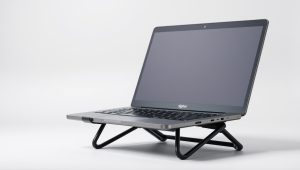
Put the camera at eye level, about an arm’s length away. Stack your monitor on books if you have to. Looking up at a laptop camera is unflattering and makes you seem disengaged. If you use a laptop, get an inexpensive riser and plug in an external camera on top of your main monitor.
Face a window or put a lamp behind your monitor, aimed at your face. Do not sit with a bright window behind you unless your camera has strong backlight compensation, and even then it will struggle. Close blinds halfway and add frontal light. That one change fixes more Teams complaints than any upgrade.
In Teams, go to Settings then Devices and do a test call. Turn off Teams background blur if you have a physical tidy background — software blur causes edge flicker and uses CPU. If your CPU is old, set the camera to 1080p or 720p in its app, not 4K. Your coworkers will see a smoother, cleaner image.
Common failure modes: autofocus pulsing every few seconds means too little light or a busy background — add light and simplify what is behind you. Robotic audio means CPU overload or Wi-Fi drops, not a bad mic — plug in Ethernet or close screen-sharing apps. Echo means speakers plus webcam mic — wear earbuds.
FAQ
Is 4K worth it for Teams meetings?
Usually no. Teams compresses video and most viewers see you small in gallery view. Buy 4K only if you want to crop in, use auto-framing, or future-proof for recording. Otherwise a good 1080p camera with better low-light performance will look better day to day.
Why do I look grainy even with a good webcam?
Almost always low light. Your camera raises gain to brighten you, which adds noise. Add a lamp in front of you, turn up room lights, and lower light correction from high to medium. That reduces grain more than buying a new camera.
Do I need a separate mic for Teams?
Not for quick internal calls, but yes if you talk to clients or speak for hours. Webcam mics sit 2-3 feet away and capture room echo and typing. A basic wired headset beats any webcam mic for clarity and reduces fatigue for listeners.
Will an external webcam work with my work laptop and Mac?
Yes, in most cases over USB with no drivers. The catch is tuning software — exposure, zoom, and firmware updates are sometimes Windows-only. If you use a Mac or locked-down work laptop, pick a camera that looks good with defaults and saves settings on-device.
Related Reviews & Guides
6 Best HP Elite Laptop Docking Stations 2026
Best Camera for MacBook Air 2026