Last Updated: October 18, 2026
For most people doing Zoom, Teams, Meet, and general home office calls, the best webcam for the money is a simple 1080p camera with good autofocus, a decent microphone you will probably not use, and a clip that actually stays on your monitor. You do not need 4K for work. What you need is stable exposure, natural skin tones, and no stutter when your office light changes.
I have tested cheap and expensive webcams on laptops, Macs, and desktops in real home offices, not studios. The pattern is consistent: a $35-$70 camera with good lighting looks better than a $150-$200 camera in a dark room. Spend first on placement and light, then buy only as much camera as your calls require.
📄 In This Review
What your money actually buys
Under $40, you get basic 1080p, fixed focus or slow autofocus, small sensor, and narrow dynamic range. In good daylight these are fine. In a dim home office at 5pm, faces go soft, backgrounds blow out, and motion smears. The microphone will sound hollow and pick up keyboard noise. Privacy shutters are often flimsy.
From $60 to $120, you get the sweet spot for work: faster autofocus, larger pixels or better processing, wider field of view options, and more reliable auto white balance. Low-light noise drops noticeably. Mics are still mediocre, but usable as a backup. Clips and tripod threads are sturdier.
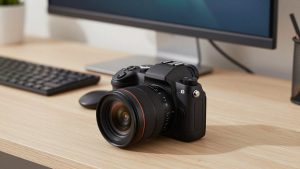
Above $130, you are paying for 4K sensors, AI framing, background blur without software, better mics, and premium build. Useful for presenters, coaches, creators, and anyone recording. For standard 720p-1080p video calls, your coworkers will rarely see the difference because Zoom and Teams compress the feed anyway.
When the cheaper option is fine
See also: Best Monitor for MacBook Air: Two USB-C 4K Screens and Six Adapter-Dependent Alternatives • Best Monitor for MacBook Pro: Eight Listings Sorted by Cable, Sharpness and Scaling
If you take 3-5 calls per week from a laptop in a bright room and you sit still, a basic 1080p camera is enough. It is also enough if you already use earbuds or a headset, which you should. The built-in mic difference between cheap and midrange matters less once you stop using the webcam mic.
Cheaper is also fine as a second camera for a kids desk, travel bag, or shared family computer where loss or damage is likely. Do not buy a delicate autofocus 4K unit for that job.
Upgrade to midrange when you take calls daily, teach, sell, interview, or manage people. That is when soft focus, hunting autofocus, and grain become distracting. If people have asked you to repeat yourself, lean in to be seen, or turn on a light, your camera is costing you credibility.
Best value picks by work use
Think in categories, not megapixels. Your use case determines what is worth paying for.
| Use case | What to buy | Why it is worth it | Skip if |
|---|---|---|---|
| Everyday video calls | Basic 1080p fixed-focus or simple autofocus webcam | Cheap, plug-and-play on Mac and Windows, fine in daylight | You work nights or in a dark room |
| Daily home office, low light | Midrange 1080p or 1440p with good low-light and fast autofocus | Cleaner face, less noise, stable exposure when lamps are on | You already have strong window light + headset |
| Presenting, teaching, recording | Higher-end 4K or 1440p with larger sensor and manual controls | Sharper crop for demos, better dynamic range, holds up recorded | You only do compressed live calls |
| Laptop that moves rooms | Compact 1080p with strong clip and wide compatibility | Stays put, works without drivers, survives bags | You use a docked monitor setup only |
For everyday laptop calls, start with a budget 1080p webcam with autofocus. Look for 30fps at 1080p, dual mics for backup only, and a clip that fits thin laptop lids. Failure mode to expect: fixed-focus models keep the background sharp and your face slightly soft if you lean back. Autofocus models can hunt when you gesture. If you move a lot, autofocus is worth the extra $15.
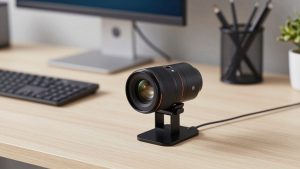
For a dim home office, the value move is a midrange 1080p webcam made for low light. These handle mixed lighting better – window on one side, warm lamp on the other – without turning you orange or gray. Concrete trade-off: many use digital sharpening that looks harsh on first use. Turn sharpness and auto-exposure down in the camera app, then add a $20 desk light in front of you. That combo beats a more expensive sensor alone.
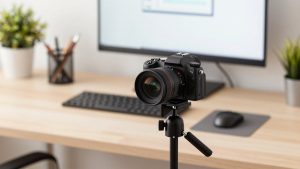
For teaching, coaching, or YouTube-style recording from your desk, consider a 4K webcam with auto-framing only if you will actually use the extra resolution. Benefit is real for cropping to whiteboard, documents, or head-and-shoulders without moving the camera. Downsides are real too: larger files, more CPU load on older MacBooks, more heat, and fans kicking on. On Zoom, set output to 1080p even if the sensor is 4K. You get the cleaner downscaled image without the bandwidth penalty.
Mac and laptop compatibility notes
Most modern webcams are UVC plug-and-play on Mac and Windows, which means no driver needed for Zoom, Teams, Meet, and FaceTime. The catch is settings. On Mac especially, some advanced features like background blur, framing, and manual focus only work through the vendor app or on Windows. If you buy for a MacBook, confirm the settings app supports macOS before you pay extra for features you cannot adjust.
Laptop users should check three physical things: clip depth for thin lids, cable length if you dock to a monitor, and USB-A versus USB-C. Many value webcams still ship USB-A. That is fine with a dock, but annoying with a MacBook Air that only has USB-C. A short adapter left attached to the cable solves it.
Failure mode I see often: webcam mounted too low on a laptop on a desk, shooting up at chin and ceiling light. No camera fixes that angle. Raise the laptop on a stand or put the external camera at eye level on top of your monitor.
Specs that matter, and ones that do not
Resolution matters less than sensor size, lens, and processing. A clean 1080p feed beats a noisy 4K feed every time on a work call. Frame rate matters if you present or move: 30fps is enough, 60fps is smoother for demos but doubles light needs.
Field of view matters for small rooms. 65 to 78 degrees suits one person at a desk and avoids showing the whole room. 90 degrees suits two people or a tight office where you sit close. Too wide in a messy room just creates distraction.
Autofocus speed, auto exposure stability, and microphone rejection matter more than listed megapixels. Read for complaints about focus hunting, overexposure from windows, and robotic audio. Those are the real deal-breakers for work, not whether the box says 8MP or 13MP.
FAQ
Is 4K worth it for Zoom and Teams?
Usually no for live calls. Most platforms send 720p to 1080p after compression. 4K helps if you record locally, crop in, or present detail. Otherwise put the money toward lighting and a headset.
Do I need a separate microphone?
Not necessarily, but audio improves calls more than video. Earbuds or a basic USB headset will beat any webcam mic for clarity and keyboard rejection. Keep the webcam mic as backup.
Why do I look grainy even with a good webcam?
Almost always low light. Face a window or put a soft white light behind your monitor at eye level, turn off bright lights behind you, and lower exposure compensation. Grain drops immediately without buying a new camera.
Will any webcam work with Mac?
Most USB webcams work for basic video on Mac without drivers. Advanced controls may require the brand app and some features may be Windows-only. Check macOS support if you are paying for framing, blur, or manual controls.