Last Updated: October 18, 2026
A high quality USB camera for work is not about the highest resolution on the box. It is about stable exposure, accurate color, clean audio if you plan to use the built-in mics, and a lens and focus system that does not distract people on the other end. For most home office calls, a good 1080p camera with solid auto-exposure beats a cheap 4K camera with noisy video and hunting autofocus.
I test these for daily Zoom, Teams, and Meet calls, usually in a spare bedroom with one window and one overhead light. That is where most USB cameras fail. Spec sheets are written for perfect studio light. Your office is not that.
📄 In This Review
What makes a USB camera high quality for work
Look at four things in this order: sensor performance in mediocre light, exposure control, focus behavior, and mounting plus field of view. Resolution comes after that.
In a dim room, cheap sensors add grain and smear motion to keep the image bright. Faces look waxy, backgrounds pulse, and text on a whiteboard behind you shimmers. A better camera keeps noise lower and holds 30 frames per second without dropping when you move your hands.
Exposure matters more than most people expect. Backlit from a window, a poor camera will turn your face into a silhouette. A good work camera will expose for the face, even if the window blows out. Some let you lock exposure in the vendor app, which is useful if your light changes during the day.
Autofocus is a common failure point. Fast, twitchy autofocus that refocuses every time you lean forward or hold up a document is worse than fixed focus set at arm’s length. If you present papers, product samples, or do a lot of hand movement, you want either reliable autofocus with face priority or an easy way to turn autofocus off.
1080p vs 4K: when the upgrade is worth it
See also: Best Monitor for MacBook Air: Two USB-C 4K Screens and Six Adapter-Dependent Alternatives • Best Monitor for MacBook Pro: Eight Listings Sorted by Cable, Sharpness and Scaling
For one-person calls on a laptop, a well-tuned 1080p camera is usually fine. Zoom and Teams compress video heavily anyway. Your coworkers will not see full 4K detail. What they will see is whether your image is stable, well lit, and in focus.
4K helps in three specific cases. First, if you crop in digitally to frame yourself tighter without moving the camera. Second, if you record locally for YouTube, training videos, or interviews and want sharper source files. Third, if you sit farther back and need to stay sharp while capturing a wider area.
The trade-off is real. 4K needs more light and more USB bandwidth. On an older laptop or through a cheap USB hub, a 4K camera may drop to 1080p, stutter, or overheat on long calls. It also shows every bit of bad lighting. If you buy 4K, plan to give it decent light and plug it directly into your computer, not into a monitor hub shared with a hard drive.
If you mostly do 30-minute check-ins, save the money. A proven 1080p business webcam with autofocus with good mics will look more professional than a budget 4K camera running in a dark room.
Comparison: which type suits which desk
Most high quality USB options fall into three buckets. Pick by how you work, not by megapixels.
| Type | Best for | Strengths | Common problems |
|---|---|---|---|
| 1080p business webcam, 60-78 degree view | Solo calls, laptop dock setups | Reliable plug-and-play, lower light needs, less bandwidth | Narrow framing cuts off whiteboards; cheap models have harsh auto-exposure |
| 4K USB webcam, 75-90 degree view | Recording, presenting, tight crops | Sharper local recordings, digital zoom holds up better | Needs good light; may stutter on USB 2.0 hubs; autofocus hunting on some models |
| Wide-angle conference camera, 90-120 degree view | Two people at one desk, small huddle room | Fits more people without moving the camera; often better mics | Faces look small and distorted at distance; poor for solo close-ups |
If you split time between solo calls and recording, the middle option makes sense. Look at a well-reviewed 4K USB webcam for work from the business webcam category, not a streaming camera built for gaming overlays. Work cameras usually have more natural color and less aggressive sharpening.
If two people share a desk for calls, do not buy a narrow solo webcam and push it back six feet. You will look distant and sound hollow. A wide-angle USB conference camera with dual mics is the right tool, even though it looks worse for solo talking-head shots.
Laptop and Mac compatibility notes
Most USB cameras are UVC compliant, which means they work on Windows and macOS without drivers for basic video. Problems start with vendor apps. Some exposure, zoom, and background features only work through Windows software. On a Mac, you may be stuck with default settings.
Test this before a big meeting week. Plug the camera into the Mac, open Photo Booth or QuickTime, then Zoom and Teams. Check if the camera stays selected after sleep. Check if 1080p or 4K modes actually appear. Apple Silicon Macs are generally fine with modern USB cameras, but USB-C hubs vary. If the image freezes when you plug in power, try a direct port.
For work laptops with locked-down software, avoid cameras that require a background app to look acceptable. You want good defaults. If IT blocks installs, you cannot fix a bad default image.
Failure modes I see most often
Washed-out face and dark background: you are sitting with a bright window behind you. Move the window to your side or in front of you, or close blinds and use a simple desk lamp bounced off a wall. No camera fixes strong backlight cleanly.
Soft focus that never locks: you are too close. Most USB cameras are sharpest at 2 to 4 feet. At 12 inches, like a laptop camera crammed on a small desk, they hunt. Pull back, raise the camera to eye level, and sit at arm’s length.
Echo or distant audio: the camera mic is 4 feet away and the room is bare. Camera mics are usable at 2 to 3 feet in a furnished room. Beyond that, use a headset or a USB mic placed closer. Do not judge a camera as bad because the mic sounds bad from across the room. That is physics.
Stutter after 20 minutes: overheating or bandwidth. Unplug other high-bandwidth USB devices from the same hub, switch to a USB 3.0 port, and drop from 4K to 1080p for calls. Record in 4K, meet in 1080p.
How to choose without overbuying
Buy for your worst light, not your best. If your office gets dark at 4 p.m., prioritize low-light performance and a wide aperture over extra pixels. A $80 to $150 business webcam is the sweet spot for most remote workers. Below that, you gamble on exposure and build quality. Above that, you are paying for recording features, better glass, or conference mics you may not need.
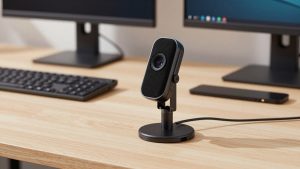
Physical controls help. A privacy shutter you can see, a tripod thread for mounting on a stand, and a clip that actually grips a monitor matter daily. Software features like AI framing are nice, but they can crop awkwardly and jump during movement. Turn them off for interviews and performance reviews.
FAQ
Is a 4K USB camera overkill for Zoom and Teams?
Usually yes for live calls, because the meeting app compresses video well below 4K. 4K is worth it if you record locally, crop in often, or sit farther from the camera and want to stay sharp.
Will any USB camera work with MacBook?
Most modern USB webcams work for basic video on macOS with no driver. Advanced settings like zoom presets or firmware updates may require Windows. Check the manual before buying if you need those controls on a Mac.
Why do I look grainy even on a good camera?
Almost always low light. Add a soft light in front of you, turn off a bright light behind you, and set the camera to 1080p instead of 4K in dark rooms. Grain drops immediately with more light on your face.
Can I rely on the built-in microphones?
For solo calls at arm’s length in a quiet room, yes. For shared desks, echoey rooms, or calls longer than an hour, a headset or close USB mic will sound consistently better and fatigue listeners less.