Last Updated: October 18, 2026
If you spend your day on Zoom, the camera matters more than your laptop specs. Zoom compresses video aggressively, so sharpness is less important than exposure, framing, and stability. A $50 webcam with good light often looks better than a $200 webcam pointed at a bright window.
I’ve tested this setup in real home offices: low light bedrooms, glass-walled living rooms, and MacBooks plugged into docks. The pattern is consistent. Most people don’t need 4K. They need a camera that doesn’t hunt for focus, doesn’t blow out their face, and works every time they join a call.
📄 In This Review
What actually matters on Zoom
Resolution is Zoom’s least important variable. By default, Zoom often sends 720p, even if your camera shoots 4K, unless the host enables HD or you have strong bandwidth. What you actually see is determined by lens quality, auto-exposure, and your lighting.
Focus behavior is the first real trade-off. Cheap fixed-focus cameras are sharp from about 2 to 6 feet and never hunt. Cheap autofocus cameras can look sharper on paper, but many pulse in and out when you lean back or gesture. If you move a lot, fixed-focus is calmer for the other side.
Field of view is the second. A 65 to 78-degree view looks natural for one person at a desk. Wider 90-degree views fit two people but make a solo speaker look small and show more messy background. Zoom can crop digitally, but that just makes the image softer.
Low-light handling separates usable from frustrating. Small sensors get noisy in warm home lighting. Look for a larger aperture lens and honest 30 fps at 1080p in dim light, not a spec sheet that only hits 1080p in bright daylight and drops to grainy 15 fps indoors.
Should you just use your laptop camera?
See also: Best Monitor for MacBook Air: Two USB-C 4K Screens and Six Adapter-Dependent Alternatives • Best Monitor for MacBook Pro: Eight Listings Sorted by Cable, Sharpness and Scaling
For occasional calls, yes. Modern MacBook and mid-range Windows laptop cameras are fine at 1080p in good light, and they are always aligned with your eyes. The failure mode is angle and light: laptop on a desk points up your nose, and if you work after dark, the tiny sensor turns skin waxy.
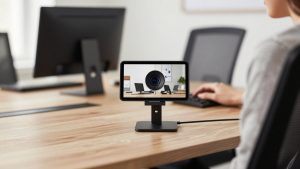
An external webcam fixes placement. Put it at eye level on top of your monitor, about arm’s length away. That alone makes you look more present. It also lets you keep eye contact instead of looking down. If you take four or more calls per day, lead meetings, or interview candidates, an external camera is worth it. If you join once a week from the couch, the cheaper option is fine.
Quick comparison
Think in categories, not megapixels. Here is how the practical options break down for Zoom-only work:
| Option | Typical image | Best for | Watch out for |
|---|---|---|---|
| Built-in laptop camera | 720p-1080p, noisy in low light | Travel, casual calls | Low angle, grain after dark, no placement control |
| Basic 1080p fixed-focus USB webcam | Clean 1080p/30 in decent light | Most office workers | Narrow dynamic range; blows out with window behind you |
| Mid-range 1080p/1440p autofocus webcam | Sharper, better mics and exposure | Managers, teachers, daily Zoom hosts | Focus hunting; needs USB port power, not an unpowered hub |
| 4K business webcam | Very detailed, digital zoom/crop | Presenters who crop or whiteboard | Heavier CPU use; Zoom often downscales it anyway |
What to buy for your situation
For most people: get a basic 1080p fixed-focus camera. If you take 4 to 5 calls a day from a desk with a window in front or to the side of you, start with a basic 1080p webcam for Zoom. It is plug-and-play on Mac and Windows, stays in focus, and Zoom’s compression hides the difference between it and pricier models. Failure mode to know: backlight. If a bright window is behind you, your face will go dark. Close blinds or put a $20 lamp in front of you before you blame the camera.
For daily hosts and managers: step up to better autofocus and mics. If you run standups, teach, or talk for hours, image stability and voice clarity matter. A mid-range autofocus webcam with dual mics usually adds larger glass, better auto-exposure, and noise reduction. Who it suits: team leads, coaches, therapists doing telehealth intake calls. Trade-off: autofocus can breathe during hand gestures. Set focus to single or fixed in the vendor app if you pace. Also plug it directly into the laptop or a powered dock. Unpowered USB hubs cause freezes and mic dropouts that look like a Zoom problem but are power problems.
For presenters who crop in: consider 4K, but only with good light. A 4K webcam for home office lets you digitally zoom to head-and-shoulders without going soft, and helps if you share a wide shot of a whiteboard. Who it suits: trainers, sellers doing demos, creators repurposing calls. Honest trade-offs: higher price, more heat, and Zoom will still deliver 720p to most attendees on weak connections. You also need daylight or a key light to see any benefit. In a dim room, a 4K sensor often looks noisier than a good 1080p sensor.
What about using a mirrorless camera or GoPro-style camera as a webcam? Image is excellent, but it is overkill for Zoom. You add HDMI capture or camera-as-webcam software, batteries to manage, overheating on long calls, and another point of failure before a client meeting. Only do this if you already own the camera and enjoy troubleshooting.
Audio and light beat a new camera
In side-by-side calls, viewers rate clear audio as more professional than sharper video. Webcam mics pick up keyboards, HVAC, and room echo. If people ask you to repeat yourself, buy a small USB headset or a desk mic before upgrading video. Place the mic 6 to 8 inches from your mouth and turn on Zoom’s background noise suppression on Low, not Aggressive, or your voice will pump.
For light, face a window or put a soft lamp at 10 o’clock, just above eye line. Avoid overhead-only lighting, which carves shadows under eyes. Set exposure lock if your webcam app offers it, otherwise every white slide you share will make your face darken as auto-exposure compensates.
Mac and laptop notes
On Macs, especially Apple Silicon MacBooks, check for a native macOS app or at least UVC compliance so the camera works without kernel extensions. Some older webcam utilities don’t expose settings on macOS, leaving you stuck with default exposure. Zoom’s own video settings for touch up appearance, low-light adjustment, and HD if available cover most of it.
For Windows laptops with USB-C docks, test the camera through the dock before an important call. DisplayLink docks and long passive USB extension cables are common sources of stutter. If video freezes when you plug in a second monitor, move the webcam to a direct port on the laptop. Keep the vendor’s firmware updater installed, but close it during calls; background updaters have caused mid-meeting disconnects.
FAQ
Is 4K worth it for Zoom?
Usually no. Zoom compresses to 720p for most group calls, so 4K only helps if you crop in heavily or record locally in high quality. Good lighting and stable 1080p/30 will look better to attendees than 4K in a dark room.
Why do I look blurry when I move?
That is usually low light plus aggressive noise reduction, or autofocus hunting. Add front light, wipe the lens, sit 2 to 3 feet away, and if your camera has it, switch from continuous autofocus to single autofocus. Also check Zoom is not on low-bandwidth mode.
Can I use my phone as a webcam for Zoom?
Yes, and modern phones often beat cheap webcams in low light. It is good as a backup or for travel. For daily desk use, a dedicated USB webcam is more reliable because you avoid battery drain, incoming call interruptions, and mount wobble.
My video freezes but audio continues. Is it Zoom?
Often it is USB power or CPU load. Plug the camera directly into the computer, not an unpowered hub, close virtual background or HD if your machine is older, and quit other camera apps. If it only happens through a dock, the dock is the culprit.