Last Updated: October 18, 2026
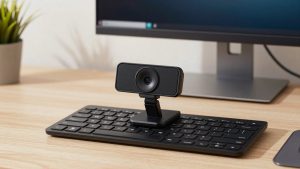
If you use a Mac for teaching, tutoring, or showing paperwork on Zoom and Teams, a document camera is more useful than a second webcam. It points down at your desk so you can show worksheets, contracts, sketches, or a product without holding pages up to your FaceTime camera.
Mac compatibility is where people get burned. Most document cameras work as standard UVC webcams, which macOS likes. The problem is the extra software for auto-focus control, rotation, annotation, and scanning to PDF, which is often Windows-first and Mac-second.
📄 In This Review
What to check before you buy for Mac
First, confirm plug-and-play UVC support. If the camera is UVC-compliant, it will show up in Photo Booth, QuickTime Player, FaceTime, Zoom, Teams, Google Meet, and OBS without a driver. That covers 90 percent of live teaching use.
Second, check whether the vendor actually maintains Mac software. Look for a native Apple Silicon app updated in the last year, not just an old Intel .dmg. If there is no Mac app, you can still use the camera for live video, but you lose one-click scan, time-lapse, and image flip controls.
Third, think about ports and power. Modern MacBooks only have USB-C. Many document cameras still ship with USB-A cables and want 5V/1A or more. A cheap unpowered hub is a common failure mode: the image freezes, flickers, or the LED light dims. Use a direct USB-C to USB-A adapter or a powered dock.
The three types that make sense on Mac
See also: Best Monitor for MacBook Air: Two USB-C 4K Screens and Six Adapter-Dependent Alternatives • Best Monitor for MacBook Pro: Eight Listings Sorted by Cable, Sharpness and Scaling
There are basically three useful categories. Do not overbuy resolution if all you do is show handwriting on Zoom at 1080p.
| Type | Best for | Mac use | Main trade-off |
|---|---|---|---|
| Basic 1080p USB overhead camera | Teachers, tutors, remote workers showing pages a few hours per week | Excellent. Usually UVC, works in Zoom/Teams with no app | Fixed focus or slow autofocus; struggles with small print and glare |
| 4K autofocus camera with LED light | Daily teaching, math work, art demos, small object demos | Very good live; Mac app needed for full scan features | Bulkier arm, needs more USB power, costs 2-3x more |
| Fold-flat portable / wireless model | Classroom to classroom, hybrid workers, travel | Mixed. Wired USB is reliable; Wi-Fi mode often needs iPhone/iPad app | Less stable arm, more compression and lag over Wi-Fi |
If you only join calls from home and already have a desk setup, the basic 1080p type is fine. If students need to read 8-point text, pencil work, or fine detail, step up to 4K with real autofocus.
Best for teachers and tutors on Zoom and Teams
Get a wired USB overhead camera with autofocus and a built-in LED. This is the workhorse for showing worksheets live. You position it to the side of your laptop, switch your Zoom camera source from FaceTime HD to the document camera, and write under it.
What matters here is focus speed, not megapixels. Cheap fixed-focus models force you to hold the arm at exactly the right height or text goes soft at the edges. Autofocus lets you zoom from a full letter page down to one math problem without re-rigging the stand.
Failure mode to expect: on Mac, Zoom and Teams will default to auto-exposure that blows out white paper. Lock exposure in the meeting app if you can, turn the LED to medium, and avoid a glossy white desk. A matte black desk pad helps contrast a lot.
Shoppers in this category should browse USB document cameras for teachers with autofocus and filter for listings that explicitly say macOS and UVC support in the specs, not just in a customer Q and A.
Best for home office scanning and paperwork
If your goal is signing contracts, filing receipts, or archiving notebooks, live video quality matters less than still capture and software. Here a 4K overhead camera with a heavy base and flattening software saves time versus a flatbed scanner.
On Mac, this is where software gaps show. Windows versions often bundle edge detection, auto-crop, OCR, and multi-page PDF. Mac versions may only do still JPG capture and leave you to crop in Preview. Before you buy, check App Store reviews and the vendor support page for Apple Silicon and current macOS versions like Sonoma and Sequoia.
Be honest about volume: if you scan five pages a month, your iPhone with Continuity Camera in macOS is free and often sharper. Buy a dedicated camera only if you scan weekly, need hands-free overheadCapture, or hate re-photographing pages.
Best portable option for classrooms and hybrid work
Portable fold-flat arms are popular with teachers who move rooms and with consultants who demo products at client sites. They collapse to about the size of a water bottle and run off USB power from a MacBook.
The trade-off is stability. A lightweight arm vibrates when you write or when the table is bumped, and autofocus hunts. Heavier desk models stay put but will not travel well. If you buy portable, look for a metal hinge, not all plastic, and a base heavy enough that the arm does not tip when fully extended.
Skip wireless as your primary connection on Mac unless you specifically need to walk around. Wired USB gives lower latency and fewer dropouts in Zoom. Wireless modes that mirror to iPad can be handy for classroom projection, but compression makes small handwriting harder to read. If portability is the priority, compare portable foldable USB document cameras and plan to use them wired with your Mac.
Setup tips that prevent most Mac headaches
Test in QuickTime Player first. Choose File, New Movie Recording, then select the document camera from the dropdown next to the record button. If it works there, the hardware is fine and any problem in Zoom or Teams is a permissions or camera-selection issue.
Check macOS privacy settings under System Settings, Privacy and Security, Camera. Zoom, Teams, Chrome, and OBS each need camera access enabled. After a major macOS upgrade, you may need to re-approve them.
Mounting matters more than specs. Clamp the base to the side so your MacBook camera stays free for your face. Use the document camera as a second camera in Zoom: Share Screen, Advanced, Content from 2nd Camera. That lets you stay visible while showing the desk, which is much better for teaching than switching back and forth.
For lighting, do not max out the built-in LED on white paper. It creates a hot spot in the center. Use medium LED plus room light, keep the paper flat with a clipboard, and set the camera to 1080p in the meeting app to reduce CPU load on MacBook Air models. If you need overhead lighting too, a separate low-glare desk lamp aimed at the wall often looks better than blasting the page, and you can find suitable options by searching low-glare desk lamps for home office video alongside your camera.
FAQ
Will any USB document camera work with a MacBook?
Most wired models work for live video because they use the UVC standard, so Zoom, Teams, Meet, Photo Booth, and QuickTime will see them. Full features like OCR, auto-crop to PDF, and button controls usually require the vendor Mac app, which varies in quality.
Do I need 4K or is 1080p enough?
1080p is enough if you show large handwriting or printed headings on live calls. Choose 4K with autofocus if students need to read small print, pencil shading, graph paper, or circuit boards. 4K stills also crop better for scanning.
Why does my document camera freeze or go black on Mac?
It is usually power or permissions. Try a direct USB-C adapter instead of an unpowered hub, use the original cable, close other apps using the camera, and check System Settings, Privacy and Security, Camera. In Zoom, make sure you selected the correct camera and not a virtual camera.
Can I use my iPhone as a document camera instead?
Yes, for occasional use. Continuity Camera lets you use an iPhone as a Mac webcam, and Desk View gives an overhead-style shot. Image quality is good, but mounting a phone overhead is fiddly and it ties up your phone. A dedicated arm is better if you do this daily.
Related Reviews & Guides
Desk Setup Gifts Under $100 That Fix a Real Problem
Best Camera for Online Teaching