Last Updated: October 18, 2026
If you just need to look clear on Zoom, Teams, or Google Meet, you do not need to spend $150. Most cheap webcams in the $30 to $70 range now deliver sharp enough 1080p for work, provided you get the basics right: decent sensor, autofocus, and reasonable low-light handling.
Where cheap webcams fall apart is not resolution on the box. It is focus hunting, washed-out color in mixed light, bad microphones, and flimsy mounts that slowly tilt down during a call. I have tested enough budget webcams to know the pattern: the image looks fine for the first five minutes, then it overexposes when the sun comes through a window or loses focus every time you lean back.
📄 In This Review
What “cheap high quality” actually means
For work calls, “high quality” does not mean 4K. It means you are in focus, your face is evenly exposed, your colors do not look orange or gray, and your frame rate does not stutter to 15 fps when your office light dims.
In practice, that breaks down into three tiers:
Under $35: Basic fixed-focus or slow-autofocus 1080p webcams. Fine for well-lit rooms and short calls. Expect softer detail and more noise in the evening. Microphones are usable but thin.
$40 to $70: The sweet spot for most home offices. You get faster autofocus, larger sensor or better processing, dual microphones with some noise reduction, and a usable privacy shutter. This is where a cheap webcam can look genuinely good.
$70 to $100: Only worth it if you need 2K/QHD for cropping, a wider field of view for a small conference setup, or much better low-light performance. For solo laptop calls, the jump from a good $50 webcam to a $90 one is smaller than you would think.
Specs that matter, and specs to ignore
See also: Best Monitor for MacBook Air: Two USB-C 4K Screens and Six Adapter-Dependent Alternatives • Best Monitor for MacBook Pro: Eight Listings Sorted by Cable, Sharpness and Scaling
Ignore “8MP” or “4K” claims on no-name listings under $40. Many use upscaling, not a true 4K sensor, and your video call app will compress you to 720p or 1080p anyway.
What actually helps day to day:
Autofocus vs. fixed focus: If you move, gesture, or hold up documents, get autofocus. Fixed focus is only fine if you sit very still at the same distance every time. Cheap autofocus can hunt and pulse; look for reviews that specifically mention focus stability on Mac and Windows, not just sharpness in a still photo.
Field of view: 75 to 90 degrees suits one person at a desk. Wider than 95 degrees will make you look small and show your messy room. Some budget webcams lock you at 90+ degrees with no adjustment. That is annoying on a laptop in a small office.
Low-light correction: This matters more than resolution if you work early, late, or in a basement office. Cheap sensors get grainy fast. A webcam with a slightly larger aperture (f/2.0 is common) and automatic low-light boost will look cleaner than a “2K” webcam with a tiny sensor.
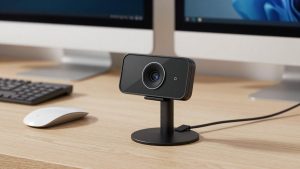
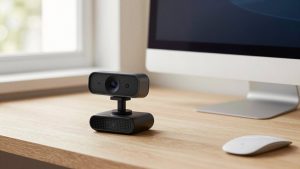
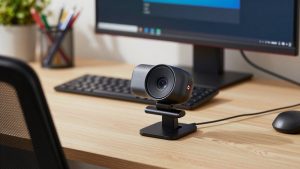
Mount and cable: Check this before you buy. The most common failure mode on cheap webcams is a weak clip that will not grip a thin MacBook lid or a curved monitor, and a short, stiff USB-A cable that pulls the camera sideways. If you use a MacBook with only USB-C, factor in a small adapter or hub.
Cheap webcam types compared
Most shoppers are choosing between these three categories, not specific brands:
| Type | Typical price | Image in good light | Image in dim light | Best for |
|---|---|---|---|---|
| Basic 1080p, fixed focus | $25-$40 | Acceptable, a bit soft | Noisy, darker | Students, second computer, short daily standups |
| Mid-range 1080p with autofocus | $40-$70 | Sharp, natural skin tones | Usable with one lamp on | Remote workers, job interviews, therapists, tutors |
| Budget 2K / QHD with autofocus | $60-$90 | Sharper, allows light cropping | Varies widely, check reviews | Presenters, small group calls, anyone who records |
The middle row is the right answer for most people. A good 1080p autofocus webcam for work will beat a cheap 2K webcam with poor processing, especially on Macs where some budget 2K models default to the wrong exposure.
Who should buy what
If you are on a laptop all day: Get a compact 1080p autofocus model with a privacy shutter and tripod thread. You want something light enough not to tip the lid back but stable enough not to wobble when you type. Do not pay extra for 4K here. Your bottleneck is office lighting and upload bandwidth, not pixels.
If you are on a Mac: Compatibility is generally fine over USB, but two issues come up repeatedly. First, some cheap webcams ship with Windows-only settings software, so you cannot update firmware or adjust zoom on macOS. Second, auto white balance can skew green or magenta under LED lights. Choose a model that looks correct out of the box, because you may not be able to tweak it. A standard Mac compatible 1080p webcam in the $50 range usually avoids both problems.
If your room is dark: Spend the money on light before you spend it on camera. A $35 webcam with a $20 desk lamp behind your monitor will look better than an $80 webcam in a dark room. Place a warm-white lamp in front of you, not overhead. Overhead lights create shadows under eyes that no cheap sensor can fix.
If you present or teach: Consider a budget 2K model for one reason: you can crop in slightly without falling apart, which helps if you share a whiteboard or sit farther back. Just confirm it can do 1080p at 30 fps reliably. Some cheap 2K webcams drop frames at full resolution on older laptops.
Common failure modes to check before the return window closes
Test these in your first week. Cheap webcams often pass a quick daytime test and fail in real use.
1. Focus breathing: Lean forward and back during a test recording in Zoom. If the image pulses in and out for more than a second, return it. You will look out of focus half the meeting.
2. Exposure blowout: Sit with a window to your side. If your face goes white every time clouds move, the auto-exposure is too aggressive. Close blinds or pick a model with better metering.
3. Audio sync and hiss: Record a two-minute clip. Budget dual-mic models are fine for calls, but some add harsh noise reduction that clips the start of sentences. If you take client calls all day, plan on a separate USB headset or mic anyway.
4. Mount creep: Clamp it to your actual monitor or laptop lid and type for 20 minutes. If it slides or points at your keyboard, that mount will drive you crazy. A standard tripod thread is useful because you can put it on a small desktop tripod instead.
If you need something for a desktop monitor with limited USB ports, look for a low light webcam for home office with a long, flexible cable and USB-A plug you can route cleanly. Cable length sounds trivial until the camera keeps disconnecting because the cord is taut.
What I would buy
For most remote workers: a mid-range 1080p webcam with autofocus, dual noise-reducing mics, and a physical privacy cover, in the $45 to $65 range. It is sharp enough for interviews, stable enough for all-day Teams calls, and cheap enough to replace in two years when sensors improve.
Go cheaper, around $30, only if the webcam is for occasional use, a kids computer, or a second angle. Go up to 2K only if you record video, crop, or host small group meetings where extra detail helps.
Either way, budget $15 to $25 for light if your office is dim. That single change does more for “high quality” than any sensor upgrade under $100.
FAQ
Is a $30 webcam good enough for job interviews?
Yes, if the room is bright and the webcam has decent autofocus. Test it in the same light and same app you will use for the interview. If your face is sharp and not grainy, keep your money. Bad lighting will hurt you more than a cheap sensor.
Do I need 4K for work calls?
No. Zoom, Teams, and Meet compress video heavily, usually to 720p or 1080p. A good 1080p image with stable focus and exposure looks better than a cheap 4K image that stutters or overexposes. Buy 2K or 4K only if you record locally and edit later.
Why does my cheap webcam look worse on Mac?
Often it is default exposure or white balance, plus lack of Mac settings software to fix it. Try it in Photo Booth and in your meeting app with overhead lights off and a lamp in front of you. If color is still off, exchange it for a model known to work plug-and-play on macOS.
Should I use the webcam mic or a headset?
For short internal calls, the webcam mic is fine. For clients, interviews, teaching, or noisy homes, use a headset or USB mic. Budget webcam mics pick up keyboard noise and room echo, and aggressive noise reduction can make your voice sound clipped.