Last Updated: October 18, 2026
If you work from home, your camera is not about looking like a YouTuber. It is about being readable in bad light, staying in focus when you lean in to read, and not dropping frames when your laptop is already running Slack, Chrome, and Zoom at once. Most built-in laptop cameras still fail at all three.
After testing webcams in real home offices – spare bedrooms with one window, desks facing a wall, overhead LEDs – the pattern is consistent: lighting and lens behavior matter far more than resolution numbers. A good 1080p webcam with decent auto-exposure will look better on a Teams call than a cheap 4K sensor that hunts for focus.
📄 In This Review
What actually matters for work calls
Resolution is the least useful spec on the box. What you notice day to day is exposure handling when you have a bright window behind you, focus stability when you move, field of view, and how the microphone handles keyboard noise. For most people, 1080p at 30fps is enough. Your company VPN and Zoom compression will throw away extra detail anyway.
Autofocus sounds premium but it is a common failure mode. Cheap autofocus units will pulse in and out every time you lift a coffee mug or gesture. For desk work at a fixed distance, fixed focus is often calmer and more reliable. Autofocus only pays off if you stand up, use a whiteboard, or move back and forth during calls.
Field of view is the other hidden trade-off. A wide 90-degree lens shows your messy room and makes you look small. A 65 to 78-degree lens keeps you centered and looks more professional in a small office. If you share an office or want to show two people, go wide. If you sit alone 2 feet from the screen, narrower is better.
Quick comparison
See also: Best Monitor for MacBook Air: Two USB-C 4K Screens and Six Adapter-Dependent Alternatives • Best Monitor for MacBook Pro: Eight Listings Sorted by Cable, Sharpness and Scaling
This is the short version. All of these assume a typical home office: laptop or Mac mini / desktop, one monitor, mixed daylight and ceiling light.
| Type | Best for | Strengths | Weaknesses |
|---|---|---|---|
| Basic 1080p fixed-focus webcam | Daily Zoom / Teams on a budget | Reliable, low CPU load, no focus hunting | Soft in low light, narrow dynamic range |
| Mid-range 1080p / 1440p with autofocus | People who move, lean in, present | Sharper, better mics, better low light | Can hunt for focus, needs better USB bandwidth |
| Premium 4K webcam | Presenters, managers, content + work hybrid | Best detail, digital zoom and framing modes | Expensive, heavier CPU use, often needs extra light to look 4K |
| Laptop built-in camera | Travel or backup only | Always there, zero setup | Small sensor, noisy image, bad backlight handling |
If you just need to look normal: get a basic 1080p webcam
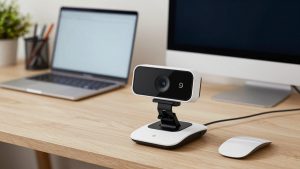
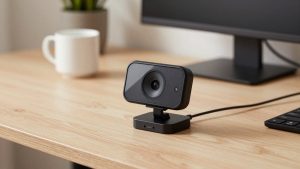
For 70 percent of remote workers, the cheaper option is fine. A basic 1080p fixed-focus webcam mounted on top of your monitor, set at eye level, will beat any MacBook or Dell XPS built-in camera, especially at 8 a.m. with only a ceiling light on.
What to look for: fixed focus, dual mics with noise reduction, a physical shutter, and a clip that actually grips a thick monitor. Skip digital beauty filters and 60fps modes at this price – they usually mean smaller pixels and worse low light. Set it to 1080p30 and leave it alone.
Failure mode to expect: backlight blowout. If you sit with a window directly behind you, even a good budget cam will turn you into a silhouette. No sensor fixes that. Close the blind or put a $20 desk lamp behind your monitor, facing you. That one change matters more than spending another $80 on the camera.
If you are replacing a laptop camera and want the simplest upgrade, browse a current 1080p webcam for work with fixed focus and pick one with thousands of office-use reviews, not streaming reviews.
If you present or move a lot: get autofocus with good mics
This is the sweet spot for teachers, managers, sales calls, and anyone who leans toward the screen to read and then sits back. Good autofocus plus larger pixels keeps your face sharp at 18 inches and at 4 feet, without that constant breathing effect.
The trade-off is complexity. These cameras often come with desktop software for zoom, focus speed, and auto-framing. That software is useful once, then annoying if it runs at startup and fights with Teams. My advice from hands-on use: set your framing and turn off auto-framing for normal 1:1 meetings. Auto-framing helps in group huddles but looks robotic when it re-centers every time you shift in your chair.
Mac users should pay attention here. Some mid-range cameras handle white balance differently on macOS because there is no first-party tuning app, and you get a cooler, bluer image. Check that exposure and white balance can be locked in the vendor app or in OBS, otherwise you will look different every morning depending on your shirt color.
This category is also where microphone quality actually improves. You still should use earbuds or a headset for all-day calls, but for a 30-minute check-in, a mid-range webcam mic with keyboard-noise suppression is usable. Just keep typing to a minimum.
When 4K is worth it – and when it is not
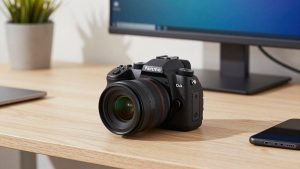
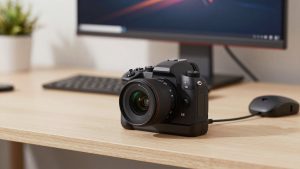
A premium 4K webcam only makes sense for two types of home workers: people who present to clients all day and want to use 2x digital zoom without going mushy, and people who want one camera for both work and recording. If you just attend standup, you will not see the difference after compression.
The honest downside: 4K needs light and CPU. In a dim room, many 4K webcams pixel-bin down to 1080p anyway to reduce noise, so you paid for detail you are not transmitting. On older laptops, especially Intel MacBook Airs and thin Windows ultrabooks, 4K30 plus background blur in Zoom can cause fan noise and dropped frames. If your laptop already runs hot, stay at 1080p or 1440p.
Who it suits: a dedicated home office with a key light, a desktop or M-series Mac, and a large monitor where you sit 3 feet back. In that setup, you can crop in, keep eye contact, and still look sharp. If that is you, look at a current 4K webcam for home office with autofocus and plan to run it at 1440p or 1080p for calls.
Setup beats specs
Almost every bad work-from-home image I have seen was a placement problem, not a camera problem. Put the camera at eye level, not looking up your nose from a laptop on a desk. A stack of books or a monitor arm fixes more than a new sensor. Keep the lens 24 to 30 inches away, clean it once a month, and face a window or lamp rather than sitting with your back to it.
Audio is half of being understood. Webcam mics pick up room echo. If your office has bare walls and hardwood floors, add a rug, curtain, or even a bookshelf behind you. And use a wired headset or AirPods-style buds for long days. Your coworkers will thank you more for clear audio than for 4K video.
If you use a Mac with only USB-C, check the cable in the box. Many webcams still ship with USB-A to USB-C adapters that work loose over time and cause disconnects mid-call. A direct, short USB-C cable is more reliable. Also avoid running the camera through a cheap dock if you can – plug directly into the laptop for troubleshooting at least once.
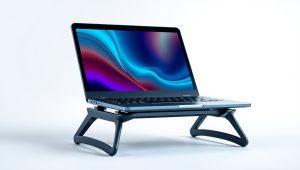
For small desks or laptop-only setups, a compact clip with tripod thread is useful. You can mount it on a mini tripod to the side of a laptop riser and get true eye level. Search for a webcam with tripod mount and privacy shutter if your monitor clip never sits straight.
FAQ
Is 4K necessary for Zoom and Teams?
No. Both platforms compress heavily, and most viewers see you in a small tile. 1080p with good lighting looks better than 4K in a dark room. Only buy 4K if you want digital zoom or also record video.
Why do I look blurry when I move?
Usually low light forces a slow shutter speed, or cheap autofocus is hunting. Add light in front of you, sit still for a second to let focus lock, and if your camera app allows it, reduce autofocus speed or switch to manual focus at your seating distance.
Will an external webcam work with Mac?
Yes, most are plug-and-play over USB. The catch is tuning software – some advanced features like background replacement or firmware updates are Windows-only. Basic video, mic, and exposure work fine on Mac without drivers.
Should I use my phone instead?
A modern iPhone or Android as a webcam can look excellent, but it is fiddly as a daily driver. Overheating, notifications, battery drain, and mounting hassle add up. A dedicated $60 to $120 webcam is less sharp on paper but far more consistent for 6 hours of calls.