Last Updated: October 18, 2026
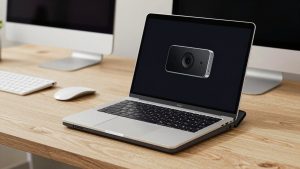
MacBook Pro has one of the better built-in laptop cameras, especially on the newer 14-inch and 16-inch models. It is fine for quick calls, but it still sits too low, looks soft in bad light, and gives you no control over framing. If you are on Zoom, Teams, or Meet for hours a day, an external webcam is a noticeable upgrade.
The good news: Macs are easy to shop for here. Almost any modern USB webcam works plug-and-play with macOS. The bad news: macOS gives you almost no built-in camera controls, so autofocus hunting, overexposure, and washed-out skin tones are common if you buy the wrong type.
📄 In This Review
What to look for on a MacBook Pro
Prioritize plug-and-play UVC compatibility. That means it works with FaceTime, Zoom, Teams, OBS, QuickTime, and Photo Booth without a driver. Most mainstream webcams do this, but avoid anything that requires a Windows-only app for basic focus or exposure. On Mac, you want the picture to be right out of the box.
Resolution matters less than lens and processing. A good 1080p webcam with a larger sensor and decent auto-exposure will look better than a cheap 4K webcam that sharpens everything and blows out windows behind you. 4K is useful if you want to crop in, use digital zoom, or record video to edit later. For live calls, 1080p at 30fps or 60fps is plenty.
Also check the mount and field of view. MacBook Pro lids are thin and the screen bezels are small. You want a clip that grips without wobbling and that can tilt down to eye level. A 78- to 90-degree field of view is ideal for a home office. Wider than that and your room looks cavernous and you look tiny.
Should you just use the built-in camera?
See also: Best Monitor for MacBook Air: Two USB-C 4K Screens and Six Adapter-Dependent Alternatives • Best Monitor for MacBook Pro: Eight Listings Sorted by Cable, Sharpness and Scaling
For many people, yes. If you take two to three calls a day in a bright room and you sit facing a window, the built-in camera plus good lighting is fine. Add a $20-30 ring light or desk lamp and you will look better than most people with an expensive webcam in a dark room.
Buy an external webcam if you have one of these problems: you look grainy on evening calls, your background window turns into a white blob, your face drifts in and out of focus when you lean back, you want to stand or use an external monitor, or you record Loom videos, interviews, or YouTube. An external camera on top of a monitor puts you at eye level, which is more flattering and more natural.
Best types of webcam for MacBook Pro
1. Basic 1080p USB webcam: best for most office workers. This is the value sweet spot. You get true 1080p, dual mics that are good enough for calls, and autofocus that mostly stays locked. Image quality in daylight is clean and colors look natural on Mac. Low-light performance is average – expect some grain after 7pm unless you turn on a lamp.
Failure mode: cheap autofocus that pulses every 20-30 seconds. If you move around a lot or show papers to the camera, look for a model with fast, quiet autofocus or a manual focus option. A simple 1080p webcam for MacBook is enough for daily standups, interviews, and client calls, and there is no need to spend double unless you record video.
2. 4K webcam with auto-framing: best for managers, teachers, and presenters. You pay for a sharper sensor, better dynamic range, and software features like auto-framing, background blur, and noise removal. On a MacBook Pro with an external 27-inch monitor, this makes a real difference. You can sit farther back and still look sharp, and highlights from windows are handled better.
Trade-off: these cameras run warmer, cost more, and sometimes need a companion app to turn off aggressive auto-framing. Auto-framing is great if you pace while teaching, annoying if you just want a stable headshot. Look for one where you can disable it permanently. Browse a 4K webcam for Mac with autoframing if you present often or share a whiteboard.
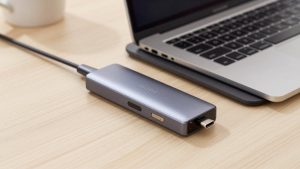
3. Compact 2K / QHD webcam: best middle ground. Slightly sharper than 1080p without the large file sizes and heat of 4K. Most work well over a standard USB-A to USB-C adapter or direct USB-C cable, which matters because newer MacBook Pros only have USB-C / Thunderbolt ports. Do not forget you will likely need a small adapter or dock if the webcam ships with USB-A.
4. Your iPhone as a webcam: best image quality if you already own one. Apple’s Continuity Camera lets a recent iPhone act as your Mac webcam wirelessly or wired. Image quality beats almost any sub-$200 webcam, especially in low light. It is ideal for job interviews or recording. The downside is setup friction – mount, battery drain, and the occasional disconnect before an important call. If reliability matters more than absolute quality, a dedicated USB webcam still wins.
Quick comparison
| Type | Best for | Picture on Mac | Downside |
|---|---|---|---|
| Built-in MacBook Pro camera | Light use, travel | Good in daylight, soft in low light | Low angle, no framing control |
| 1080p USB webcam | Daily Zoom / Teams | Clean, natural, enough detail | Grainy at night, basic mics |
| 2K QHD webcam | Home office all-day use | Sharper, better exposure | Needs USB-C adapter, slight premium |
| 4K with auto-framing | Teaching, presenting, recording | Sharpest, best HDR, crop-friendly | Heat, price, can over-process |
| iPhone via Continuity Camera | Interviews, recording | Excellent detail and low light | Mount hassle, battery, occasional drops |
Setup tips that matter more than specs
Place the camera at or slightly above eye level. When you use a MacBook Pro open on a desk, you are looking down. Put the laptop on a stand or better, put the external webcam on top of your external monitor. You will look more engaged immediately.
Face your light. Sit facing a window or put a soft white lamp behind your monitor aimed at your face. Do not sit with a bright window behind you – no webcam, even 4K, can fix that completely. If you cannot move, close blinds and turn on room lights.
On Mac, test in the actual app you use. FaceTime tends to look warmer and smoother than Teams or Zoom, which compress more aggressively. Open Zoom Settings – Video – and uncheck Touch Up My Appearance if you look waxy. In Teams, try the soft background blur instead of a fake background; fake backgrounds cause edge flicker and make autofocus hunt.
For audio, do not assume the webcam mic is enough. In a quiet room it is fine. In a kitchen, open office, or echoey room, a pair of earbuds or a basic USB mic will improve clarity more than any camera upgrade. Viewers forgive 720p video, they do not forgive echo.
If your new camera looks too dark or too bright, it is usually macOS auto-exposure, not a defective unit. Add light to your face first, then check if the vendor offers a lightweight Mac settings app. Avoid leaving manual exposure apps running in the background – they can fight with Zoom and cause flicker. Keep it simple: good light, stable mount, native resolution.
What to buy
If you are on calls all day from home and want set-and-forget reliability, get a well-reviewed 1080p or 2K model from a mainstream brand with a physical privacy shutter and tripod thread. The shutter matters if you work with sensitive material, the tripod thread matters if you later want to mount it on a desk arm.
Spend up to 4K only if you record, crop, or present. For pure meetings, put the price difference toward lighting or a USB-C webcam mount and adapter for MacBook Pro setup that gets the camera to eye level. That does more for how professional you look than extra pixels.
Avoid novelty features: gesture controls, 120-degree ultra-wide for solo calls, and Windows-only AI effects. On Mac they either do not work or add lag. Field of view, focus stability, and microphone noise handling are what you will notice every day.
FAQ
Do I need drivers for a webcam on MacBook Pro?
No, for most models. Choose a UVC-compliant USB webcam and it will show up in FaceTime, Zoom, Teams, Meet, and OBS without installing anything. You may need an adapter for USB-A to USB-C, but no driver.
Why does my external webcam look worse on Mac than expected?
Usually low light or too-wide framing. Add light facing you, move closer, set the app to HD, and turn off fake backgrounds. If the image pulses in and out of focus, you are too close for its minimum focus distance – move back 6-12 inches.
Can I use my iPhone instead of buying a webcam?
Yes. With Continuity Camera on recent iPhones and macOS versions, you can select iPhone as the camera in your video app. It looks great, but keep a charger and mount handy for long calls.
Is 4K worth it for Zoom and Teams?
Usually not. Both compress video heavily, so callers see roughly 720p to 1080p anyway. 4K helps if you record locally, zoom/crop digitally, or want better HDR. For meetings alone, a good 1080p camera plus good lighting looks the same to others.