Last Updated: October 18, 2026
If you use a Mac for Zoom, Teams, or Google Meet and hate cable clutter, “wireless webcam” sounds perfect. Here is the honest part up front: there is almost no such thing as a true wireless USB webcam that just works on macOS like a wired Logitech does.
What is sold as wireless is almost always one of three workarounds: your iPhone used as a Mac webcam over Wi-Fi, an action camera or mirrorless camera sending video wirelessly, or a Wi-Fi security / monitoring camera viewed in a browser. All three can work for calls, but they fail in different ways. Pick based on how much latency, charging, and setup fiddling you can tolerate.
📄 In This Review
Why wireless is tricky on Mac
macOS expects a webcam to show up as a USB Video Class device. That gives you plug-and-play support in FaceTime, Zoom, Teams, Photo Booth, QuickTime, and browser calls without drivers. Wi-Fi does not give you that. So wireless options have to bridge the gap with Apple’s Continuity Camera system, a virtual camera app like OBS, or an HDMI-to-USB capture path.
That bridge is where things go wrong. Wi-Fi congestion in an apartment building can add 200-400ms delay, cause frozen frames, or drop audio out of sync. Battery-powered cameras overheat and shut off after 30-45 minutes. Some apps will not see a virtual camera or an IP camera at all — FaceTime in particular is picky, while Zoom and Chrome are more forgiving. If your calls are job interviews, client demos, or all-day support queues, those failure modes matter more than resolution specs.
For most Mac users, the practical answer is not to cut every wire. It is to reduce the wire you see daily: leave a dock or UVC capture stick plugged in behind the monitor, and make the camera itself easy to grab, mount, and charge. Fully wire-free is possible, but only buy it if you need to move around.
Your real options compared
See also: Best Monitor for MacBook Air: Two USB-C 4K Screens and Six Adapter-Dependent Alternatives • Best Monitor for MacBook Pro: Eight Listings Sorted by Cable, Sharpness and Scaling
Think in categories, not megapixels. A stable 1080p feed beats a stuttering 4K feed for work.
| Method | How it connects to Mac | Latency | Reliability for daily calls | Best for |
|---|---|---|---|---|
| iPhone as webcam via Continuity Camera | Wi-Fi + Bluetooth, no cable needed after setup | Low to medium, usually 80-180ms | High if phone is powered and mounted | Most home office Mac users |
| Action camera with wireless transmitter | Wireless HDMI to receiver, then USB capture to Mac | Medium, 150-300ms | Medium, needs charging and cooling | Presenters who stand and move |
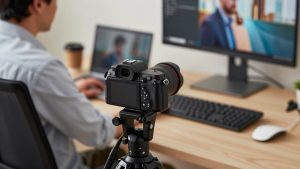
| Mirrorless camera wireless to capture app | Manufacturer webcam utility or OBS virtual camera over Wi-Fi | Medium to high | Medium-low, app dependent | Creators who already own the camera |
| Wi-Fi IP camera viewed in browser | Local RTSP / web viewer, screen share or virtual cam | High, often 500ms+ | Low for two-way calls | Monitoring a room, not meetings |
Best for most people: Use an iPhone as your wireless webcam
If you have a Mac running macOS Ventura or later and an iPhone XR or newer, you already own the best wireless webcam for Mac. Apple’s Continuity Camera lets the iPhone act as the Mac’s camera over wireless, with automatic framing, Desk View, and Portrait background blur handled on the phone.
In practice, image quality is better than any sub-$200 wired webcam, especially in a dim home office. Skin tones look natural, low-light noise is lower, and the ultra-wide lens gives you Center Stage follow if you pace while talking. Setup is simple: turn on Wi-Fi and Bluetooth on both devices, sign into the same Apple ID, mount the phone, then select iPhone as camera in Zoom or FaceTime.
The trade-offs are power and heat. A 60-minute Teams call over wireless with Center Stage on will drain 20-30% battery and make the phone warm. If you do this daily, keep the phone on a charger. A small MagSafe tripod mount for MacBook with a short USB-C cable tucked behind the lid is the setup most people stick with — technically wired for power, wireless for video, no cable across your desk.
Who it suits: MacBook Air / Pro users on Zoom and Meet who want better quality without buying another camera. Who should skip it: if you need your phone free during calls for notes or authenticator codes, or if your Mac is managed by work with a different Apple ID. Continuity will not reliably bridge two different Apple IDs.
For presenters who move: Action camera plus wireless video link
If you teach, demo a product, or record stand-up videos in a home studio and hate tripping over HDMI, an action camera paired with a wireless HDMI transmitter is the most truly cable-free camera that still looks professional on a Mac.
The chain is: camera outputs clean HDMI, transmitter sends it across the room, receiver plugs into an HDMI-to-USB capture dongle on your Mac. Your Mac sees a normal wired webcam, so compatibility is excellent. You can walk 20-30 feet, mount the camera on a bookshelf, and keep the laptop out of the shot.
Failure modes are real. Cheap transmitters add fan noise and 200ms+ lip-sync delay. Action cameras in small bodies overheat in 4K and will throttle or shut down; run them in 1080p60 with stabilization off for calls. You also have two batteries to manage — camera and transmitter — so this is not a grab-and-go for back-to-back meetings.
This only makes sense if you already need that freedom of movement. Do not buy a full transmitter kit just to avoid one USB cable at a desk. If you go this route, shop for a low-latency low-latency wireless HDMI transmitter kit and a reputable HDMI-to-USB capture puck that is explicitly UVC-compatible with macOS. Test lip sync in QuickTime before you use it with a client.
When mirrorless wireless and Wi-Fi IP cameras make sense
If you already own a Sony, Canon, Fujifilm or similar mirrorless camera, its maker’s free webcam utility can send video over Wi-Fi to your Mac. Quality is excellent — large sensor, real background blur — but the Wi-Fi implementations were built for photo transfer, not sustained video. Expect dropped connections when the camera sleeps, and check whether your meeting app sees the utility’s virtual camera. Zoom and OBS do; FaceTime and some locked-down corporate Teams builds often do not.
Wired is still dramatically more reliable here. A $25 HDMI capture dongle plus the HDMI cable you already have will beat Wi-Fi every time for daily work. Save wireless mirrorless for occasional streams where you can rehearse the connection.
Standalone Wi-Fi IP cameras are a different category. They are great for watching a 3D printer, baby room, or shop floor in a browser tab on your Mac, but they are poor meeting cameras. Latency is usually half a second or more, microphones are tuned for rooms not voices, and joining a Zoom with one often means screen-sharing the viewer window, which looks soft and out of sync. Only consider a Wi-Fi IP camera compatible with Mac viewing if your goal is monitoring, not talking.
What to buy for a Mac home office
Start cheap. If you have a recent iPhone, spend $20-35 on a solid mount and use Continuity Camera wirelessly for two weeks. Most people stop there. Keep your Mac and iPhone on the same 5GHz Wi-Fi network, not a guest network or VPN that blocks local discovery, and plug the phone in during long calls.
Buy more gear only for a specific problem: a wireless video link if you must present away from the desk, or a quality wired 4K webcam for a shared family Mac where handing over your phone is annoying. In a noisy apartment or thick-walled house, prioritize the network first — a $40 upgrade to move your router closer or add an access point will improve wireless video more than a $200 camera.
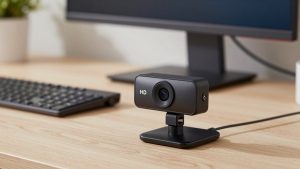
Avoid anything marketed as a generic “WiFi USB webcam” with no macOS driver or App Store companion app. On Mac those often require outdated kernel extensions, Chrome-only viewers, or Windows setup utilities. If the listing does not show macOS Sonoma / Sequoia in the compatibility screenshots, assume it will not work for FaceTime and system-level calls.
FAQ
Can I use a wireless webcam with FaceTime on Mac?
Continuity Camera with iPhone works natively in FaceTime. Most other wireless methods that rely on OBS virtual camera or browser viewing do not show up reliably in FaceTime. If FaceTime is your main app, use iPhone wireless or a wired UVC webcam.
Does wireless add noticeable delay on calls?
Yes, a little. Expect iPhone wireless to feel almost normal, while wireless HDMI and mirrorless Wi-Fi add a slight lip-sync lag. Wired connections are still best if you do live interviews, music lessons, or fast back-and-forth discussion.
Will a wireless webcam drain my iPhone or camera battery?
Fast. Plan on external power for anything over 30 minutes. Heat is the other limit — use 1080p instead of 4K, turn off tracking effects you do not need, and give small cameras airflow.
Is a cheap wired webcam better than a wireless workaround?
For all-day reliability, often yes. A basic wired 1080p webcam with a good microphone and decent auto-exposure will beat a fiddly wireless 4K setup for daily standups. Go wireless only if you need movement or a cleaner desk and accept the charging routine.