Last Updated: October 18, 2026
If you spend 6-8 hours a day on Zoom, Teams, or Meet, a high end webcam is not about vanity. It is about being readable in bad light, staying in focus when you move, and not looking washed out next to a client with a good setup. That said, most people do not need to spend $250-$300 to get there.
High end makes sense if you present, teach, coach, sell, or record from your desk and your face is the product. If you mostly do internal standups from a laptop, a $70-$100 webcam is usually fine and the extra money is better spent on light and audio.
📄 In This Review
What high end actually buys you
Cheap 1080p webcams use tiny sensors. They fall apart in warm home-office light, smear motion, and hunt for focus. A good high end webcam gives you three concrete upgrades: a larger sensor for cleaner low-light image, better auto-exposure that does not blow out your face when a window is behind you, and usable 4K that lets you crop to 1080p without softness.
What it does not buy you is DSLR blur or studio color automatically. You still need decent frontal light. I have tested $300 webcams that looked worse than a $90 one simply because the expensive model was left on auto with a bright window behind the user. If you will not add even a $30 LED panel and turn to face a window, save your money.
The three high end approaches compared
See also: Best Monitor for MacBook Air: Two USB-C 4K Screens and Six Adapter-Dependent Alternatives • Best Monitor for MacBook Pro: Eight Listings Sorted by Cable, Sharpness and Scaling
There are not really ten great high end webcams. There are three approaches, each with a clear trade-off for work calls.
| Type | Best for | Strength on calls | Biggest downside |
|---|---|---|---|
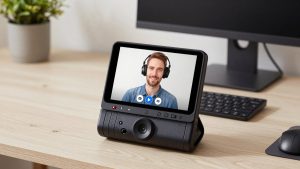
| Premium 4K fixed webcam | Daily Zoom/Teams at a desk, Mac and Windows | Plug-and-play, reliable autofocus, good mics | Fixed wide shot, can look flat |
| PTZ / auto-tracking webcam | Teaching, presenting, standing desks, moving around | Follows you, gestures for zoom, more framing options | More software, fan noise and gimbal whir possible, pricier |
| Mirrorless / action camera as webcam | Creators, coaches, YouTube + calls from same desk | Best image, shallow depth of field, great in low light | Needs power, HDMI/USB setup, overheating risk, no auto-tracking |
If you want zero fuss, get type one. If you pace while you talk or switch between sitting and whiteboard, get type two. Only go type three if you already own the camera and like tinkering.
Best all-rounder: premium 4K USB webcam
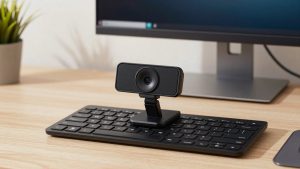
This is the right pick for 80% of high end buyers. You get 4K30 or 1080p60, a 1-inch-type or large 1/2-inch sensor, dual noise-reducing mics, and a physical shutter. On a MacBook or Windows laptop docked to a monitor, it just shows up as a USB camera.
Look for manual control of exposure, white balance, and field of view. Auto mode on high end models tends to over-sharpen and over-brighten faces. I set 65-75 degree field of view for a home office, turn off auto low-light boost, and lock exposure to my face, not the room. That one change matters more than 4K vs 1080p.
Failure modes to know: 4K over USB can stutter on older hubs and long cables. If you run through a dock, use a short USB-C to USB-C cable direct to the laptop to test first. Heat is also real – some 4K models get warm and drop to 1080p after 90 minutes. And background blur in Teams/Zoom costs CPU; on an Intel Mac or older Air, do blur in the webcam app at 1080p, not 4K in Zoom.
For most remote workers, browsing premium 4K USB webcams for work calls and picking a well-reviewed model with Mac software support is the safest spend. Check that the companion app actually runs on macOS Sonoma/Sequoia – some Windows-only apps leave you stuck on default settings.
Best for presenters: auto-tracking PTZ webcam
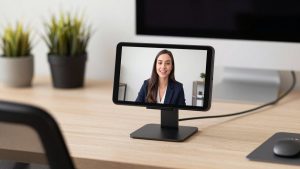
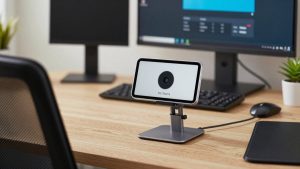
If you stand, use a sit-stand desk, or teach, a gimbal-based tracking webcam is noticeably better than a fixed webcam. It keeps you centered when you lean, crops intelligently, and lets you switch between desk close-up and wider room view with a hand gesture.
Trade-off: you are buying software and motors, not just optics. Tracking can be jumpy if you have people walking behind you, pets, or a busy bookshelf. Desk mode for showing documents looks clever in demos but is often too distorted for real client work – an overhead phone arm works better.
Who it suits: solo founders doing webinars, fitness and music teachers, managers who present standing up. Who should skip it: anyone on a shared desk, in a noisy open office, or who hates updating firmware. The gimbal also adds a faint motor sound that your mic will pick up in a quiet room.
If this is your use case, compare auto-tracking PTZ webcams for presentations and prioritize gesture control you can turn off, tripod thread support, and USB-C power – not just 4K on the box.
Highest image quality: real camera as webcam
No webcam beats a large-sensor mirrorless camera with a 24mm or 35mm equivalent lens for skin tone and low light. If you already shoot video, using what you own as a webcam via USB streaming or HDMI to USB capture is the true high end.
But for pure work calls, it is usually overkill and less reliable. You need continuous power with a dummy battery or USB-PD, a clean HDMI output with no overlays, and a way to keep the camera from sleeping or overheating after 60-90 minutes. Autofocus that is perfect for video can pulse on calls. Audio still comes from a separate USB mic.
Go this route only if you record courses or YouTube from the same desk and want one setup for both. For everyone else, a premium webcam plus a $40 key light will look 90% as good with 10% of the hassle. If you want to try it, start with HDMI to USB capture devices for using a camera as a webcam before you buy a new camera body.
Mac, laptop, and home office setup notes
On Macs, plug-and-play matters more than specs. Choose UVC-compliant cameras that need no driver. Avoid models where 4K,HDR, or background blur only work in the Windows app. On Apple Silicon, Zoom and Teams handle 1080p well; 4K rarely improves what others see because the meeting app compresses to 720p-1080p anyway. 4K helps you, because you can crop.
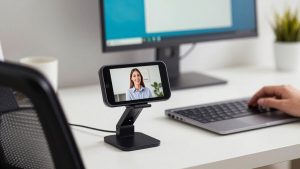
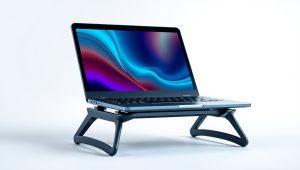
For laptops, mount height is critical. A $300 webcam clipped to a laptop screen pointing up your nose still looks bad. Put the laptop on a stand or use a monitor-mounted webcam at eye level. Use a 1-1.5 ft USB-C cable, not a 10 ft passive extension, which causes disconnects.
Light first, then camera. Face a window or put a 10-inch LED panel behind your monitor at 4000-5000K, 30-50% brightness. Turn off overhead spots that create glasses glare. Once light is set, lock white balance to 4500K and lower sharpness – high end webcams ship over-sharpened.
FAQ
Is 4K worth it if Zoom compresses video anyway?
Usually yes, but not for the reason on the box. Others may only see 720p-1080p, but 4K gives you clean digital zoom and better downscaled 1080p. Do not expect clients to see full 4K detail on a normal call.
Do I need a high end webcam for a MacBook?
Only if you are on calls all day or present externally. Recent MacBook cameras are decent in good light. A midrange 1080p webcam with good mics plus better lighting often closes the gap for half the price.
Why does my expensive webcam look grainy at night?
Because your room is darker than you think. Turn on a frontal light, turn off auto low-light frame-rate drop which causes motion blur, and lock exposure. No sensor fixes a backlit dark office.
Will a tracking webcam work in a busy home office?
Sometimes poorly. Tracking locks onto the closest face or movement. If kids, coworkers, or foot traffic pass behind you, use fixed framing or narrow the tracking zone in the app.