Last Updated: October 18, 2026
MacBook Pro has a decent built-in camera for quick calls, but if you present clients, teach, or record, it falls short. It is stuck at 1080p, fixed in the lid, and struggles in mixed light. A good external 4K webcam gives you sharper detail, better low-light handling, a more flattering field of view, and the ability to place the camera at eye level on an external monitor.
The catch: not every 4K webcam plays well with macOS. Some advertised features like Windows Hello, certain background effects, or full settings apps only work on Windows. On a Mac you often get plug-and-play video but lose granular control. That shapes what you should buy.
📄 In This Review
What actually matters on a MacBook Pro
Resolution is not the whole story. Most video apps — Zoom, Teams, Meet — will compress you to 1080p or 720p anyway. What you notice from 4K on a Mac is better downscaling, cleaner text if you share documents on camera, and the ability to crop or zoom without turning to mush.
Prioritize these three things: macOS compatibility without drivers, autofocus that does not hunt, and a usable field of view. Look for UVC-compliant cameras that work over USB-C with no driver install. For focus, dual autofocus systems or fast phase-detection hold up better if you move, show products, or use a whiteboard. For field of view, 75 to 90 degrees suits a home office desk. Wider than 95 degrees is useful for two people but makes a solo speaker look distant.
Microphones, privacy shutters, and mounting matter more than spec sheets suggest. Most webcam mics sound thin in an echoey room. If you take calls all day, plan on a separate USB mic or headset regardless of which webcam you pick. A physical shutter or lens cap is worth having if the camera will live on a monitor facing your desk. And check the mount: thick studio monitors and curved ultrawides defeat a lot of flimsy clips.
Mac-specific limitations to check before you buy
See also: Best Monitor for MacBook Air: Two USB-C 4K Screens and Six Adapter-Dependent Alternatives • Best Monitor for MacBook Pro: Eight Listings Sorted by Cable, Sharpness and Scaling
First, settings software. Many brands offer full tuning — zoom, autofocus modes, HDR on/off, auto-framing — only in a Windows app. On Mac you might get a basic viewer or nothing at all. If you want to lock exposure or disable aggressive auto-framing, check that the Mac app or on-camera controls actually allow it.
Second, USB connection. MacBook Pro ports are Thunderbolt / USB-C. Most webcams ship with USB-A cables or short USB-C to USB-A cables. Use a direct USB-C to USB-C cable rated for data or a good hub. Cheap adapters cause the classic failure mode: camera connects at USB 2.0 speeds, 4K option disappears in QuickTime or OBS, or the image stutters when the mic is also in use.
Third, Continuity Camera. If you own a recent iPhone, you already have a strong alternative for occasional 4K. It works well for travel, but it drains phone battery, heats up on long calls, and mounting is fiddly. A dedicated webcam is still better for a fixed desk.
The three types worth considering
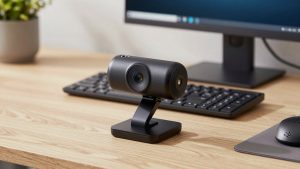
For MacBook Pro desks, 4K webcams fall into three practical buckets. Here is how they trade off:
| Category | Best for | Strengths | Watch outs |
|---|---|---|---|
| Premium 4K with auto-framing and desk zoom | Presenters, coaches, solo founders | Sharpest 4K, stays centered if you move, good digital zoom for head-and-shoulders crop | Auto-framing can be jumpy on Mac if you cannot tune sensitivity; costs 2-3x more |
| Midrange 4K fixed or hybrid focus | Daily Zoom / Teams users | Reliable plug-and-play on macOS, good color, less to go wrong | Wider fixed lens can look soft at edges; low light is noisier than premium sensors |
| Budget 4K, small sensor | Second desk, kids homework setup, occasional calls | Cheap, much sharper than old 1080p cams in good light | Heavy sharpening, poor low light, autofocus hunts; often no Mac settings app |
Which should you buy?
If you are on camera to sell, teach, or lead: get a premium auto-framing model. When you browse 4K auto-framing webcams with Mac support, filter for listings that explicitly mention macOS and UVC, and read the recent Mac reviews. The value here is not raw 4K, it is stable tracking plus 2x-4x zoom that stays sharp because it crops from a 4K sensor. Who it suits: anyone who stands, paces, or demos at a desk. Failure mode: tracking locks onto a poster or second person behind you. If you cannot adjust tracking speed on Mac, turn tracking off and use manual zoom instead.
If you do 3-6 hours of standard meetings a day: a midrange 4K webcam is the sweet spot, and honestly the cheaper option is fine for most people. Look at midrange 4K webcams with USB-C for MacBook Pro with dual mics, autofocus, and a 78-90 degree view. You get 90 percent of the visible quality for half the price, with fewer Mac software headaches. The image will still be compressed by Zoom, so colleagues will not see a difference between this and a flagship in most calls. Who it suits: managers, developers, recruiters, anyone at a desk in decent light. Failure mode: autofocus breathing when you lean in to type. Fix it by adding a $20 key light and sitting 2-3 feet back — that helps more than spending extra.
If budget is tight or this is for a secondary setup: buy budget 4K only if your room is bright. In daylight these look surprisingly good. In a dim evening home office they fall apart into noise and waxy skin. Check budget 4K webcams with autofocus and privacy shutter and expect to leave auto-exposure at default. Who it suits: students, part-time remote workers, or as a travel camera you will not cry over losing. Be honest: if your calls are mostly internal and your lighting is bad, put the savings toward a light and keep your current 1080p camera.
Setup tips that make more difference than the model
Mount the camera at eye level on your external monitor, not low on the MacBook keyboard while docked. Looking down at a laptop camera is what makes most people look tired. If you use the MacBook in clamshell mode, a small tripod behind the monitor is more stable than a clip on a thick display.
Lock what you can. On Mac, use Photo Booth, QuickTime Player, or OBS to preview before a call. Set resolution to 4K for recording, 1080p for live calls to reduce CPU load and fan noise. If whites blow out from a window, face the window or close blinds — no webcam HDR fully fixes backlight.
For audio, go to System Settings then Sound and confirm input is your headset or USB mic, not the webcam, after every macOS update. Updates often reset it. For long calls, plug the MacBook into power. Running 4K plus background blur plus screen share will spin fans and throttle cheaper hubs.
FAQ
Do I actually get 4K in Zoom or Teams on a Mac?
Usually no. Most meetings top out at 1080p or 720p to save bandwidth. You still benefit from a 4K sensor because the downscaled image is cleaner and digital zoom stays sharp, and local recordings in QuickTime or OBS can be true 4K.
Will all webcam features work on macOS?
Basic video and mic almost always work plug-and-play. Advanced features like AI framing controls, background blur without the meeting app, and firmware updates often require Windows. Check for a Mac version of the settings app before you buy if you need those controls.
What cable do I need for MacBook Pro?
A USB-C to USB-C data cable plugged directly into the Mac or a powered hub. Avoid charge-only USB-C cables. If 4K does not show up as an option, swap the cable and adapter first — that solves most connection issues.
Is a 4K webcam better than using my iPhone as a webcam?
For occasional calls, an iPhone via Continuity Camera is excellent and free. For a daily desk setup, a dedicated webcam is more convenient: no mounting hassle, no battery drain, no interruptions from calls and notifications.