Last Updated: October 18, 2026
- Why Teams calls are pickier than Zoom
- What actually matters for Teams
- When your laptop camera is enough
- Best options by Teams use case
- Best for most Teams users: solid 1080p with autofocus
- Upgrade pick: 4K business webcam for presenting
- Small rooms and two-person desks: wide-angle conference cam
- Setup tips that matter more than specs
- FAQ
📄 In This Review
- Why Teams calls are pickier than Zoom
- What actually matters for Teams
- When your laptop camera is enough
- Best options by Teams use case
- Best for most Teams users: solid 1080p with autofocus
- Upgrade pick: 4K business webcam for presenting
- Small rooms and two-person desks: wide-angle conference cam
- Setup tips that matter more than specs
- FAQ
Why Teams calls are pickier than Zoom
Microsoft Teams is harder on cameras than most people expect. It aggressively compresses video, auto-adjusts exposure when you move, and defaults to background blur or Together Mode in a lot of corporate setups. That means a camera that looks fine in Photo Booth or QuickTime can look soft, noisy, or washed out once Teams gets hold of it.
In testing home setups, the most common failure is not resolution. It is light handling. A laptop webcam placed in front of a bright window will blow out your face. A cheap sensor in a dim home office will smear motion and turn you grainy the second you lean back. Teams makes both worse because it prioritizes a stable frame rate over image quality.
The practical takeaway: for Teams, you want good autofocus that does not hunt, decent low-light performance at 1080p, a usable built-in mic as backup, and reliable Windows Hello or plug-and-play UVC support so IT does not flag it. You do not need 4K for most Teams calls, because Teams will downscale you to 1080p or 720p anyway.
What actually matters for Teams
See also: Best Monitor for MacBook Air: Two USB-C 4K Screens and Six Adapter-Dependent Alternatives • Best Monitor for MacBook Pro: Eight Listings Sorted by Cable, Sharpness and Scaling
Resolution is oversold. A clean 1080p sensor with a good lens beats a cheap 4K sensor almost every time on Teams. Look for 1080p at 30fps minimum, 1080p at 60fps if you move around, whiteboard, or demo products. 4K only helps if you want to crop in or use digital zoom without falling apart.
Field of view matters more than people think. 65 to 78 degrees is ideal for one person at a desk. It keeps you centered without showing your whole room. Go to 90 degrees or wider only if you regularly have two people in frame or you sit far back. Wide cameras in small rooms create that distant, small-head look and pick up more clutter.
Autofocus and auto-exposure are where cheap cameras fail. Fixed-focus cameras are fine if you sit 24 to 36 inches away and never move, but they go soft if you lean in to read. Autofocus models keep you sharp, but bad ones pulse and refocus every time you lift a coffee mug. For Teams, look for fast, quiet autofocus and flicker correction for 50Hz / 60Hz office lights.
Do not ignore the mount and privacy shutter. Teams users join and leave a lot of meetings. A camera that slips off a curved laptop lid, or forces you to unplug it for privacy, gets annoying fast. A solid clip, tripod thread, and physical shutter save daily friction.
When your laptop camera is enough
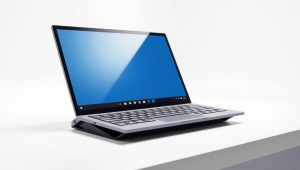
The cheaper option is fine more often than webcam roundups admit. If you take two to four Teams calls a day, sit facing a window or a decent lamp, and your company does not record client-facing video, a recent MacBook, Surface, or ThinkPad camera is usable.
Where it falls apart: low light after 4pm, backlight from windows behind you, multiple people sharing one laptop, and any need to stand or use an external monitor. If you dock your laptop closed and use a monitor, you have no camera at all. If you use a 27-inch monitor and sit three feet back, the laptop camera angle becomes a chin shot.
Quick test: record a 60-second Teams test call at your normal meeting time. If your face is dark, grainy, or your background is blown out, lighting plus a $60 to $100 external camera will do more than any software filter. If you look clear and your voice is intelligible, spend the money on a light or a better mic first.
Best options by Teams use case
Instead of ranking by specs, buy by how you actually meet. Teams behavior changes a lot between solo desk calls, hot-desking, and small huddle rooms.
| Use case | What to buy | Field of view | Trade-off |
|---|---|---|---|
| Solo desk, one monitor | Basic 1080p webcam with autofocus | 65-78 degrees | No zoom flexibility, but reliable and cheap |
| Client-facing / recording | Higher-end 4K business webcam | 70-90 degrees, adjustable | Costs more, needs good light to look 4K |
| Hot desk / travel between offices | Compact 1080p webcam with shutter | 78-90 degrees | Smaller mic pickup, can sound thin |
| 2-4 people in a small room | Wide-angle conference cam with dual mics | 90-120 degrees | Distortion at edges, too wide for solo use |
Best for most Teams users: solid 1080p with autofocus
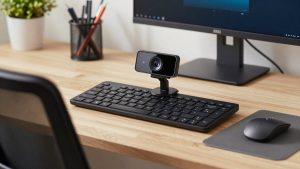
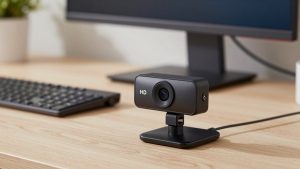
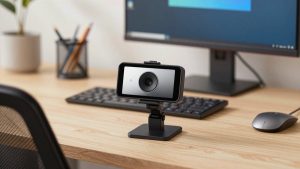
For all-day Teams use, a mid-range 1080p webcam for Teams calls is the sweet spot. You get reliable plug-and-play on Windows and Mac, Teams recognizes it instantly with no drivers, and background blur works without chewing your CPU.
Who it suits: individual contributors, managers, and anyone on 3+ hours of Teams a day. Failure mode to watch: cheap autofocus that hunts in low light. If you work in a basement office with one overhead light, add a $25 key light before blaming the camera. Also check the cable length. Many compact models ship with a 3-foot cable that will not reach a dock under your desk.
Be honest about 60fps here. It looks smoother when you gesture or write on paper, but Teams often caps you at 30fps on congested networks or VPNs. Do not pay extra for 60fps unless you also have solid upload bandwidth, usually 5 Mbps or better for stable HD.
Upgrade pick: 4K business webcam for presenting
If you present to clients, record training, or share a whiteboard, a higher-end 4K business webcam with autofocus makes sense. The real benefit is not that Teams shows 4K. It does not. The benefit is a larger sensor, better noise control, and clean 2x digital zoom so you can frame head-and-shoulders tightly.
Trade-offs are real. These cameras run warmer, need more USB bandwidth, and can stutter on older laptops or through cheap USB hubs. Plug directly into the laptop or a powered dock, not a monitor passthrough, if you see freezing. On Macs, check that auto-framing and background effects do not conflict with Teams’ own blur. Running both at once often causes lag or a halo around hair.
Who should skip it: if your office has poor lighting or slow Wi-Fi, you will not see the difference. Fix light and connection first. A $90 camera with a window in front of you will beat a $200 camera in a dark corner.
Small rooms and two-person desks: wide-angle conference cam
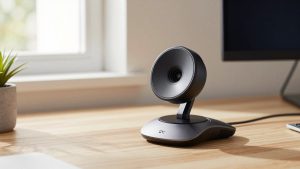
One wide camera beats two laptops in a huddle room. A wide angle conference webcam for small rooms with dual microphones can cover a 6-foot desk without someone leaning out of frame.
Failure mode: echo and edge distortion. Built-in mics pick up the room, keyboard, and HVAC. In a hard-walled conference room, pair it with a speakerphone or a wired headset for anyone speaking more than a few minutes. Also avoid auto-framing that aggressively crops and pans. On Teams it can fight with Together Mode and make people motion sick.
For Mac users in particular, confirm Teams and macOS camera permissions after every major OS update. macOS loves to revoke access, and Teams will show a black screen with no useful error. Unplugging and reselecting the camera in Teams Settings – Devices usually fixes it.
Setup tips that matter more than specs
Put light in front of you, not behind you. Close or angle blinds behind your monitor. Place the camera at eye level or slightly above, about arm’s length away. If you use an external monitor, mount the camera on that monitor, not on a closed laptop off to the side, or eye contact will feel off.
In Teams Settings – Devices, manually select your camera and mic instead of leaving them on Default. Defaults switch when you dock or plug in headphones, which is why your video suddenly disappears mid-day. Turn off extra HD denoise or low-light boost in the camera app if Teams already applies its own; stacking them creates waxy skin and lag.
FAQ
Do I need a 4K camera for Teams?
No, for most people. Teams compresses to 1080p or lower, so a clean 1080p image with good light looks the same to other attendees. Buy 4K only if you want digital zoom, better low-light, or you record locally while meeting.
Why does my camera look good elsewhere but bad in Teams?
Teams lowers bitrate to keep audio stable, especially on VPN or weak Wi-Fi. Try a wired connection, turn off incoming HD video, close background blur, and add frontal light. If it clears up, it was network or processing, not the camera.
Will an external webcam work with Mac and Teams?
Yes, if it is UVC plug-and-play. Avoid models that require Windows-only software for basic focus or exposure. Test mic selection separately, because Teams on Mac often keeps the MacBook mic even after you switch video.
Is a headset still necessary with a good webcam mic?
For listening, yes. Webcam mics are fine as a backup for short internal calls, but they pick up typing and room echo. If you talk for more than 15 minutes or present, use earbuds or a headset for clearer audio for everyone else.