Last Updated: October 18, 2026
📄 In This Review
What consumer testing gets right about webcams
Most lab-style reviews for webcams do not test the spec on the box. They test what your coworkers actually see: skin tone accuracy in mixed light, sharpness at typical desk distance, autofocus hunting during movement, and how bad the built-in mics sound in a real room. That is the right approach for work, video calls, and home office use.
For laptops and Macs, the pattern is consistent. A decent 1080p sensor with good auto-exposure beats a cheap 4K sensor with bad processing. A wide 90-degree field of view sounds useful but makes you small and shows your messy room. And almost every built-in mic fails once you have keyboard noise, echo, or a fan running nearby.
If you buy based on one rule, make it this: prioritize consistent exposure and focus at 24-36 inches in mediocre light, not maximum resolution.
Quick comparison for work and home office
See also: Best Monitor for MacBook Air: Two USB-C 4K Screens and Six Adapter-Dependent Alternatives • Best Monitor for MacBook Pro: Eight Listings Sorted by Cable, Sharpness and Scaling
These are categories, not specific models, because webcam revisions change constantly and the same model name can hide a different sensor year to year.
| Category | Typical image | Strength | Common failure mode | Best for |
|---|---|---|---|---|
| Basic 1080p fixed-focus | 1080p/30 | Cheap, reliable, no focus hunting | Soft image if you sit too close or too far; struggles in low light | Daily Zoom/Teams calls on a laptop |
| Mid-range 1080p autofocus | 1080p/60 or 1080p/30 with HDR | Sharper for whiteboards, documents, movement | Autofocus pulses or breathes; aggressive face smoothing | Home office workers who present often |
| 4K autofocus with auto-framing | 4K/30, downscaled to 1080p | Cleaner zoom/crop, better detail in good light | Softer in dim rooms, needs USB 3.0 port, heavier CPU load on older Macs | Dedicated desk setup, streaming plus work |
| Built-in laptop camera | 720p to 1080p | No extra gear, centered with screen | Noisy in low light, unflattering upward angle, no placement choice | Travel, backup, quick calls |
Best for most workers: a simple 1080p webcam
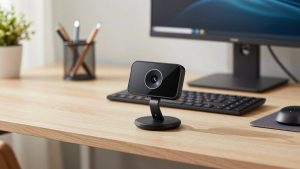
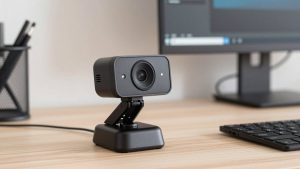
For regular video calls, the cheaper option is fine. A basic 1080p webcam for laptop video calls with fixed focus and dual mics covers 80% of office work if your room has even one window or a cheap desk lamp.
Trade-offs are straightforward. Fixed focus means no hunting when you lean in, but you have a sweet spot. Sit about an arm’s length away. Too close and your face softens. Too far and the camera cannot resolve detail. Most also top out at 30 fps, which is fine for talking heads but looks slightly choppy if you wave your hands or show a product.
Failure mode to check in the first week: backlighting. If a bright window is behind you, cheap auto-exposure will turn you into a silhouette. Move the light in front of you, not behind. No webcam in this price tier fixes bad placement with software.
Who should skip it: anyone who regularly shows documents, demos hardware, or works in a dim basement office. You will want autofocus and better low-light handling.
Step-up pick for home office: 1080p autofocus with HDR
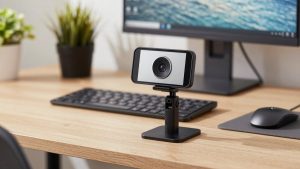
If you are on calls four-plus hours a day, image consistency matters. Mid-range autofocus models usually add a larger sensor, better auto white balance, and some form of HDR or backlight compensation. The difference is not sharpness on paper. It is fewer washed-out faces when your office has mixed daylight and warm bulbs.
The trade-off is autofocus behavior. Good units lock once and stay calm. Bad units refocus every time you move your hands. If yours hunts, lock focus in the vendor app or in Zoom/Teams settings and leave it. Also turn off auto-framing unless you actually move around. It crops the image and can make 1080p look worse.
Audio is still the weak point. Manufacturers advertise noise-canceling mics, but they mostly cut steady hum, not keyboard clicks, dogs, or room echo. For work, budget for a $25-40 USB headset or earbuds before you spend extra on a camera. Your voice clarity improves more that way.
When 4K actually makes sense
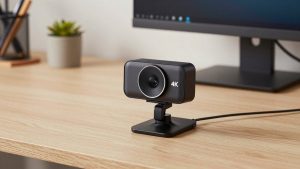
A 4K webcam for home office autofocus work is only worth it in two cases: you want to crop/zoom without looking blurry, or you record training videos and want cleaner 1080p after downscaling. On a live Zoom call, most platforms compress you to 720p or 1080p anyway. Your coworkers will not see 4K.
Concrete downsides: 4K needs more light to look good. In a dim room, many 4K webcams look noisier than a good 1080p webcam. They also prefer a direct USB 3.0 port and can stutter on older Intel MacBook Airs or cheap USB hubs. If you use a dock, plug the camera straight into the laptop to test before blaming the camera.
Who it suits: someone with a fixed desk, decent front light, and a reason to use digital zoom or AI framing for whiteboard sessions. Who should avoid it: laptop-only workers who join from couches, cafes, and dim bedrooms.
Laptop and Mac compatibility notes
Windows laptops are mostly plug-and-play over USB-A or USB-C. Macs need more attention. Many webcam apps for background blur, manual exposure, and firmware updates are Windows-only or limited on macOS. The camera will still work in Zoom, Teams, FaceTime, and OBS, but you may not get the full settings panel.
On Apple Silicon Macs, check for three things: USB-C cable or adapter that actually passes data, not just power; 1080p/60 support in your meeting app, since some Mac versions cap external cameras; and shutter/privacy behavior. A physical shutter is more reliable than a software mute, especially when you switch between apps that fight for camera access.
If you use a MacBook in clamshell mode with an external monitor, mounting matters more than specs. A clip designed for thin laptop lids may not grip a thick monitor bezel. A small tripod behind the monitor often gives better eye-level framing than perching the camera on top of a 27-inch display. Look for a Mac compatible webcam with privacy shutter that lists macOS support explicitly rather than assuming it.
What to avoid
Avoid no-name 4K cameras that list interpolated resolution, usually written as software-enhanced 4K. Real sensor resolution and lens quality matter more. Also avoid ultra-wide 120-degree cameras for one-person calls. They are meant for huddle rooms. At a desk they distort your face and pick up background noise.
Another common miss: buying for low light without adding light. No $60-150 webcam overcomes a dark room with an overhead bulb behind you. A $15-20 daylight LED panel or even moving your desk to face a window does more than upgrading from 1080p to 4K.
Finally, do not assume a new webcam fixes freezing or lag. If video stutters only when screen sharing, it is usually CPU, Wi-Fi, or a hub issue. Test with background blur off and the camera at 720p. If that stabilizes the call, the bottleneck was processing or bandwidth, not the lens.
FAQ
Is a 4K webcam better than 1080p for Zoom and Teams?
Usually not for live calls. Most meeting apps compress video heavily, so a clean 1080p image with good exposure looks the same or better than 4K, especially in average home lighting. Buy 4K only if you crop, zoom, or record.
Do I need a separate microphone?
For short internal calls, a webcam mic is acceptable in a quiet room. For client calls, interviews, or noisy homes, a headset or USB mic is a bigger upgrade than any camera. Webcam mics pick up room echo and typing.
Why do I look dark even with a good webcam?
Backlight is the usual cause. Close or cover bright windows behind you and put a soft light source in front of your face, slightly above eye level. Then turn off HDR auto modes one at a time to see which one is overcorrecting.
Will any USB webcam work with a MacBook?
Most UVC-compliant webcams work for basic video in macOS apps, but advanced settings like manual focus, framing, and firmware updates may require Windows. Check the manufacturer page for macOS software before buying if you need those controls.