Last Updated: October 18, 2026
Shopping for “high quality” usually means you are tired of looking soft, grainy, or washed out on Zoom, Teams, or Meet. For work, high quality does not mean the highest resolution on the box. It means clean 1080p or better with accurate skin tones, stable autofocus that does not hunt, and usable performance in a dim home office at 5pm.
Most bad webcam image is not the sensor. It is small lenses, aggressive noise reduction, and bad auto-exposure. A good work webcam holds exposure steady when a window is behind you, keeps your face sharp when you lean in to read, and does not turn your office light into flicker.
📄 In This Review
What high quality means for work
For video calls, prioritize three things in this order: low-light performance, lens and autofocus, then resolution. A strong 1080p webcam with a larger sensor and good processing will beat a cheap 4K webcam in a normal home office. Cheap 4K often looks sharper in daylight but noisier and softer indoors because the tiny pixels need more light.
Also check field of view, mounting, and Mac/PC support. For a desk setup, 65 to 78 degrees is ideal. Wider than 90 degrees makes you look distant and shows your whole room. For Macs, look for UVC plug-and-play with no driver required. Some business features like background blur, auto-framing, and manual controls only work in the vendor’s Windows app, not in macOS.
Compare your options
See also: Best Monitor for MacBook Air: Two USB-C 4K Screens and Six Adapter-Dependent Alternatives • Best Monitor for MacBook Pro: Eight Listings Sorted by Cable, Sharpness and Scaling
There are four practical tiers for work. Most people should buy in the first two. The other two are only worth it for specific jobs.
| Type | Best for | Strengths | Weaknesses |
|---|---|---|---|
| Proven 1080p business webcam | Daily Zoom/Teams, laptop + monitor setups | Reliable autofocus, good mics, works with everything | Soft in very low light, limited cropping room |
| High-end 4K USB webcam | Presenting, coaching, content + calls | Sharper crop, digital zoom, better detail in good light | Needs light, more CPU/USB bandwidth, costs more |
| Mirrorless/DSLR as webcam | Creators, executives doing webinars | Best image, shallow depth of field, interchangeable lenses | Expensive, complex, overheating risk, needs capture setup |
| Laptop built-in camera | Travel, hot-desking | Always there, fine for quick calls | Bad angle, small sensor, poor low light |
Best for most home offices: a proven 1080p webcam
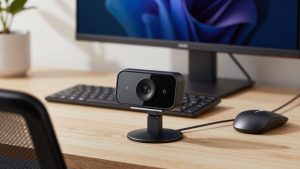
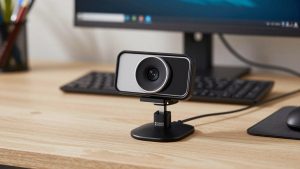
If you take calls all day, this is the safe buy. Look for a 1080p autofocus webcam for work with dual noise-reducing mics, a physical privacy shutter, and a monitor mount that actually grips. On a 27-inch monitor or laptop lid, weight matters more than people expect. Light plastic housings wobble when you type.
Failure mode to know: fixed-focus cheap 1080p cameras look fine at arm’s length but go soft if you sit close or hold up a document. If you move around, whiteboard, or demo products, you want real autofocus, not fixed focus. Also test the mic before you rely on it. In a room with a fan, keyboard, or hard floors, even a good webcam mic sounds echoey. A $30 USB headset usually beats any webcam mic for work.
Who it suits: employees, managers, students, and anyone on a laptop or Mac who wants plug-in-and-go reliability. Be honest here: if your room has decent light and your calls are mostly internal, the cheaper option is fine. You do not need 4K to look professional.
When 4K is worth it
Buy 4K when you present a lot, record calls, or want to crop in without looking mushy. A good 4K webcam for home office with auto-framing lets you sit farther back and still look sharp, and digital zoom stays usable at 1.5x to 2x. Auto-framing can help if you stand and move, but turn it off for normal desk calls. It often reframes late and distracts coworkers.
Trade-offs are real. 4K needs more light and a solid USB connection. On older laptops, especially MacBook Airs with hubs and docks, 4K at 30fps can stutter or drop to 1080p anyway. Check whether the camera needs USB 3.0 directly into the computer, not through a cheap hub. Also expect larger file sizes if you record locally.
Who it suits: consultants, trainers, therapists, real-estate agents, and founders who live on camera. If you are just doing standups with your team, save the money and fix your lighting first.
Using a real camera as a webcam
A mirrorless camera with a clean HDMI output or USB streaming mode will beat any USB webcam for webinars and YouTube-style calls. The difference is not just sharpness. It is color, dynamic range, and background separation. But it is a system, not a plug-and-play webcam: tripod or desk mount, dummy battery or constant power, good light, and a microphone.
Failure modes: overheating on long calls, autofocus hunting on faces with glasses, and audio sync issues through capture cards. Some cameras shut off after 30 minutes unless you change the auto power setting. For Mac users, confirm the camera appears as a USB webcam without extra software. If you need this route, search for a mirrorless camera webcam kit for streaming only after you have lighting and audio sorted.
Who it suits: people who record courses, run paid workshops, or do investor pitches where image actually affects income. For normal office work, it is overkill and adds failure points.
Setup matters more than specs
A $90 webcam with a $25 light looks better than a $200 webcam in a dark room. Put a soft daylight-balanced light or window in front of you, not behind you. Raise the camera to eye level. If you use a monitor-mounted webcam, sit 2 to 3 feet away and aim the lens at your eyes, not your chest. That one change fixes most “low quality” complaints.
On laptops and Macs, close heavy background apps during calls, use a wired connection or sit near the router, and set your meeting app to HD if it defaults to 360p to save bandwidth. In Teams and Zoom, turn off “touch up appearance” if your face looks waxy, and turn off auto low-light correction if it adds lag. If flicker appears under LED office lights, change the camera’s anti-flicker setting between 50Hz and 60Hz.
FAQ
Is 4K really better than 1080p for Zoom and Teams?
Usually not for normal calls. Most meeting apps compress video to 720p or 1080p, so a clean 1080p feed looks the same to other people. 4K helps when you crop, zoom, or record locally in good light. In a dim room, a good 1080p camera often looks cleaner.
Why do I look grainy even with a good webcam?
Low light forces the camera to raise gain, which creates noise. Add light in front of your face, turn off bright lights behind you, and avoid sitting with a window directly behind your head. Also wipe the lens. Office dust softens the image more than people realize.
Do I need a separate microphone?
For short internal calls, a good webcam mic is fine. For client calls, interviews, or noisy homes, use a USB headset or desk mic. Webcam mics pick up room echo and typing, and no webcam fixes a loud room.
What should Mac users check before buying?
Buy a UVC-compliant camera that works without drivers. Check that privacy shutter, autofocus, and mics work in macOS, not just in the vendor’s Windows software. If you run the camera through a dock, use a powered USB 3.0 port and test 4K before you keep it.