Last Updated: October 18, 2026
- Why TV calling is different from desk calling
- Your options compared
- Dedicated TV devices: easiest for family calls
- USB webcam + streaming box: best for work calls
- Laptop via HDMI: the cheap option that is often fine
- Using your phone as the camera: best for FaceTime users
- Audio and placement matter more than 4K
- What to buy for your situation
- FAQ
Putting video calls on your TV sounds simple, but it is where most setups fall apart. You sit 8 to 10 feet away, the room is darker than an office, and the built-in microphone on a laptop or webcam was never designed for couch distance. If you buy the wrong camera, your family sees a tiny, dark face and hears echo.
I have tested living-room calling from both sides of the call — as the person on the couch and as the person straining to hear them. The right choice depends less on resolution than on three things: how far you sit, which app you actually use, and who has to operate the remote.
📄 In This Review
- Why TV calling is different from desk calling
- Your options compared
- Dedicated TV devices: easiest for family calls
- USB webcam + streaming box: best for work calls
- Laptop via HDMI: the cheap option that is often fine
- Using your phone as the camera: best for FaceTime users
- Audio and placement matter more than 4K
- What to buy for your situation
- FAQ
Why TV calling is different from desk calling
A desk webcam assumes you are 2 feet away, facing the screen, in relatively still light. On a couch, you are 3 to 5 times farther away. A normal 78-degree field of view will make two people look like they are at the end of a hallway. You want 90 to 120 degrees if more than one person will be on screen.
Audio is the bigger failure mode. At 9 feet, a standard webcam mic picks up TV speakers, kitchen noise, and room reverb. You end up shouting “can you hear us?” while the other side hears themselves back. Any good TV setup needs either a microphone array designed for distance, or a separate mic placed closer to you. Video quality is rarely the reason people abandon TV calling. Bad audio is.
Light is the third issue. Living rooms are backlit and dim in the evening. Cheap sensors go noisy, hunt for focus, and blow out faces when a lamp is behind you. You do not need 4K for this. You need decent low-light performance and auto-framing that does not constantly pan.
Your options compared
See also: Best Monitor for MacBook Air: Two USB-C 4K Screens and Six Adapter-Dependent Alternatives • Best Monitor for MacBook Pro: Eight Listings Sorted by Cable, Sharpness and Scaling
There is no single “TV webcam” category that works with every TV. Smart TVs killed most of their native Skype / Duo apps years ago, and support is fragmented. These are the setups that actually work now:
| Setup type | Typical cost | Call apps | Best for | Main drawback |
|---|---|---|---|---|
| Dedicated TV video call device with camera | $150-$300 | WhatsApp, Messenger, Zoom (depends on device) | Grandparents, family calls | App support can end, limited work apps |
| TV-box + USB webcam | $80-$200 plus camera | Zoom, Meet, Teams via TV box | Home office that doubles as living room | Fiddly setup, mic still too far |
| Laptop to TV via HDMI + USB webcam on TV | $50-$120 for camera/cable | Any desktop app | Occasional calls, work meetings on big screen | Cable mess, laptop has to be nearby |
| Phone/tablet as camera, TV as display | $0-$30 for mount/cable | Any mobile app, FaceTime included | Mixed Apple / Google households | Extra step to start calls |
Dedicated TV devices: easiest for family calls
If the goal is calling grandkids on WhatsApp or Messenger from the couch, a dedicated all-in-one device is still the least frustrating option. These are small bars with a wide-angle camera, far-field mics, and a TV interface controlled by remote. You plug into HDMI, log in once, and calling is two clicks.
In practice, the camera quality is only okay — usually 1080p with heavy compression — but the framing is right. They auto-zoom to fit two or three people on a couch, and the mics cancel TV echo far better than a laptop. That matters more than sharpness at 10 feet.
The trade-off is lock-in. You get the apps that device supports, nothing else. I have seen families buy one for Skype, only to have the app discontinued a year later. Do not buy one unless you have checked that it supports the exact app you use today. If you mostly live in Zoom for work or FaceTime for family, this category is often the wrong pick. Browse current all-in-one TV video calling devices and read the app list carefully, not the resolution specs.
USB webcam + streaming box: best for work calls
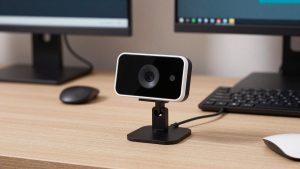
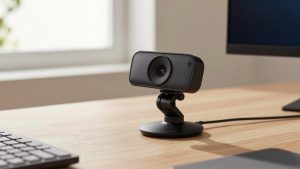
If you need Zoom, Google Meet, or Teams on a TV, the more flexible route is a TV box that accepts a USB webcam. Some Android TV / Google TV boxes and small mini-PC sticks support this. You mount a wide-angle USB webcam on top of the TV, plug it into the box, and run the meeting app natively.
This works well for a home office where the “TV” is really a large monitor. You get full work apps, shared screen looks sharp, and you can use a proper keyboard for meeting IDs. The failure modes are setup friction and audio distance. Most people use a standard wide angle webcam for TV with dual mics, set it on top of a 55-inch set, then wonder why they sound distant. At couch distance, you still need to add a Bluetooth speakerphone on the coffee table.
Who this suits: someone comfortable switching inputs and troubleshooting permissions. Who it does not suit: an older parent who just wants to answer a call. If a firmware update breaks camera permissions — which happens — you will be the tech support.
Laptop via HDMI: the cheap option that is often fine
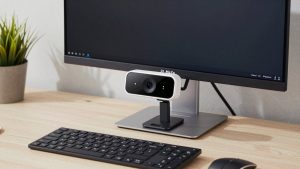
For occasional use, do not overbuy. Put your laptop next to the TV, run an HDMI cable to the big screen for picture and sound, and place a USB webcam on top of the TV for a better angle. Your laptop runs the call, the TV just acts as a monitor and speakers.
This gives you every app with zero compatibility risk, and image quality is as good as your laptop. The downside is clutter and camera placement. If you just use the laptop’s own camera while looking at the TV, eye contact will be completely off — you will appear to be staring sideways. Put the external camera centered above the TV at eye level when seated. That one change improves how present you look more than any 4K upgrade.
Be honest about frequency here. If you do TV calls twice a month for family birthdays, this $60 cable-and-webcam workaround beats a $250 dedicated device that may lose app support.
Using your phone as the camera: best for FaceTime users
Apple households hit a wall: FaceTime does not run natively on most TVs. The reliable workaround is Continuity Camera or screen mirroring. You mount your iPhone on top of the TV as the camera/mic, and use AirPlay or an Apple TV box to show the call on the big screen.
This actually gives you the best image in low light, because modern phone sensors crush cheap webcams after dark. Center Stage auto-framing is also smoother than most TV bars. The annoyance is the extra two taps to start, and battery drain on long calls — keep a charger near the TV.
Android users can do similar with Chromecast or Meet casting, but test it first. Latency varies a lot by TV. If audio and lips are out of sync by more than about 200ms, it becomes tiring fast. A wired HDMI adapter from phone to TV usually fixes it.
Audio and placement matter more than 4K
Whatever camera you choose, follow three placement rules I have learned the hard way:
First, center the camera. A camera off to the side on a soundbar makes you look away for the whole call. Use a small TV-top mount, not tape. Second, kill backlight. If there is a bright window or lamp behind the couch, close it or move a floor lamp in front of you. No webcam can fix a strong backlight at 10 feet. Third, bring the mic closer. Even the best TV bar struggles past 12 feet in a noisy room. A $40 Bluetooth speakerphone on the coffee table will outperform any built-in mic array for clarity. Search for a Bluetooth speakerphone for living room calls if your room is large or echoey.
Also test echo before an important call. TV speakers blasting back into the mic cause the classic hollow repeat. Use the call app’s echo cancellation setting, lower TV volume to 30-40%, and keep the mic away from the TV speakers.
What to buy for your situation
For grandparents or non-technical family: get the simplest dedicated device that runs the one app your family already uses. Do not buy for future apps. Set up auto-answer for trusted contacts if available, and lock the remote to one input.
For work meetings from a living room: use a laptop + HDMI + wide-angle webcam. You keep full Teams/Zoom features, screen share works, and IT will actually support it. A dedicated TV gadget will only create app headaches.
For mixed FaceTime / WhatsApp families: use the phone-as-camera method. It costs almost nothing, image quality is better at night, and you are not betting on a third-party box keeping its apps updated.
Do not pay extra for 4K, 60fps, or AI gestures for couch use. At streaming bitrates, WhatsApp and Messenger will compress 4K down to 720p anyway. Spend the difference on better Wi-Fi to the TV — a weak signal causes more freezes than any camera sensor.
FAQ
Can I just plug any USB webcam into my smart TV?
Usually no. Most Samsung, LG, and Roku TVs do not support USB webcams for Zoom or Teams natively anymore. You need a compatible TV box, mini-PC, or laptop to run the app. Check your exact TV model and box for “USB camera support” before buying.
What field of view do I need for a couch?
For one person at 8 feet, 90 degrees is enough. For two to three people on a couch, look for 100 to 120 degrees with auto-framing. Wider than 120 degrees often looks distorted at the edges in small rooms.
Why do I sound so far away on TV calls?
Distance and echo. Move the microphone closer — ideally a speakerphone on the coffee table within 3-4 feet of you — lower TV volume, and turn on echo cancellation in the app. A new camera alone rarely fixes this.
Is a dedicated TV calling device worth it?
Only if you make the same type of family call weekly and want one-remote simplicity. For work or infrequent calls, a laptop via HDMI or phone-as-camera is cheaper and less likely to lose app support.