Last Updated: October 18, 2026
If you are buying a camera for live broadcast for work – weekly webinars, live demos, town halls, office hours on YouTube or LinkedIn – do not shop like a Twitch streamer. You need reliability for 45-90 minutes straight, clean audio sync, and an image that still looks good when Zoom, Teams, or Riverside compresses it.
I have run and sat through a lot of these. The failures are almost never cinematic. They are autofocus hunting mid-sentence, exposure pumping when you share a white slide, a laptop fan kicking on, or a Mac refusing to deliver 4K at 30fps over a cheap hub. Pick for stability first, sharpness second.
📄 In This Review
What matters for a live work broadcast
Resolution is overrated. Bitrate and light matter more. Most live platforms will crush a 4K feed to 1080p or 720p anyway. What survives compression is even lighting, accurate skin tones, and low noise. A good 1080p sensor with a larger pixel size and decent low-light handling will beat a cheap 4K sensor in a dim home office every time.
Three specs actually predict success: autofocus behavior, field of view, and USB behavior on your computer. For talking-head webinars, you want fast but sticky autofocus that does not breathe when you move your hands. A 65 to 78-degree field of view keeps you framed without showing your whole room. And you want a camera that works as standard UVC plug-and-play, especially on Mac, with no required app to unlock 1080p60 or noise reduction.
Also plan for heat and duration. A lot of small 4K webcams get warm after 30-40 minutes and then soften focus or drop frames. If your broadcasts run long, prioritize models known for sustained operation, use USB directly into the laptop rather than an unpowered hub, and close other camera apps that can fight for the device.
Pick your setup, not just a camera
See also: Best Monitor for MacBook Air: Two USB-C 4K Screens and Six Adapter-Dependent Alternatives • Best Monitor for MacBook Pro: Eight Listings Sorted by Cable, Sharpness and Scaling
For most solo presenters on a laptop, a mid-range 1080p or 1440p webcam with good autofocus and dual mics for backup is the sweet spot. You will look sharp, your CPU load stays low, and you avoid the USB 3.0 bandwidth and heat issues that plague cheap 4K. The cheaper option really is fine here if you add a $25-40 key light. Light fixes more than extra pixels.
If you host panel-style broadcasts, product demos, or move around a whiteboard, step up to a wide-angle 4K webcam for streaming with 90-degree or adjustable field of view and digital zoom presets. You can crop to a medium shot for solo segments and go wide for two people without moving the tripod. Trade-off: wide modes show more room mess and make low light look worse, and digital zoom always adds noise.
For a dedicated home studio desk that never moves, a fixed-focus or manual-focus 4K webcam on a small tripod behind your monitor is often more reliable than autofocus. Set focus once at your chair distance, lock exposure, and it will not hunt when a guest joins or you hold up a product. This suits instructors, coaches, and founders who broadcast weekly from the same spot.
| Setup type | What to buy | Field of view | Best for | Watch out for |
|---|---|---|---|---|
| Solo webinar headshot | 1080p-1440p autofocus webcam | 65-78 degrees | Laptop workers, consultants, HR town halls | Autofocus hunting with busy backgrounds |
| Two-person / demo desk | 4K wide-angle webcam with zoom presets | 85-95 degrees adjustable | Product demos, interviews, training | More noise in low light, shows clutter |
| Fixed studio desk | Manual-focus 4K webcam on tripod + key light | 70-80 degrees | Weekly shows, courses, office hours | Needs consistent seating distance |
| Travel / backup | Compact 1080p webcam | 70-80 degrees | Hotel broadcasts, backup bag | Weak mics, narrow dynamic range |
Mac and laptop notes that prevent returns
On Macs, especially MacBook Air, prioritize plug-and-play UVC cameras that deliver full resolution in QuickTime, Zoom, Teams, and OBS without a vendor utility. Some features like background blur, auto-framing, and firmware updates are Windows-only or require Intel apps that behave badly under Rosetta. If you need auto-framing for pacing, test it in the actual broadcast app, not just Photo Booth.
On Windows laptops and older machines, do not assume 4K30 plus virtual background plus screen share will run cleanly. That combination spikes CPU and USB load. If your laptop is 3+ years old or you broadcast while sharing a heavy deck or Figma file, a 1080p60 feed often looks smoother and more professional than a stuttering 4K feed. Use the rear USB port closest to the motherboard, avoid daisy-chaining through a monitor hub, and use the cable that came with the camera.
Audio will make or break a live broadcast faster than video. Built-in webcam mics are usable as backup, but they pick up keyboard and room echo. For anything public-facing, pair any webcam with a USB headset or a desk mic placed 6-12 inches away. Viewers forgive 720p. They leave when audio clips or drifts out of sync.
Lighting and framing beat upgrades
Before you spend more on a camera, fix distance and light. Sit 2-3 feet from the camera, lens at or slightly above eye level, with a soft light source behind the camera aimed at your face. A window works if you face it, but live morning shows change fast; a dimmable daylight LED panel is more consistent. Keep overhead-only office lighting off if it creates harsh shadows.
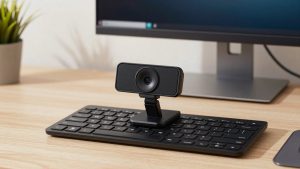
For framing, leave a little headroom and keep your eyes on the upper third. If you use a webcam with tripod mount and privacy shutter, a $15 mini tripod lets you raise it above a thick monitor and angle slightly down, which is far more flattering than looking up from a laptop. Lock white balance if your camera allows it; auto white balance shifting during screen shares is a common reason replays look amateur.
Failure mode to test in advance: do a private 20-minute test stream. Check for focus drift, exposure pumping when you open a white Google Doc, fan noise after 10 minutes, and dropped frames in OBS or Riverside stats. If autofocus hunts when you gesture, switch to a narrower field of view, move 6 inches closer, or lock manual focus.
What to buy for work broadcasts
Buy the 1080p-1440p workhorse if you present solo from a laptop and want zero fuss. It runs cooler, works on almost any Mac or PC, and leaves headroom for screen sharing. Add light and a headset and you are done. This is the right call for about 70 percent of work broadcasters.
Buy wide-angle 4K only if you regularly have two people in frame, demo physical products, or want to crop without moving the camera. Pair it with good light and plug it directly into USB 3.0. Do not buy it just for future-proofing; unused 4K resolution still costs you heat, CPU, and money.
Build a small kit if you broadcast weekly: webcam, mini tripod, key light, and a simple USB mic or headset. A basic home office webinar video kit approach is cheaper than chasing a perfect camera, and it survives room changes, travel, and platform switches. Keep your old 1080p webcam as a second angle or backup; live shows are saved by redundancy.
FAQ
Do I need 4K for LinkedIn Live, YouTube Live, or webinars?
No, for most work broadcasts. Platforms usually deliver 1080p or lower to viewers. A clean, well-lit 1080p feed with stable focus and good audio looks better than a noisy 4K feed after compression.
Why does my webcam look fine in preview but bad live?
Live encoding, screen sharing, and virtual backgrounds add load and lower bitrate. Test in the actual broadcast tool with screen share on, use direct USB, add light, and drop to 1080p if frames drop.
Will any webcam work with MacBook Air and MacBook Pro?
Most UVC webcams work for basic video, but advanced features and firmware tools can be Windows-only. If you use a Mac, confirm full resolution works without extra software and test auto-framing in Zoom, Teams, or OBS before you go live.
What is the cheapest upgrade that improves a live broadcast?
Light and mic placement. A daylight LED panel behind the camera and a headset mic 2-3 inches from your mouth will improve perceived quality more than moving from 1080p to 4K.