Last Updated: October 18, 2026
- Why MacBook Pro owners add an external camera
- What to check for Mac compatibility
- Quick comparison of your real options
- Best for most office work: a simple 1080p webcam
- Upgrade pick for home office: 4K with good auto-exposure
- Travel and zero-cost option: iPhone Continuity Camera
- Pro option and setup tips that matter more than specs
- FAQ
📄 In This Review
- Why MacBook Pro owners add an external camera
- What to check for Mac compatibility
- Quick comparison of your real options
- Best for most office work: a simple 1080p webcam
- Upgrade pick for home office: 4K with good auto-exposure
- Travel and zero-cost option: iPhone Continuity Camera
- Pro option and setup tips that matter more than specs
- FAQ
Why MacBook Pro owners add an external camera
The built-in camera on recent MacBook Pros is better than it used to be, but placement is still the problem. It sits below eye level when the laptop is on a desk, which gives you the looking-up-the-nose angle, and it struggles in mixed office lighting. An external camera lets you put the lens at eye level, get a wider or tighter frame on purpose, and handle backlight from windows without blowing out your face.
For work, that matters more than raw resolution. People forgive 1080p. They do not forgive constant autofocus hunting, washed-out skin tones, or a microphone that picks up your keyboard louder than your voice. If you take two or more video calls per day, an external camera is one of the cheapest comfort upgrades you can make.
What to check for Mac compatibility
See also: Best Monitor for MacBook Air: Two USB-C 4K Screens and Six Adapter-Dependent Alternatives • Best Monitor for MacBook Pro: Eight Listings Sorted by Cable, Sharpness and Scaling
Macs are picky in specific ways. First, connection. Most MacBook Pros now only have USB-C / Thunderbolt ports, so a webcam with a hardwired USB-A cable means you will live on a dongle. Look for USB-C native or at least a detachable cable where you can swap in a USB-C to USB-C cord. Detachable cables also survive longer because the hinge point on a clip-mount camera gets flexed every day.
Second, software. Many webcam features like background blur, auto-framing, and firmware updates are configured in Windows-only apps. On macOS the camera will usually work plug-and-play over UVC, but you may not be able to turn off auto-focus, change field of view, or disable beauty filters without borrowing a Windows PC once. If you use Zoom, Teams, Meet, or Webex, check that exposure and white balance can be left on auto without pulsing. That pulsing is a common Mac complaint and you cannot always fix it from System Settings.
Third, microphones and speakers. Almost every external webcam mic sounds thin compared to AirPods or a cheap USB mic, and it will pick up room echo. Treat the webcam mic as a backup. For speakers, do not buy a webcam for its speaker. Use your Mac speakers or headphones.
Quick comparison of your real options
There are really four paths for a MacBook Pro, not twenty. A simple 1080p webcam is fine for most office work. A higher-end 4K webcam helps if you crop, present, or sit farther back. Your iPhone as a webcam is the sharpest image for zero extra cost, with its own annoyances. A mirrorless camera as a webcam is best for presenting and streaming, but it is overkill for daily standups.
| Option | Image quality on Mac | Hassle factor | Best for |
|---|---|---|---|
| Basic 1080p webcam | Good in decent light, soft in low light | Low, true plug-and-play | Daily Zoom and Teams calls |
| Mid-range 4K webcam with autofocus | Sharper, better dynamic range, can crop | Medium, may need Windows for settings | Home office, teaching, client-facing calls |
| iPhone Continuity Camera | Often best detail and low-light | Medium, mount and battery drain | Occasional important calls, travel |
| Mirrorless / DSLR as webcam | Excellent blur and low light | High, needs capture card, power, HDMI | Webinars, YouTube, high-stakes presenting |
Best for most office work: a simple 1080p webcam
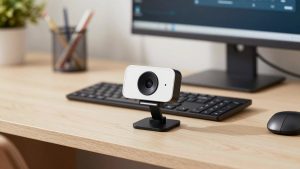
If your room has a window or a decent ceiling light, the cheaper option is fine. A basic fixed-focus 1080p webcam for MacBook gives you consistent focus from about 40 cm to infinity, no hunting when you lean forward to type, and less heat buildup than 4K models. Heat matters because a hot webcam gets noisy in low light.
Trade-offs are real. Fixed focus means no creamy background blur and text on a whiteboard behind you will not be razor sharp. Low-light performance is mediocre. If you work nights with one lamp, expect grain. Failure mode: cheap clip mounts slip on the thin MacBook Pro lid or cover the notch area awkwardly, and the short attached cable pulls when you use a laptop stand. Buy a model with a tripod thread so you can put it on a small desktop tripod at eye level. That one change improves how you look more than jumping from 1080p to 4K.
This suits individual contributors, managers, and students who just want to look clear and stop thinking about it. Do not spend double for digital zoom and AI effects you will turn off after a week.
Upgrade pick for home office: 4K with good auto-exposure
Spend more only if you have a reason: you sit 1 to 2 meters back, you present slides and want to crop in without turning to mush, or your room has harsh backlight. A well-tuned 4K webcam for Mac with autofocus holds highlights better and lets you use a narrower field of view to hide a messy room without sitting on top of the lens.
The failure modes here are Mac-specific. Autofocus models can breathe in and out when you gesture with your hands, and some auto white-balance systems shift orange to blue under LED office lights. If the vendor has no Mac utility, you are stuck with defaults. Before you buy, search for macOS and that category to confirm exposure can be locked in Zoom or OBS. Also expect higher CPU use in 4K. Most people should run these cameras at 1080p for calls and save 4K for recording. You get the better sensor and processing without dropped frames on an older MacBook Pro.
This suits client-facing freelancers, teachers, therapists, and anyone who records Loom-style videos. If you only do internal standups, save your money.
Travel and zero-cost option: iPhone Continuity Camera
On recent macOS versions, you can use an iPhone as your MacBook Pro camera wirelessly or wired. Image quality is genuinely better than most standalone webcams, especially in a dim hotel room, and Center Stage auto-framing is useful if you pace while you talk. For travel, a small MagSafe-style mount plus your phone beats packing another gadget.
Why not use it for everything? Mount stability is fiddly, the phone gets hot and drains during long meetings, and incoming calls interrupt video. Wireless mode can stutter on crowded office Wi-Fi. Use a cable for important calls. A short Continuity Camera mount for MacBook that holds the phone firmly and keeps the USB-C port accessible solves half the complaints. If you take calls all day, a dedicated webcam is still less annoying than mounting and unmounting your phone six times.
Pro option and setup tips that matter more than specs
Using a mirrorless camera over HDMI with a capture card looks fantastic, but be honest about upkeep. You need continuous power, a clean HDMI output, something to keep it from overheating, and a place to leave it set up. For one weekly webinar it is great. For 20 quick calls a week it is exhausting, and colleagues will not see the difference on a small Teams tile. Most MacBook Pro users should not start here.
Whatever you choose, mount it at eye level, about an arm’s length away. Put a soft light source in front of you, not behind you. If windows are behind you, close blinds or move 90 degrees to the window. In Zoom and Teams, set the camera to 1080p, turn off touch-up filters for a test call, and record a 30-second clip to check focus noise and echo. On Mac, if the image pulses brighter and darker, add a steady lamp and lock exposure if your app allows it. And keep a USB-C hub with enough power in mind: some docks under-power webcams when an external SSD and display are also attached, which shows up as freezing every few minutes.
FAQ
Do I need 4K for Zoom and Teams?
No, for most work calls. Zoom and Teams usually show you at 720p to 1080p anyway. Buy 4K only if you want to crop, record, or handle difficult backlight better.
Will any USB webcam work with a MacBook Pro?
Almost any UVC webcam works plug-and-play for basic video. Advanced settings like field of view, autofocus sensitivity, and firmware updates often require Windows software, so check that before you pay extra for features.
Why does my external webcam look worse than my iPhone?
Phone sensors and processing are years ahead, especially in low light. To close the gap, add front lighting, set the webcam at eye level, and run it at 1080p instead of forcing 4K over a weak USB hub or poor Wi-Fi.
USB-C or USB-A cable?
Choose USB-C native or detachable cable if you can. Hardwired USB-A cables work with an adapter, but adapters add strain to the MacBook Pro ports and are a common cause of random disconnects on standing desks.
Related Reviews & Guides

Best Webcam for Bright Light Conditions
Best 34 Inch Monitors: Eight Ultrawide Picks Compared on Refresh Rate, Ports and Desk Fit