Last Updated: October 18, 2026
If you use Zoom for work every day, the camera built into most laptops is probably holding you back. It’s usually a grainy 720p sensor with bad low-light handling, fixed exposure, and a wide-angle lens that makes you look washed out. You don’t need studio gear to fix it, but you do need to match the camera to how you actually call.
After testing webcams in real home offices — cluttered desks, backlit windows, cheap overhead lights, Macs and Windows laptops — the pattern is consistent: lighting and software processing matter as much as resolution. A good 1080p webcam placed correctly will look better on Zoom than a 4K webcam pointed into a bright window.
📄 In This Review
What actually matters for Zoom
Zoom compresses video aggressively. It caps most group calls at 720p or 1080p unless you have specific business settings enabled, and it prioritizes stable frame rate over detail. That changes what you should pay for.
First is autofocus and exposure. Cheap sensors hunt for focus when you move, lean back, or hold up a document. Look for fast autofocus and auto white balance that doesn’t turn orange under warm bulbs. Second is field of view. 78-90 degrees is ideal for one person at a desk. Wider than 95 degrees will include your whole room and make you look distant.
Third is microphones, but not how marketers imply. Even the better webcam mics sound echoey compared to a headset or USB mic. Treat dual noise-reducing mics as a backup for quick calls, not your main audio setup. Fourth is mounting and compatibility. Clip mounts slip on thin MacBook Air lids and ultrawide monitors. Tripod threads (standard 1/4-inch) give you far more reliable framing on a laptop riser or external monitor.
The most common failure mode has nothing to do with specs: USB bandwidth and CPU load. A 4K webcam plus virtual background on an older laptop will stutter, drop frames, or overheat the machine. If your computer is 4+ years old, a clean 1080p feed at 30fps is more reliable than a struggling 4K feed.
The main options compared
See also: Best Monitor for MacBook Air: Two USB-C 4K Screens and Six Adapter-Dependent Alternatives • Best Monitor for MacBook Pro: Eight Listings Sorted by Cable, Sharpness and Scaling
For Zoom specifically, there are four practical categories. Most people should stay in the first two.
| Type | Typical price | Best for | Downside |
|---|---|---|---|
| Basic 1080p webcam, fixed focus | Low | Occasional Zoom, students, second computer | Soft image in low light, no background blur control, narrow dynamic range |
| Mid-range 1080p/1440p with autofocus | Mid | Daily work calls, managers, teachers | Needs decent USB port, software can be buggy on Mac |
| 4K webcam with auto-framing | Higher | Presenters, hosts, small-room meetings | Heavier CPU load, overkill for Zoom compression, often stays in 1080p anyway |
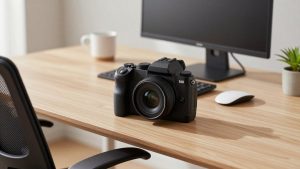
| Mirrorless/DSLR as webcam via USB/HDMI | High + lens | Creators, coaches, interviews | Complex setup, heat/timeout limits, needs capture card and constant power |
If you only join Zoom twice a week from a quiet room, the cheaper option is fine. Buy a simple 1080p plug-and-play webcam for laptops and spend the savings on a $20 lamp behind your monitor. You will look better than 80% of callers.
Which to buy for how you work
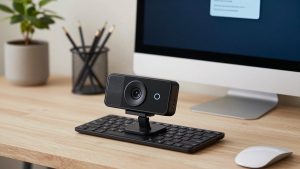
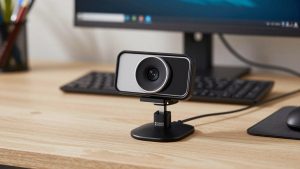
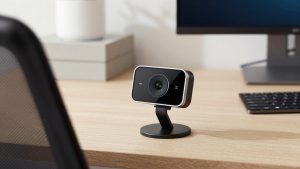
For daily office work on laptop or Mac mini: Get a mid-range 1080p or 1440p webcam with autofocus, dual mics, and a physical privacy shutter. This is the sweet spot for Zoom. Look for models that work without drivers on macOS and let you adjust field of view and exposure in an app. A solid autofocus webcam with microphone for Zoom will hold focus when you lean in, handle mixed office lighting, and stay stable during screen sharing.
Who it suits: remote employees, project managers, therapists, tutors who talk 3-6 hours per day. Trade-off: image tuning apps on Mac are often limited. Test the default image before installing extra software, and turn off auto-framing if you move a lot — it crops and drifts.
For poor lighting and small home offices: Prioritize a larger sensor and good low-light correction over 4K. Small sensors compensate by boosting brightness, which creates noise and waxy skin. Choose a camera with HDR or backlight compensation if you sit facing a window or under a single ceiling light. Failure mode to watch: HDR can cause laggy motion in dim rooms. If your hands smear when you gesture, drop to 1080p/30 and add a desk lamp.
For hosting, teaching, or presenting: Consider a 4K webcam with auto-framing and multiple field-of-view settings. On Zoom, the benefit is not extra sharpness — Zoom will downscale you — it’s the ability to crop in cleanly and stay centered if you stand at a whiteboard. Look for a 4K webcam with auto-framing for meetings only if your computer has a free USB 3.0 port and a reasonably modern processor. Who it suits less: laptop-only workers on Wi-Fi with virtual backgrounds on all day. It adds heat and fan noise for little visible gain.
For Macs specifically: Check three things: native macOS support without kernel extensions, USB-C compatibility (many webcams still ship with USB-A only), and how the camera handles Continuity Camera interference. Apple’s Continuity Camera that uses an iPhone is surprisingly good for occasional calls, but it drains the phone, overheats on long meetings, and mounts awkwardly. A dedicated webcam is still more reliable for 2+ hours of Zoom.
When a real camera makes sense: Using a mirrorless camera as a webcam gives you shallow depth of field and much better dynamic range. It is excellent for recorded interviews, coaching, or sales demos. It is terrible as a grab-and-go Zoom setup. You need AC power, a clean HDMI output, often a capture card, and you have to manage overheating and auto-shutoff. Unless video is part of your job, skip it.
Setup fixes that beat a more expensive camera
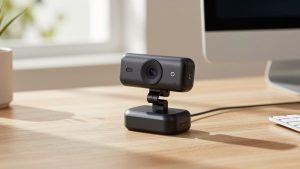
Most bad Zoom video is placement, not hardware. Put the lens at or slightly above eye level, about arm’s length away. Stacking a laptop on books so the built-in camera points up your nose is the classic problem an external camera solves instantly when mounted on top of an external monitor.
Face a soft light source. A window in front of you is ideal; a window behind you will silhouette you no matter what camera you buy. If you are backlit, close blinds and use a daylight-balanced lamp behind your monitor. Then lock exposure if your app allows it, so clouds or screen changes don’t make you pulse bright and dark.
On Zoom, turn off “HD” if your connection is unstable, turn off “Touch up my appearance” if you look waxy, and use “Adjust for low light: Manual” rather than Auto when the image flickers. If you use background blur, a mid-range camera with a faster processor will edge-detect better than a cheap fixed-focus one, but nothing fixes flyaway hair and a busy bookshelf as well as a plain background.
FAQ
Is 4K worth it for Zoom?
Usually no. Zoom compresses most calls to 720p or 1080p, so a clean 1080p sensor with good autofocus often looks identical to 4K to other people. Buy 4K only if you want digital zoom, auto-framing, or future-proofing for recording.
Why do I look grainy even with a new webcam?
Almost always low light. Your camera is raising ISO to compensate. Add light in front of your face, lower background brightness, and drop from 60fps to 30fps to let in more light per frame. Check that Zoom’s low-light adjustment isn’t set to maximum, which adds noise.
Will any webcam work with Mac?
Most USB UVC webcams work plug-and-play on Mac for video and mic, but advanced features like background replacement, firmware updates, and field-of-view controls may require Windows or a limited Mac app. If you use a newer MacBook with only USB-C, budget for a direct USB-C cable or quality adapter — cheap hubs cause disconnects.
Should I just use my phone or GoPro instead?
For occasional calls, yes. Modern phones have excellent sensors. For daily work, a dedicated webcam is more practical: no battery drain, no incoming-call interruptions, no overheating, and it stays mounted and framed. A phone mount slips and needs reconnecting every meeting.