Last Updated: October 18, 2026
If you are on Zoom, Teams, or Meet for hours a day, the camera matters more than most people expect. Not because you need 4K, but because coworkers judge your audio, lighting, and framing before they hear what you say. A good setup makes you look clear and stay in focus without fiddling with settings before every call.
For most office work, you do not need a expensive creator camera. You need reliable autofocus, decent low-light performance, a microphone that does not cut out, and a mount that stays put on your monitor. Here is how to pick based on how you actually meet.
📄 In This Review
What actually matters for meetings
Resolution is overrated. A sharp 1080p sensor with good processing beats a cheap 4K sensor in a dim home office every time. What you will notice day to day is exposure handling when you have a window behind you, autofocus speed when you lean in to show a document, and field of view.
For one person at a desk, 65 to 78 degrees is ideal. Wider than 90 degrees makes you look small and shows your messy room. Fixed focus is fine if you sit still, but autofocus is better if you move, stand at a whiteboard, or hold products up to the camera.
Microphones are the hidden failure mode. Most webcam mics sound hollow and pick up keyboard clicks. They are usable for a quick check-in, but if you present or lead meetings, plan on a separate USB headset or desktop mic. Also check compatibility: you want UVC plug-and-play so it works on Windows, Mac, and Chromebook without drivers. That is especially important for locked-down work laptops.
When your laptop camera is enough, and when it is not
See also: Best Monitor for MacBook Air: Two USB-C 4K Screens and Six Adapter-Dependent Alternatives • Best Monitor for MacBook Pro: Eight Listings Sorted by Cable, Sharpness and Scaling
MacBook and higher-end Windows laptop cameras from the last three years are acceptable for 1:1 calls in good light. If you only take two or three calls a week and sit facing a window, save your money.
Buy an external camera if any of these sound familiar: your image is grainy after 4pm, your face is blown out by a window, coworkers say you go out of focus, or your laptop is docked closed with an external monitor. That last one is common. Once the laptop lid is closed, you have no camera at all, and a monitor-mounted webcam becomes mandatory.
Cheaper is often fine here. A basic 1080p webcam for laptop at 30 fps solves 80% of complaints. Do not pay extra for 60 fps unless you gesture a lot or demo physical products. It does not make you look more professional, it just doubles bandwidth.
Best options by how you work
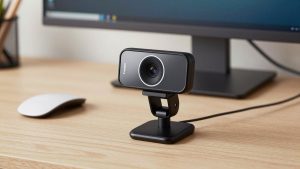
1. Daily desk worker: 1080p webcam with autofocus and shutter. This is the sweet spot for most people. Look for autofocus, auto light correction, dual mics with noise reduction, and a physical privacy shutter. A tripod thread in the base is useful if you later want to put it on a stand. Failure mode: cheap fixed-focus models in this category lock focus at 3-4 feet. Lean back and you go soft. Check the focus type, not just the resolution.
2. Dark home office or late calls: larger sensor with low-light priority. If your office has one overhead light or no window, a standard 1080p camera will look noisy. You want a camera advertised with a larger sensor (1/2.5-inch or larger) and good low-light correction, even if it is still 1080p. Pair it with a $20 LED panel behind your monitor. That light upgrade does more than jumping to 4K. Failure mode: aggressive noise reduction can make you look waxy. Turn sharpening down in the camera app if you look plastic.
3. Presenters and managers: 4K webcam or mirrorless-style sharpness. A 4K webcam for home office makes sense if you present to clients, record meetings, or crop in to frame tighter. You get a sharper image and digital zoom without falling apart. Trade-off: 4K needs more light and more USB bandwidth. On older laptops or crowded USB hubs it can stutter or drop to 1080p anyway. Use a direct USB 3.0 port, not a monitor hub, and expect the camera to run warm.
4. Hybrid rooms and small teams: wide-angle conference camera. If two to four people share one desk or huddle room, a normal webcam will cut someone off. You need 95 to 120-degree field of view and mics that pick up 10-12 feet. These sit on top of a TV or in the middle of a table. Trade-off: they make a solo person look distant, so do not buy one just for future-proofing. Failure mode: echo in hard rooms. If the room has bare walls, even the best mic will sound boomy. A rug and soft chairs help more than specs.
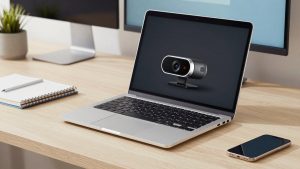
5. Laptop-only travelers: compact clip-on with no software required. For hot-desking and travel, size and mount matter. You want a light camera with a strong clip that fits thin laptop lids and thick office monitors, plus a short cable that does not drag. Skip anything that needs a custom app to get 1080p. On a work laptop you may not be allowed to install it. A simple compact USB webcam for travel that is truly plug-and-play will get used. A feature-heavy one will stay in your bag.
Quick comparison
| Use case | What to buy | Strength | Watch out for |
|---|---|---|---|
| Daily 1:1 calls | 1080p autofocus webcam | Reliable, cheap, works on any laptop | Fixed-focus versions blur if you move |
| Dim home office | 1080p low-light model + LED light | Clean image without grain | Heavy smoothing can look artificial |
| Client presentations | 4K webcam on USB 3.0 | Sharper, allows digital zoom | Needs good light, runs hot, costs more |
| 2-4 person room | Wide-angle conference cam | Everyone in frame, far-field mics | Poor for solo use, can echo |
| Travel / hot desk | Compact UVC webcam | Light, no drivers needed | Small mics, narrow mount options |
Setup mistakes that make any camera look bad
Most bad video is placement, not hardware. Put the camera at eye level, about an arm’s length away. Stack your monitor on books if you have to. Do not shoot up your nose from a low laptop angle, and do not sit with a bright window directly behind you. If you cannot move desks, close the blinds and put a lamp in front of you.
Second, check Teams or Zoom settings. Both default to 720p or “optimize for performance” on battery. Plug in, turn on HD in settings, and quit other apps using the camera. If your image freezes, lower to 1080p instead of 4K, close background blur, and plug directly into the laptop. Background blur and auto-framing use CPU and cause stutter on older Macs and work laptops.
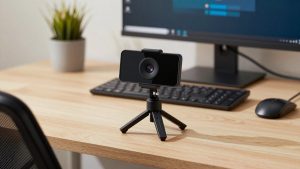
Finally, test the mount. Thick curved gaming monitors and iMacs defeat weak clips. If the camera droops mid-call, you will spend the meeting adjusting it. A camera with a tripod thread plus a small desktop tripod is more stable and gives you better eye-line when using a laptop docked below a monitor.
A note for Mac users
Macs are picky about camera apps. Many Windows-only utilities for zoom, tracking, and background effects do not exist on macOS, or require permissions that work laptops block. Prioritize hardware features – autofocus, light correction, shutter – over software features. Make sure the listing specifically says macOS compatible and UVC compliant. Continuity Camera with an iPhone is a good stopgap, but it drains battery and overheats on long calls, so it is not a replacement for a dedicated webcam if you meet all day.
FAQ
Is 4K worth it for Zoom and Teams?
Usually no. Most meeting apps compress to 720p or 1080p anyway. Buy 4K only if you present, record, or want to crop the frame. For regular calls, a good 1080p camera in good light looks the same and causes fewer stutters.
Why do I look grainy even with a good webcam?
Low light. Add light in front of your face, not behind you. A small daylight-balanced LED panel at 30% brightness will clean up grain more than any upgrade. Also wipe the lens – fingerprints cause haze that looks like a bad sensor.
Do I need a separate microphone?
If you talk more than 30 minutes a day, yes. Webcam mics are okay for listening in, but a headset or USB desktop mic reduces echo and keyboard noise dramatically. It is the fastest way to sound more professional.
Will any webcam work with a work-issued laptop?
Stick to plug-and-play UVC cameras with no required drivers. Avoid models where key features only unlock in a custom app, since IT policies often block installs. Test on your dock and with your meeting app before the return window closes.