Last Updated: October 18, 2026
If you want a “live camera” for home, you almost certainly mean one of three things: a webcam that looks good on Zoom and Teams all day, a camera that can stay live for streaming, classes, or coaching, or a simple way to be on video without fiddling with settings. For most home offices, a dedicated USB webcam still beats a built-in laptop camera by a wide margin. The difference is not just sharpness. It is better exposure in mixed light, less noise in the evening, and a microphone that does not make you sound like you are in a hallway.
I test from a home office perspective: small rooms, overhead lights, windows behind or to the side, Mac and Windows laptops, and calls that run 4-6 hours a day. What matters here is reliability. A camera that drops focus, overheats, or needs its app open to look decent is worse than a simpler one that just works.
📄 In This Review
What “live” actually requires at home
A lot of product pages use “live camera” to mean anything that outputs video. For home work, live means sustained 1080p or better for 30-60 minutes at a time, without focus hunting, without the image getting darker after 10 minutes, and without the mic cutting in and out when your furnace or fan kicks on.
That rules out using many old action cameras or security cameras for calls. They can technically output video, but the color is harsh, the field of view is too wide, and the audio is an afterthought. If your main job is meetings, office hours, telehealth admin, tutoring, or live selling, start with a USB webcam made for people, not rooms.
The cheaper option is genuinely fine if you have good light and a quiet room. A basic 1080p webcam with fixed focus and dual mics will look clean on most laptops made in the last five years. You only need to spend more if you are often on camera in poor light, you move around while teaching or demoing, or you want background blur and framing without running extra software.
The three home setups that cover 90 percent of people
See also: Best Monitor for MacBook Air: Two USB-C 4K Screens and Six Adapter-Dependent Alternatives • Best Monitor for MacBook Pro: Eight Listings Sorted by Cable, Sharpness and Scaling
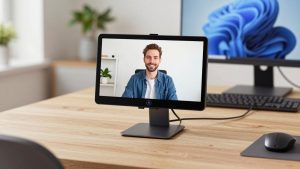
1. The everyday workhorse: 1080p with good autofocus and auto exposure. This is the right pick for office workers, students, remote support staff, and anyone who lives in Zoom, Meet, Teams, or FaceTime. Look for 1080p30 or 1080p60, autofocus rather than fixed focus if you lean in and out, a 78-90 degree field of view, and a privacy shutter. Fixed focus is actually more reliable if you sit still at a desk, because it cannot hunt. Autofocus is better if you hold up documents or move.
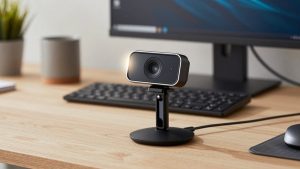
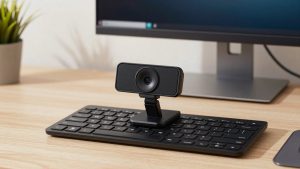
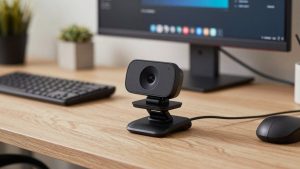
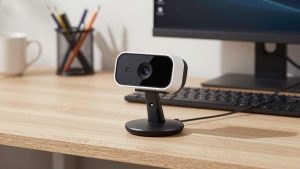
A simple 1080p webcam for laptop in this class usually includes a clip that fits both a laptop lid and an external monitor. Test the clip. Thin laptop lids and curved gaming monitors are where cheap mounts slip. If you use a MacBook with a notched screen, make sure the mount sits below the notch area and does not press on the screen.
2. The step up: 2K or 4K with a larger sensor and better low light. This suits managers who present, teachers, coaches, creators, and therapists who are on video all day and need to look clear at night. The extra resolution is less about 4K calls — most calls still run at 720p or 1080p — and more about cleaner downscaled video, better dynamic range, and usable digital zoom and auto-framing.
A mid-range 4K webcam for home office often adds features like auto-framing, background blur without a green screen, and noise-reducing mics. Trade-off: those features need CPU. On an older MacBook Air or budget Windows laptop, auto-framing plus blur plus Teams effects can make fans spin and video stutter. If your laptop is older, turn off in-camera effects and let Zoom or Teams handle blur, or leave blur off entirely.
3. The stay-in-frame option: auto-tracking webcam for moving presenters. If you teach fitness, do live demos at a workbench, or pace while you talk, a tracking webcam that pans and follows you is useful. For everyone else, it is a distraction. Tracking can lose you when someone walks behind you, when light changes, or when you go out of range. Buy this only if you actually stand and move on camera several times per week.
Quick comparison for home video calls
| Type | Typical video | Strengths | Weak points | Best for |
|---|---|---|---|---|
| Budget 1080p webcam | 1080p30, fixed focus or basic autofocus | Plug-and-play, low CPU load, shutter included | Struggles in warm/dim rooms, narrow dynamic range | Desk work, students, second computer |
| Mid-range 2K/4K webcam | 1440p-4K sensor, outputs 1080p-4K | Better low light, cleaner zoom, improved mics | Needs good USB port and newer laptop for effects | Daily presenters, teachers, coaches |
| Auto-framing / tracking webcam | 1080p-4K with PTZ or digital tracking | Follows speaker, wide room coverage | Can over-correct, sensitive to backlight | Standing demos, classes, workshops |
| Mirrorless camera as webcam | 1080p-4K via USB/HDMI | Best image and blur, great in bad light | Expensive, needs power, can overheat, complex | Streaming, YouTube, full-time creators |
Failure modes I see most at home
Grainy evening video: This is usually not the camera. It is a single overhead LED plus a bright window behind you. Face a window or put a $20 daylight lamp behind your monitor. If you buy a better camera without fixing light, you will still look orange and noisy.
Focus pumping: Autofocus webcams hunt when there is low contrast, steam, a patterned shirt, or something moving behind you. If you sit still, switch the camera app to fixed or manual focus at your distance. If you present objects, hold them beside your face for a second instead of shoving them toward the lens.
Bad audio blamed on video: In small rooms with hard floors, every webcam mic picks up echo and keyboard clatter. If people ask you to repeat yourself, the fix is usually a closer mic — wired earbuds are enough — not a more expensive camera. Even premium webcam mics sound thin beyond three feet.
USB and Mac quirks: 4K webcams want USB 3.0 bandwidth and direct ports. Through a cheap hub or a long extension, they will drop to 1080p or freeze. On Mac, check Privacy settings and quit the vendor utility after setup. Some utilities fight with Zoom for control of exposure and focus. Set it once, then close it.
Overheating on long lives: Small 4K webcams get warm. That is normal, but if yours dims or disconnects after 45 minutes, drop from 4K to 1080p in the app. You will still look sharper than most callers, and the camera will run cooler and more stable. Save full 4K for recorded video.
How to choose without overbuying
Start with light and framing. Put the camera at or slightly above eye level, about arm’s length away. A stack of books under a monitor beats a wide-angle camera mounted too low. Set field of view to 78-90 degrees for one person. Wider than 95 degrees pulls in your messy room and makes you small.
For laptops, compatibility is simple but worth checking: UVC plug-and-play works on Mac and Windows without drivers, which is what you want. Avoid anything that requires a permanent background app to reach 1080p. Check that the mic is recognized as a separate USB audio device, so you can pick it in Teams or Meet without changing your speakers.
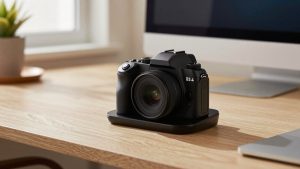
If you stream or record as well as meet, look for 1080p60 or 4K30 with clean HDMI or UVC output, tripod thread, and manual exposure. A webcam with tripod mount for streaming gives you more placement options than a monitor clip when you need to show a desk, piano, or workbench. That is the one case where a mirrorless camera starts to make sense, but only if you are willing to power it continuously and learn exposure basics.
Do not pay extra for gimmicks you will turn off. Beauty filters, gesture controls, and heavy sharpening look bad on work calls. Privacy shutter, solid mount, long attached cable or detachable USB-C, and honest low-light performance matter far more.
FAQ
Is a 4K webcam worth it for Zoom and Teams?
Usually not for resolution alone, since most calls compress to 720p or 1080p. It is worth it if you want cleaner video in dim rooms, digital zoom without mush, and better auto-framing. If your room has good daylight and you sit still, save the money.
Why do I look worse than my laptop camera did in the store?
Stores use bright, even light. Homes have mixed bulbs, backlit windows, and dark walls. Face your main light source, turn off lights behind you, and set exposure for your face, not the room. That fixes more than any upgrade.
Can I use a security camera or GoPro-style camera as a home live camera?
You can, but for desk work it is usually worse. Very wide lenses distort your face, colors skew, and mics are poor. Those cameras suit monitoring a room or action footage, not eight hours of meetings. Get a webcam made for close-up people.
Do I need an external mic too?
If others hear echo, typing, or HVAC noise, yes. Even basic wired earbuds placed close to your mouth will beat any webcam mic at desk distance. Keep the webcam for video and switch audio input to the closer mic.
Related Reviews & Guides
Best Webcam with Zoom Capability

Ergonomic Chair Office: Top Picks Compared in 2026