Last Updated: October 18, 2026
If you are recording yourself live at your desk — for a course, YouTube, webinar replay, or live training — your needs are different from someone who just joins Zoom calls. You need steady focus, clean exposure when you move, audio that does not drift out of sync, and a picture that holds up after YouTube or Teachable compresses it.
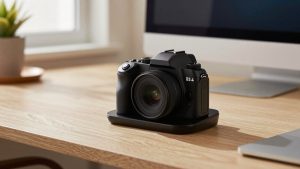
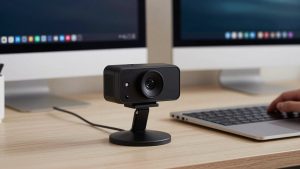
For most home offices, that still means a webcam. A mirrorless camera looks better, but it adds cost, batteries, HDMI capture, overheating, and extra software to babysit during a live take. Unless you are already lighting your face and you want background blur on demand, a good USB webcam is more reliable and much easier to re-record with.
📄 In This Review
What actually matters for live recording
Resolution is the least important spec on the box. What ruins live recordings is autofocus hunting, auto-exposure pumping when you share a bright slide, and aggressive noise reduction that makes your face look waxy. Look for stable 1080p or 4K at 30fps, manual exposure and white balance controls in software, and a 65 to 78-degree field of view so you are not stuck too small in frame.
The other failure mode is audio. Most webcam mics sound echoey in a normal room and pick up keyboard clicks. They are fine for a scratch track to sync later, but if you publish the recording as-is, plan on a separate USB mic placed 6 to 8 inches from your mouth. Also check cable length and mount. A short fixed cable that barely reaches a MacBook dock, or a clip that slips on a thick monitor, will cause more retakes than any sensor difference.
The three practical setups
See also: Best Monitor for MacBook Air: Two USB-C 4K Screens and Six Adapter-Dependent Alternatives • Best Monitor for MacBook Pro: Eight Listings Sorted by Cable, Sharpness and Scaling
There are really only three setups that make sense for desk-based live recording. A standard 1080p business webcam is enough if you record talking-head updates, coaching calls with permission, or Loom-style walkthroughs where screen content is the star. A higher-end 4K USB webcam is better if you crop in, record full-screen to YouTube, or need better low-light handling in a dim home office. A mirrorless or action camera with USB streaming / HDMI capture only makes sense if you already own the camera and want shallow depth of field.
Be honest about your room. If you have overhead office lighting and a window behind you, no camera will save the recording. A $30 LED panel in front of you and closing the blinds will improve a cheap webcam more than upgrading to a $300 webcam in a bad room.
| Setup | Best for | Strengths | Trade-offs |
|---|---|---|---|
| 1080p business webcam | Meetings, courses, screen tutorials | Plug-and-play, good Mac/Windows support, low CPU load | Softer when cropped, struggles in low light |
| 4K USB webcam | YouTube, webinars, live training replays | Sharper detail, digital zoom/crop, better auto-framing | Needs good USB port and light; 4K files are heavy |
| Fixed-focus document / overhead webcam | Desk demos, handwriting, crafts, unboxings | Stays sharp up close, no focus hunting | Bad for face shots; needs separate mount or arm |
| Mirrorless with USB/HDMI | Creators who already own one | Best blur and low light, interchangeable lenses | Overheating, battery limits, capture setup, higher cost |
When the cheaper 1080p option is fine
For most work recording, it is. If your final video is shown in a 1080p player next to slides, or compressed by Zoom, Teams, or a course platform, viewers cannot tell a $90 webcam from a $250 one once you add a key light. What you want here is reliable autofocus, dual mics with basic noise reduction, and software that lets you turn off auto everything.
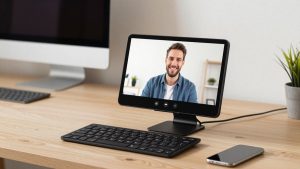
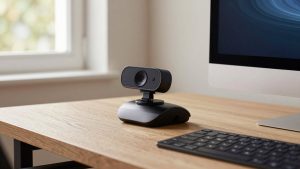
Shop for a 1080p webcam for video calls with shutter with a physical privacy shutter and tripod thread. The shutter matters because you will leave it mounted and pointed at your desk. The tripod thread matters because monitor clips vibrate when you type, which shows up badly in recordings. Failure mode to expect: fixed-focus cheap models look sharp at arm’s length but go soft if you lean back. Test your normal chair position before you record a full hour.
When to step up to 4K USB
Buy 4K when you publish full-screen face video and you crop. Recording in 4K and delivering in 1080p lets you punch in 1.5x in editing without obvious softness, which hides jump cuts and keeps one-camera recordings watchable. Newer 4K webcams also handle mixed office light better and offer auto-framing that follows you if you stand to whiteboard.
Look at a 4K USB webcam for streaming if that describes you, but check two things: USB bandwidth and Mac support. Many need a direct USB-C or USB 3.0 port, not a cheap hub, to hold 4K30 without dropping frames. And some features like background blur, framing, or firmware updates are Windows-only or limited on Mac. Common failure mode: leaving it in 4K on an older laptop causes fan noise and dropped frames, which then ruins your audio. If your machine is 4+ years old, record in 1080p even if the camera supports 4K.
For desk demos and live hands-on recording
Face cameras are terrible at filming your hands. Autofocus hunts, exposure blows out on white paper, and the angle is wrong. If you record crafts, soldering, writing, product repairs, or art, get a second fixed-focus camera on an arm looking straight down. You can switch angles in OBS, QuickTime, or Descript without moving your main camera.
A small overhead document webcam for desk demos on a gooseneck or boom arm is usually better than trying to make one expensive camera do both jobs. Who it suits: teachers, Etsy sellers, engineers doing live teardowns. Who should skip it: anyone who only records their face. Failure mode: overhead arms wobble. Clamp to the desk, not to a monitor shelf, and lock exposure so white paper does not pulse brighter and darker as your hands move.
Setup that prevents retakes
Mount the face camera at eye level, about an arm’s length away. Put a soft light source behind the camera, aimed at your face, not at the camera. Set exposure manually so your face looks the same when you open a white browser window. Turn off auto-framing unless you actually move around. Record a 60-second test clap — clap once on camera — then check lip sync and fan noise before you do a 40-minute take.
On Macs, prefer webcams that are UVC-compliant with no driver required. They work in QuickTime, OBS, Zoom, and Descript without background utilities. On Windows laptops, you have more tuning software available, but disable beauty filters and low-light boost for recording. They reduce noise by smearing detail, which looks worse after YouTube compression than a little grain.
FAQ
Do I need 60fps for live recording?
No, for talking-head work. 30fps looks natural and needs half the light and processing of 60fps. Only choose 60fps if you record fast hand movements, gaming, or product demos where motion smoothness is visible.
Can I use my laptop’s built-in camera?
For internal drafts, yes. For anything you publish, no. Built-in MacBook and Windows cameras are small, noisy in indoor light, and fixed in a low angle that looks up your nose. Even a basic external 1080p webcam at eye level is a clear step up.
Why does my recording look worse than the preview?
Usually compression or dropped frames. Record locally at high bitrate instead of recording a Zoom cloud file, plug the camera directly into USB 3.0, and add light so the camera can use low ISO. Also lock focus and exposure.
Should I record 4K or 1080p?
Record 1080p if you publish quickly and your laptop is older. Record 4K if you crop in editing and have storage and CPU headroom. In both cases, good light and a separate USB mic matter more than resolution.