Last Updated: October 18, 2026
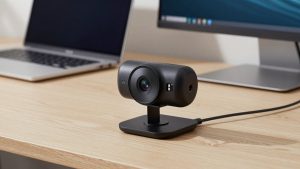
If you use Zoom for work every day, your built-in laptop camera is probably the weakest link. It is small, it struggles in office lighting, and it makes you look grainy the moment the sun goes down. A high quality webcam for Zoom does not mean the most expensive 4K camera. It means clean 1080p video, stable autofocus, and a microphone that does not make you sound like you are in a bathroom.
After testing different setups in real home offices — cluttered desks, backlit windows, cheap LED lights — the pattern is clear: lighting and software processing matter more than raw resolution. Zoom compresses video heavily anyway. What you pay for in a better webcam is how well it holds up after that compression.
📄 In This Review
What Zoom actually needs
Zoom caps most group calls at 720p or 1080p, even if you have a 4K camera. That surprises a lot of buyers. A 4K sensor can still help because Zoom downscales from a sharper source, which usually looks cleaner with less noise, but you will not look four times sharper just because the box says 4K.
What actually shows up on the other person’s screen is: exposure stability, color accuracy, and frame rate consistency. A good webcam keeps your face evenly lit when you move, does not blow out your window to pure white, and holds 30 fps without stuttering when you gesture or lean in. Cheap cameras fail here first. They hunt for focus, they pulse brighter and darker, and they drop frames when your CPU is busy running Zoom, Slack, and Chrome at once.
Audio matters just as much. If people ask you to repeat yourself, it is rarely your video. It is echo, room reverb, or a weak mic that picks up your keyboard. For 1-on-1s and interviews, a webcam mic is fine if you sit 2-3 feet away in a quiet room. For 4+ hours of meetings a day, get a separate USB mic or headset regardless of webcam.
1080p vs 2K vs 4K for Zoom
See also: Best Monitor for MacBook Air: Two USB-C 4K Screens and Six Adapter-Dependent Alternatives • Best Monitor for MacBook Pro: Eight Listings Sorted by Cable, Sharpness and Scaling
For most office workers, a good 1080p camera with autofocus and a large sensor beats a cheap 4K camera. The honest hierarchy is sensor quality and lens first, resolution second.
A basic 1080p fixed-focus webcam is fine if you sit still at the same desk, face a window or lamp, and only do internal team standups. It is simple, plug-and-play, and puts less load on older laptops. Where it fails is low light and movement: grainy image at night, soft focus if you lean back, and washed-out contrast if you have a bright window behind you.
A mid-range 2K or quality 1080p autofocus webcam is the sweet spot for managers, teachers, coaches, and job seekers. You get a wider dynamic range, better auto white balance, and usually dual noise-canceling mics. This is where you see the biggest jump in how professional you look.
Full 4K makes sense for a specific group: presenters, creators, consultants who record Zoom calls for clients, or anyone who crops in to frame tighter. You can shoot wide and crop to 1080p in software without it falling apart. The trade-offs are price, more CPU load, and heat. Some 4K webcams get warm and throttle after an hour. If you buy 4K, look for one with good heat management and the option to run it in 1080p mode for long calls.
| Category | Best for | Strengths | Weaknesses |
|---|---|---|---|
| Basic 1080p fixed-focus | Internal calls, students | Cheap, easy on CPU, works on old laptops | Soft in low light, no tracking, weak mics |
| Quality 1080p / 2K autofocus | Daily Zoom work, interviews | Stable focus, better color, good value | No cropping headroom, varies by lighting |
| 4K business webcam | Client-facing, recording, presenting | Sharpest source, digital zoom, pro framing | Higher price, more heat and CPU use |
| Zoom-certified business cam | IT-managed teams, conference rooms | Tested with Zoom, better mics, privacy shutter | Bulkier, overkill for occasional use |
Features that actually matter on Zoom
Autofocus speed is underrated. Slow autofocus is distracting — every time you pick up a pen or lean forward, your face goes blurry for two seconds. Look for fast, quiet autofocus that locks and stays locked. If you move a lot or do whiteboard demos, autofocus is non-negotiable. If you sit perfectly still for sales calls, a fixed-focus model set to your distance can actually look sharper.
Field of view is the second trap. A 90-degree or wider lens is great for a small conference room, but terrible for a messy bedroom office. It shows everything. For a home desk, 65 to 78 degrees is more flattering and keeps the focus on you. Some higher-end cameras let you switch between 65, 78, and 90 degrees in software. That one setting solves more complaints than resolution ever will.
Low-light correction helps, but check how it does it. Cheap cameras just crank up gain, which adds grain. Better cameras use a larger sensor and slower, smarter noise reduction. If you take evening calls, a camera with a larger f/2.0 or wider aperture lens plus a $20 desk lamp behind your monitor will beat any software trick. Do not rely on auto low-light alone.
Practical extras worth paying for: a physical privacy shutter, a standard tripod thread, and a monitor mount that actually grips. Clip mounts that wobble every time you type are a common failure mode. So are short, stiff USB cables that pull the camera sideways on thin MacBook lids. A detachable USB-C cable that is at least 5 feet long saves a lot of frustration.
Laptop and Mac notes
On M1/M2/M3 Macs, most modern webcams are plug-and-play with Zoom, but 4K modes can trigger permission or scaling quirks in macOS. If you buy a 4K webcam for Zoom on Mac, plan to run it at 1080p for daily calls and switch to 4K only for recordings. Also close other camera apps — Macs will block Zoom if Photo Booth or Teams is holding the camera.
On Windows laptops, CPU load is the issue. A cheap 4K camera plus background blur plus virtual background will stutter on a 4-year-old i5. If your laptop fan screams on Zoom, choose a quality 1080p autofocus webcam instead and let Zoom do 720p. You will look smoother, which reads as higher quality than a stuttery 1080p feed.
For hybrid workers who dock and undock, get a webcam you can leave on your external monitor. Constantly moving a clip-on camera bends the mount and loosens the hinge. A second cheap camera for the laptop bag is often better than one expensive camera you carry everywhere.
Who should buy what
If you do two to three Zoom calls a week in a bright room, the cheaper option is fine. A basic 1080p camera with decent reviews, plus facing a window and turning off overhead lights, will look better than a $200 camera in a dark backlit room. Spend the savings on lighting.
If you live on Zoom — managers, recruiters, therapists, tutors — step up to the mid-range. That is where you get reliable autofocus, dual mics with noise reduction, and software to adjust exposure, zoom, and field of view. Look at a business webcam with noise-canceling mic if you take calls with kids, traffic, or office chatter in the background. Just keep expectations realistic: noise reduction helps with fans and typing, it does not erase a barking dog next to you.
If you present to clients or record training, buy for stability over specs. A camera that holds exposure during screen shares, does not overheat in hour three, and remembers your framing after reboot is worth more than 8 extra megapixels. Test your exact setup before an important call: same time of day, same lamp, same Zoom background blur setting. That 10-minute test catches 90 percent of failures.
FAQ
Do I need 4K for Zoom to look professional?
No. Zoom compresses video to 720p or 1080p for most calls. A clean, well-lit 1080p feed looks professional. Buy 4K only if you crop, record, or want better downscaled detail — and only if your computer handles it without dropping frames.
Why do I look grainy even with a good webcam?
Almost always lighting or backlight. Face a soft light source, put blinds down behind you, and avoid a bright window directly behind your head. If you are still grainy, lower your field of view and move the camera closer instead of using digital zoom.
Will a webcam fix bad audio on Zoom?
Partly. A better webcam mic with noise reduction helps with fan hum and room echo if you sit close. It will not fix a loud room or being six feet away. For daily meetings, a dedicated USB headset or desk mic is still the biggest upgrade.
Do these webcams work with MacBooks and Zoom backgrounds?
Yes, most USB webcams work with Intel and Apple Silicon Macs without drivers. Zoom virtual backgrounds and blur work, but they need CPU power. If blur stutters, switch the camera to 1080p or 720p, or use a plain background instead.
Related Reviews & Guides

6 Best Hewlett Packard Docking Stations For Laptop 2026
Best Webcam for Video Recording