Last Updated: October 18, 2026
- What broadcasting demands from a webcam
- Quick comparison: three practical routes
- Best all-around: a high-quality 4K USB webcam
- Best for reliability: 1080p60 webcam with good low light
- Best image quality: use a mirrorless camera you already own
- Lighting, audio, and mounting matter more than the camera
- What to avoid
- FAQ
If you are buying a webcam for broadcasting, you are buying for a different job than a normal work call. On Zoom, 1080p and decent auto-exposure is enough. For broadcasting — live teaching, webinars, YouTube Live, Twitch, church services, coaching — people watch for 30 to 90 minutes. Soft focus, noisy shadows, and auto-exposure pumping up and down will drive them away.
The good news: you do not need a studio camera to look professional. Most solo broadcasters are best served by a good USB webcam, good light, and a stable mount. Only step up to interchangeable-lens cameras if you already own one or you need shallow depth of field.
📄 In This Review
- What broadcasting demands from a webcam
- Quick comparison: three practical routes
- Best all-around: a high-quality 4K USB webcam
- Best for reliability: 1080p60 webcam with good low light
- Best image quality: use a mirrorless camera you already own
- Lighting, audio, and mounting matter more than the camera
- What to avoid
- FAQ
What broadcasting demands from a webcam
Resolution matters less than people think. Bitrates on YouTube Live, LinkedIn Live, and webinar platforms crush fine detail anyway. What survives compression is clean exposure, accurate skin tones, and sharp focus on your face.
Look for three things: a large-ish sensor with good low-light performance, manual control over exposure and white balance, and a reliable 30fps or 60fps feed that does not drop when your laptop gets warm. Autofocus should be fast but not jittery. Background blur done in-camera or in software helps if your room is messy, but it often creates flicker around hair and glasses.
Failure mode to know: many cheap 4K-labeled webcams use tiny sensors and aggressive sharpening. On paper they say 4K. In a dim home office they look worse than a good 1080p camera — grainy, waxy skin, and laggy motion. Do not buy on resolution alone.
Quick comparison: three practical routes
See also: Best Monitor for MacBook Air: Two USB-C 4K Screens and Six Adapter-Dependent Alternatives • Best Monitor for MacBook Pro: Eight Listings Sorted by Cable, Sharpness and Scaling
| Option | Best for | Strengths | Trade-offs |
|---|---|---|---|
| Premium 4K USB webcam | Solo presenters, teachers, webinar hosts | Simple USB setup, good autofocus, software controls, works with Mac and PC | Fixed lens, limited low-light vs large sensor, needs good lighting to look 4K |
| 1080p60 workhorse webcam | Long live calls, workshops, coaching | Smoother motion, less heat, lower CPU load, cheaper | Less cropping flexibility, softer if viewers fullscreen on 4K TV |
| Mirrorless / DSLR as webcam | Creators who want blurry background and best image | Much better sensor, lens choice, clean HDMI or USB streaming | Complex, expensive, overheating and battery limits, needs capture card or clean USB out |
For about 80 percent of home-office broadcasters, the premium 4K USB webcam is the right middle ground. You get enough detail to crop in slightly and enough software control to lock exposure. If you broadcast for hours daily, the 1080p60 workhorse is often the more reliable pick.
Best all-around: a high-quality 4K USB webcam
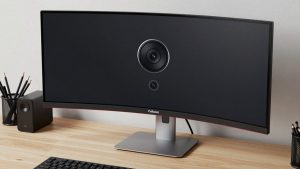
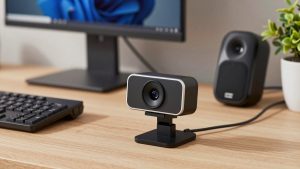
This is what to buy if you run webinars, live courses, or a small YouTube channel from a desk. You want a well-known webcam with a larger sensor, 4K30 or 1080p60 modes, autofocus, dual noise-reducing mics as backup, and desktop software for exposure, white balance, zoom, and firmware updates.
When shopping, check for Mac compatibility explicitly. Some camera apps are Windows-only, which means on a MacBook you are stuck with auto settings. Also check cable length and whether it needs USB 3.0 for full resolution. Plugging a 4K camera into an old USB 2.0 hub is a common reason for stutter.
Who it suits: hosts who talk to camera, show slides, and occasionally hold up a product. Who should skip: if your room is very dark or you want that blurry podcast-studio background, a webcam will not fake it well. Fix lighting first or consider a larger camera.
A practical starting point is to browse a curated 4K webcam for streaming search and filter for models with desktop software and a privacy shutter. Read reviews that mention long sessions, not just unboxing.
Best for reliability: 1080p60 webcam with good low light
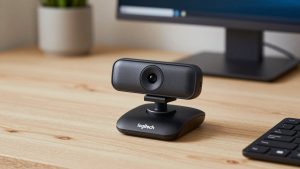
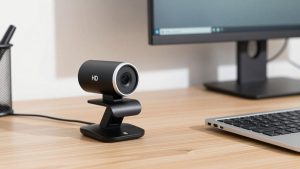
If you broadcast for two to four hours straight, smoothness and thermal stability beat headline resolution. A good 1080p sensor running at 60fps looks fluid when you gesture, write on a whiteboard, or move papers around. It also puts less load on older laptops and MacBook Airs, which means fewer dropped frames in OBS, StreamYard, or Teams.
Trade-off is honest: you cannot crop in as far in editing, and text on a whiteboard behind you will be less legible. Keep the camera 2 to 3 feet away, face a window or a key light, and you will look sharper than most 4K feeds in poor light.
Failure mode: aggressive autofocus hunting. Budget 1080p cameras often pulse in and out when you lean back. If your software allows it, set focus once and lock it to manual for desk work. That single change fixes most complaints.
If budget matters, this is where the cheaper option is fine. A mid-range 1080p60 webcam with autofocus plus a $30-40 LED panel will outperform an expensive 4K camera in a dark room.
Best image quality: use a mirrorless camera you already own
A mirrorless or DSLR with clean HDMI output will beat any webcam for skin tones, low light, and background separation. If you already own one for photography, adding a capture card and a dummy battery turns it into a superb broadcast camera.
Do not buy a new mirrorless system just for desk broadcasting unless video is your business. You add cost, complexity, lens decisions, overheating limits on some bodies after 45-60 minutes, and audio sync to manage. For interviews and product demos it shines. For daily standups it is overkill.
If you go this route, you need continuous power, a tripod or desk mount that does not wobble, and a way to keep focus locked on your eyes. Test a full-length session before going live. Many cameras that work fine for 10 minutes overheat or shut off at 30 minutes.
Most people attempting this need a simple HDMI USB capture card for streaming and a compatible dummy battery for their specific camera model. Match the battery coupler exactly — wrong models are a common return reason.
Lighting, audio, and mounting matter more than the camera
Broadcasting exposes weak setups. Put a soft key light in front of you at eye level, slightly to one side. Keep bright windows out of the frame behind you or your face will go dark as auto-exposure compensates. Lock exposure and white balance once lighting is stable.
Do not rely on the webcam mic for a full broadcast. It is fine as backup, but room echo becomes exhausting after 20 minutes. A basic USB dynamic mic on a boom arm is a bigger upgrade than moving from 1080p to 4K.
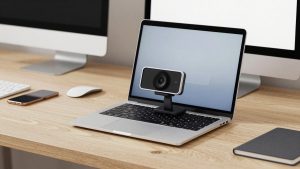
Mount the camera at eye level and keep it still. Top-of-monitor clips vibrate when you type. For longer shows, a small desk tripod behind the monitor is steadier and lets you frame tighter without showing the monitor bezel.
What to avoid
Avoid no-name 4K webcams with no software support and no firmware updates. They often lie about frame rates, running 4K at 15fps with heavy compression. Avoid ultra-wide business cameras for solo broadcasting — they make you tiny in frame unless you digitally zoom, which throws away quality.
Also avoid 60fps if your laptop is struggling. A stable 30fps feed with locked exposure looks far more professional than a juddering 60fps feed that drops to 22fps under load.
FAQ
Do I need 4K for broadcasting?
No, not usually. 1080p with good light and locked exposure looks excellent on YouTube Live and webinar platforms. Choose 4K if you want to crop in slightly or future-proof, but prioritize sensor quality and software controls over the 4K label.
Why does my broadcast look grainy even with a good webcam?
Almost always low light. Add a key light in front of you, turn off overhead-only lighting, and lower the camera’s exposure compensation instead of letting gain boost automatically. Lock settings once it looks clean.
Will these webcams work with Mac and OBS?
Most USB UVC webcams work plug-and-play on Mac, but advanced settings may require Windows software. Check for Mac app support before buying if you need manual exposure, zoom presets, or background controls, and test in OBS before show day.
Should I use my camera’s background blur?
Only if your room is distracting and you have CPU headroom. Software blur can flicker around hair and glasses and raise fan noise on laptops. A tidy background or simple backdrop often looks cleaner and runs cooler.