Last Updated: October 18, 2026
If you use a Mac for work calls, “compatible with Mac” mostly means one thing: it works over USB without needing Windows-only software to look decent. Most modern USB webcams meet that bar for basic video, but many lose key features on macOS — no settings app, autofocus quirks, or mic issues in Zoom and Teams.
After testing this category for home-office use, the pattern is clear: buy for sensor quality and Mac-friendly controls, not for the spec sheet. A good 1080p camera with a large sensor and clean exposure will beat a cheap 4K camera in a dim home office every time.
📄 In This Review
What Mac compatibility really means
On a MacBook or Mac mini, you want UVC compliance. That is the USB video standard that lets macOS recognize a camera without drivers. Almost every current webcam from the major brands is UVC-compliant, so FaceTime, Zoom, Google Meet, Teams, and Webex will see it immediately.
The gap is in adjustment. On Windows you often get a full app for field of view, autofocus, exposure, noise reduction, and firmware updates. On Mac, that app is frequently missing, read-only, or browser-based. That matters because auto-exposure hunting and over-sharpening are the two most common reasons people look washed out or waxy on calls.
Practical rule: if you will never tweak settings, buy a camera that looks good on default auto mode. If you want control, prioritize a camera that either stores settings on-device or has a real macOS settings utility, not just a Windows .exe.
The three options that make sense
See also: Best Monitor for MacBook Air: Two USB-C 4K Screens and Six Adapter-Dependent Alternatives • Best Monitor for MacBook Pro: Eight Listings Sorted by Cable, Sharpness and Scaling
For Mac-based work, there are really three categories worth buying. Everything else is a compromise for streaming or content creation.
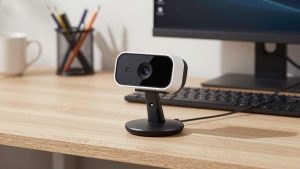
1. Everyday 1080p USB webcam. This is the right choice for most office workers. You get plug-and-play operation, low CPU load, and fewer focus problems. Look for a 1080p/30 or 1080p/60 model with a decent-size sensor, dual mics with noise reduction, and a physical privacy shutter. The cheaper option is genuinely fine here if your room has decent light and you sit 2-4 feet from the screen.
2. 4K USB webcam for framing flexibility. A 4K USB webcam is not about sending 4K to Zoom — Zoom will compress it anyway. The benefit is a sharper 1080p image after downscaling, plus digital zoom and auto-framing without turning to mush. Trade-off: smaller pixels can mean more noise in low light, higher price, and more heat during all-day calls. Best for managers, coaches, teachers, and anyone who presents and moves around.
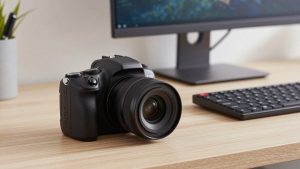
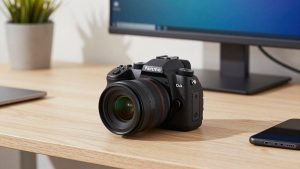
3. Mirrorless or action camera as a webcam. This is the image-quality winner by a large margin, especially in bad light. You connect over USB with the manufacturer’s webcam mode or use an HDMI-to-USB capture dongle. Trade-off: much more hassle. You need power (dummy battery or USB-PD), you have to manage overheating on long calls, and autofocus can hunt if you use a wide aperture lens. Only buy this if calls are revenue-generating and you are willing to maintain a small rig.
What I would skip for pure work: built-in laptop cameras as a primary camera (too noisy and too low in the frame), document cameras, and cheap no-brand 4K webcams that interpolate 1080p sensors. The latter often have harsh sharpening you cannot turn off on Mac.
Quick comparison
| Type | Typical image on Mac | Mac setup pain | Best for |
|---|---|---|---|
| 1080p business webcam | Clean and consistent in good light, soft in dim rooms | Low — usually plug-and-play | Daily Zoom/Teams, shared desks, IT-managed Macs |
| 4K USB webcam with auto-framing | Sharper cropped 108ob / 1080p, better digital zoom | Medium — check for macOS settings support | Presenters, teachers, home offices with variable light |
| Entry 1080p budget webcam | Fine with window light, noisy at night | Low, but fewer controls | Second desk, kids’ school Mac, backup camera |
| Mirrorless camera + capture | Best skin tones and low light by far | High — power, heat, audio routing | Founders, sales, course creators on Mac Studio/mini |
What to buy for your situation
If you are on a MacBook at a desk all day: Get a midrange 1080p business camera with autofocus and a 78-90 degree field of view. Mount it on top of your external monitor, not on the laptop off to the side. Eye-level placement does more for how professional you look than resolution. An 1080p business webcam with autofocus and privacy shutter is the safe default that IT departments also prefer because there is no driver to approve.
Failure mode to know: fixed-focus budget cameras are sharp at exactly one distance. If you lean back in your chair, you go soft and the camera will not recover. Autofocus fixes this but can pulse during screen shares if you have a busy background. If that happens, reduce background clutter or switch to a narrower field of view.
If your office is dark: Do not buy more resolution, buy more light sensitivity. Look for a larger sensor, f/2.0 or faster lens, and honest low-light samples — not just lux ratings. Even a $35 LED panel at 4000-5000K will improve a $60 camera more than upgrading to a $150 camera in the same dark room. Place the light behind your monitor, facing you, not overhead.
If you present or teach: Auto-framing 4K is worth it. When you stand to use a whiteboard, the camera follows without a cameraperson. On Mac, verify two things before you buy: 1) framing modes can be toggled without Windows software, ideally with an on-camera button or Mac app, and 2) the mic has adjustable noise removal. Macs in kitchens and living rooms pick up HVAC and keyboard clicks easily.
If you want the best image on a Mac mini or Mac Studio: Use a real camera. A last-generation mirrorless body with a 24mm-equivalent lens at f/2.8, powered continuously, plus a simple HDMI to USB capture dongle for Mac will look dramatically better than any webcam. Use a separate USB mic — camera mic preamps hiss. The failure modes are real: 90-minute overheating shutdowns, batteries dying mid-call, and macOS switching audio inputs after sleep. Test a full-length call before you rely on it for clients.
Mac setup mistakes that ruin image quality
First, USB hubs. Many Mac webcam problems — freezing, dropped frames at 4K, mic stutter — are underpowered hubs or long extension cables, not the camera. Plug directly into the Mac for testing, then add the dock back. If you must use a dock, use a powered one and keep the camera on a USB 3.x port, not shared with an SSD.
Second, double processing. Turn off both background blur in Teams/Zoom and beauty filters in the camera if you can. Stacking them creates halo edges and smeared glasses. Pick one.
Third, permissions and defaults. After macOS updates, check System Settings > Privacy & Security > Camera and Microphone. Macs also love to revert to the MacBook mic after you unplug a dock. In Zoom, set the external mic and speaker explicitly rather than leaving them on Same as System.
Finally, exposure. If your face is blown out by a window, face the window or close the blinds halfway. No webcam has enough dynamic range to handle a bright window behind you. Center-weighted exposure helps, but repositioning helps more.
FAQ
Do I need drivers for a webcam on Mac?
Usually no. Choose a UVC-compliant USB camera and macOS will recognize it in FaceTime, Zoom, Meet, and Teams. You only need extra software if you want to change field of view, focus, or firmware — and that software is not always available on Mac, so check first.
Is 4K worth it for Zoom calls on a MacBook?
For most people, no. Zoom and Meet compress video heavily, so recipients see roughly 720p to 1080p anyway. Buy 4K only if you want cleaner digital zoom, auto-framing, or better downscaled 1080p. Otherwise a good 1080p camera plus better lighting looks better and runs cooler.
Why does my webcam look worse on Mac than on Windows?
Often because default settings differ and the tuning app is Windows-only. Over-sharpening, wide field of view, and aggressive auto-exposure are common culprits. If you cannot adjust settings on macOS, choose a model known for good out-of-box auto mode and use a narrower field of view.
Can I use my iPhone or mirrorless camera instead of buying a webcam?
Yes. Continuity Camera with a recent iPhone is excellent for occasional Mac calls and needs no extra hardware beyond a mount. A mirrorless camera looks even better but requires continuous power, heat management, and audio routing. For daily work reliability, a dedicated USB webcam is still simpler.